
How to Create a Vertical Menu in Elementor [Step-by-Step]
Struggling to organize your website’s navigation in Elementor? A cluttered or confusing menu can frustrate visitors and drive them away.
For a side-panel alternative to a vertical top-level menu, see how to create a side menu instead.
This guide covers how to create a vertical menu in Elementor, step by step.
You want a sleek, user-friendly vertical menu that stands out and guides users effortlessly, but you’re not sure where to start. Don’t worry!
In this blog, you’ll discover a simple, step-by-step process to create an eye-catching vertical menu in Elementor, making your site both stylish and easy to navigate.
Step 1: Install The Plus Addons for Elementor
Before you start, make sure you have The Plus Addons for Elementor installed and activated on your website. This powerful add-on gives you access to the Navigation Menu widget, which makes creating a vertical menu a breeze.
Tip: If you’re using the free Nexter Builder or Elementor Pro, you can create custom templates for your menu placement.
Step 2: Add the Navigation Menu Widget
Navigate to the area where you want your vertical menu. This could be your header, sidebar, or a specific page template.
Drag and drop the Navigation Menu widget from The Plus Addons onto your chosen section.
Step 3: Set Up the Vertical Menu
- Choose Menu Type: In the widget settings, select the appropriate option from the Menu Type dropdown. This determines which menu you’ll display.
- Select Vertical Menu Direction: From the Menu Direction dropdown, choose Vertical Menu. This will instantly align your menu items vertically.
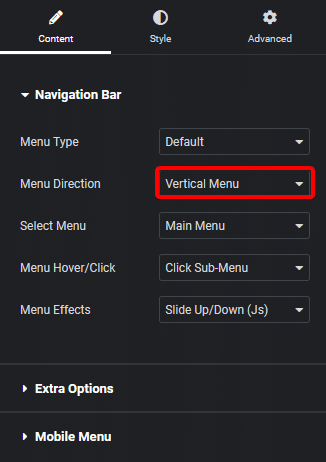
- Pick or Create Your Menu: Depending on your menu type selection, either pick an existing menu or create a new one right from the settings.
Step 4: Customize the Submenu Behavior
You can further personalize your menu by selecting how submenus appear. Choose your preferred submenu hover event and effect to enhance user interaction.
Step 5: Finalize and Publish
Once you’re happy with your vertical menu, save your changes and preview your site. Your new vertical menu should now be live and aligned just the way you want!

Wrapping Up
Creating a vertical menu in Elementor is simple and effective with The Plus Addons’ Navigation Menu widget.
By following these straightforward steps, you’ll add a unique touch to your website’s navigation, making it both visually appealing and user-friendly.
Whether you’re updating your sidebar or redesigning your header, a vertical menu can set your site apart and improve the overall browsing experience. If your menu needs to scale or update frequently, the Repeater control in Elementor offers a more dynamic alternative: see how to create a menu with repeater in Elementor.
Want the sticky header without the code?
Sticky Header Effects for Elementor drops in as a widget. Free plugin, no account needed.
