
How to Open Dropdown on Hover in Elementor [Step-by-Step]
Are you frustrated that your Elementor dropdown menus only open on click, making navigation less smooth for your visitors? This problem leads to a clunky user experience.
The click-triggered version of this same setting is covered in how to open a dropdown on click in Elementor.
How to Open Dropdown on Hover in Elementor comes down to a single setting inside the Nav Menu widget.
This guide covers how to open a dropdown on hover in Elementor, the setting most builders miss.
But there’s a simple solution! By enabling dropdowns to open on hover, you’ll create an intuitive navigation for your site.
In this blog, you’ll learn exactly how to achieve this effect in Elementor with no coding expertise required.
Let’s get started!
Why Enable Dropdown on Hover in Elementor?
Opening dropdown menus on hover makes it easier for users to explore your site’s navigation quickly and efficiently.
This small tweak can significantly enhance user experience, keeping visitors engaged and helping them find what they need faster.
What You Need
To unlock this feature, you’ll need:
- Elementor (the free or Pro version)
- The Plus Addons for Elementor plugin (installed and activated)
Tip: If you’re building your header, you can use the free Nexter Builder or Elementor Pro.
How to Open Dropdown on Hover [Step-by-Step]
1. Add the Navigation Menu Widget
First, add the Navigation Menu widget from The Plus Addons for Elementor to your header template. This widget is essential for customizing your menu’s behavior.
2. Configure Menu Type and Direction
Within the widget settings, select the appropriate options from the Menu Type and Menu Direction dropdowns. This determines how your menu will be structured and displayed.
3. Select or Create Your Menu
Depending on your chosen Menu Type, either select an existing menu or create a new one that you want to display in your navigation.
4. Enable Hover for Sub-Menus
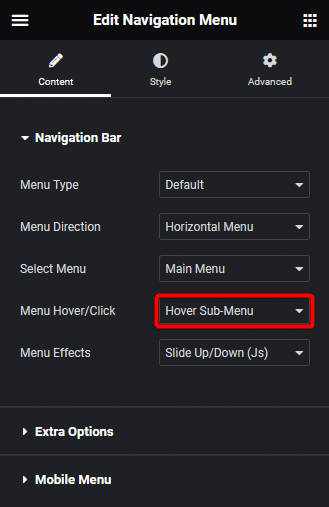
Find the Menu Hover/Click dropdown in the widget settings. Select Hover Sub-Menu from the options.
This setting ensures your dropdown menus will open when a user hovers over the parent menu item, rather than requiring a click.
5. Customize Dropdown Effects (Optional)
Use the Menu Effects dropdown to select animation effects for your dropdown menu. This step is optional, but it can make your navigation more visually appealing.
6. That’s It! Test Your Menu
Once you’ve completed these steps, preview your site. Hover over your navigation menu items with dropdowns, and you’ll see the sub-menus appear instantly – no clicks needed!
Wrapping Up
Improving your site’s navigation doesn’t have to be complicated.
With The Plus Addons for Elementor, you can easily enable dropdown menus to open on hover, creating a smoother and more engaging experience for your visitors.
Take a few minutes to implement these steps, and watch your website’s usability soar!
Want the sticky header without the code?
Sticky Header Effects for Elementor drops in as a widget. Free plugin, no account needed.
