
How to Display Gutenberg Blocks in Elementor?
If you use both Gutenberg and Elementor to build your WordPress site, you might want to combine their features. Gutenberg works with blocks to create content, while Elementor provides more control over page layout.
For a comparable structural decision inside header building specifically, see the complete guide to building an Elementor header.
There’s an existing plugin named Elementor Blocks for Gutenberg. It enables you to insert Elementor designs into Gutenberg, but it doesn’t support adding Gutenberg content into Elementor.
Sometimes, you need a specific Gutenberg block in your Elementor design, like an RSS feed block, which Elementor doesn’t offer by default. This guide will show you how to add Gutenberg blocks into the Elementor editor, making your site-building easier and more flexible.
In this article, you will learn how to display Gutenberg blocks in Elementor with a step-by-step tutorial.
How to Show Gutenberg Blocks in Elementor?
Luckily, you can show Gutenberg blocks within Elementor in just a few simple steps. By using a plugin like Nexter Blocks, integrating Gutenberg blocks into your Elementor layouts becomes easy.
Step 1: Install Nexter Blocks Plugin
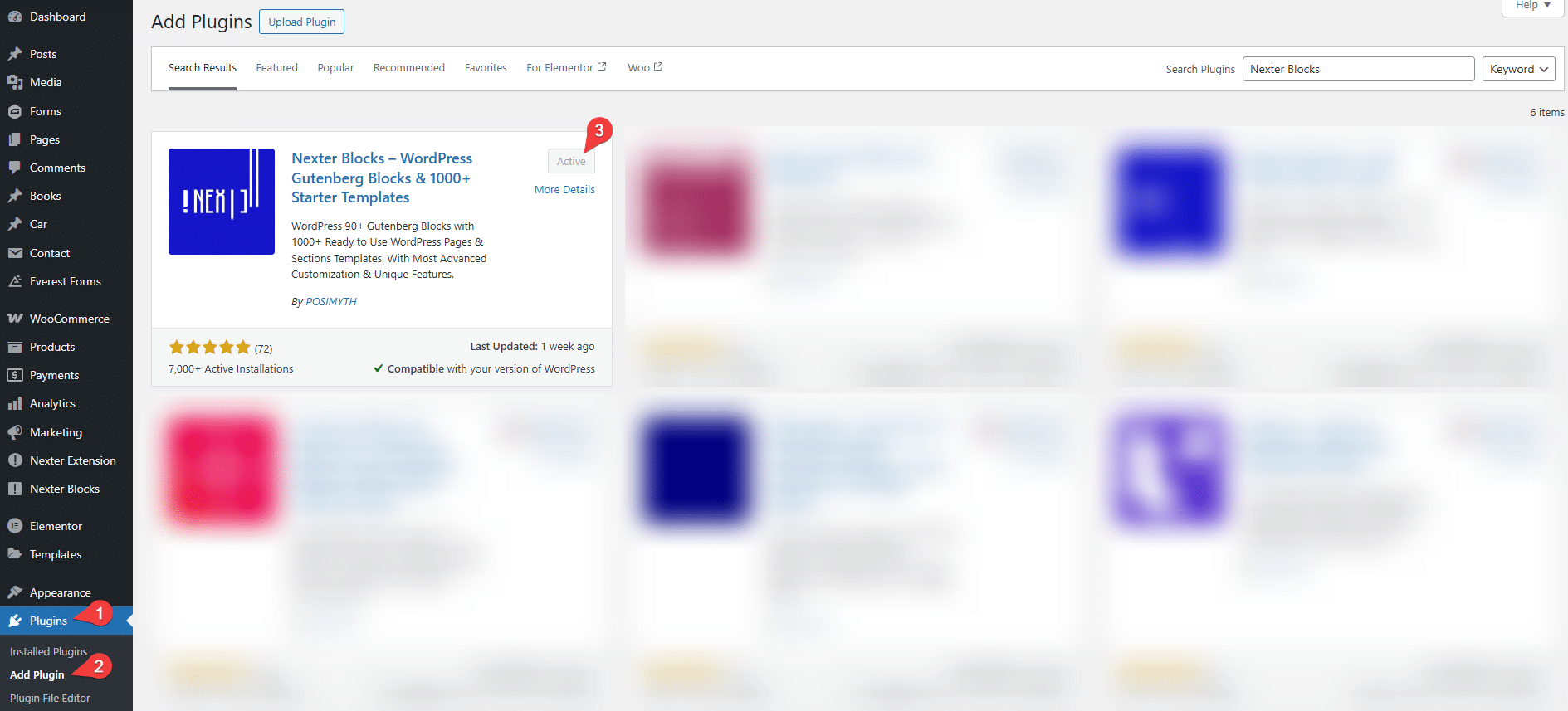
Start by going to Plugins → Add Plugin in your WordPress dashboard. Search for Nexter Blocks and install them.
After the installation, make sure the plugin is activated to use its features.
Step 2: Build Content Using Patterns
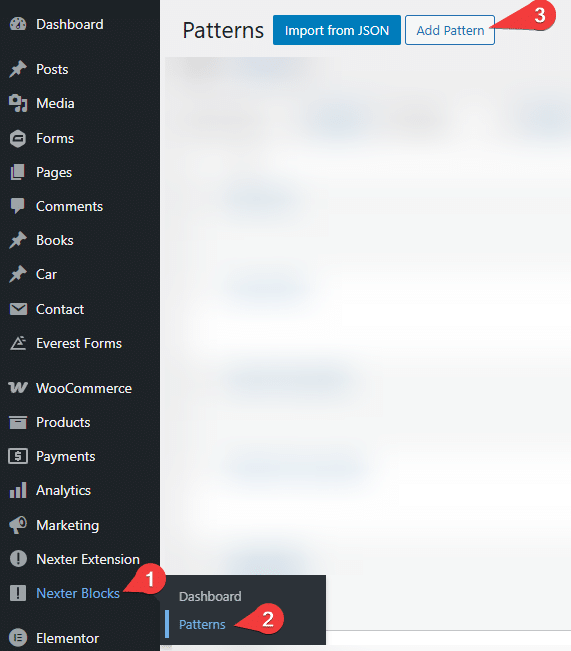
Next, from the WordPress admin menu, find Nexter Blocks and select Patterns.
Click Add Pattern to create the content you want to show inside Elementor. Use Gutenberg blocks to design this content.
For example, add blocks like an RSS Feed or any other block you need. When done, publish the reusable block.
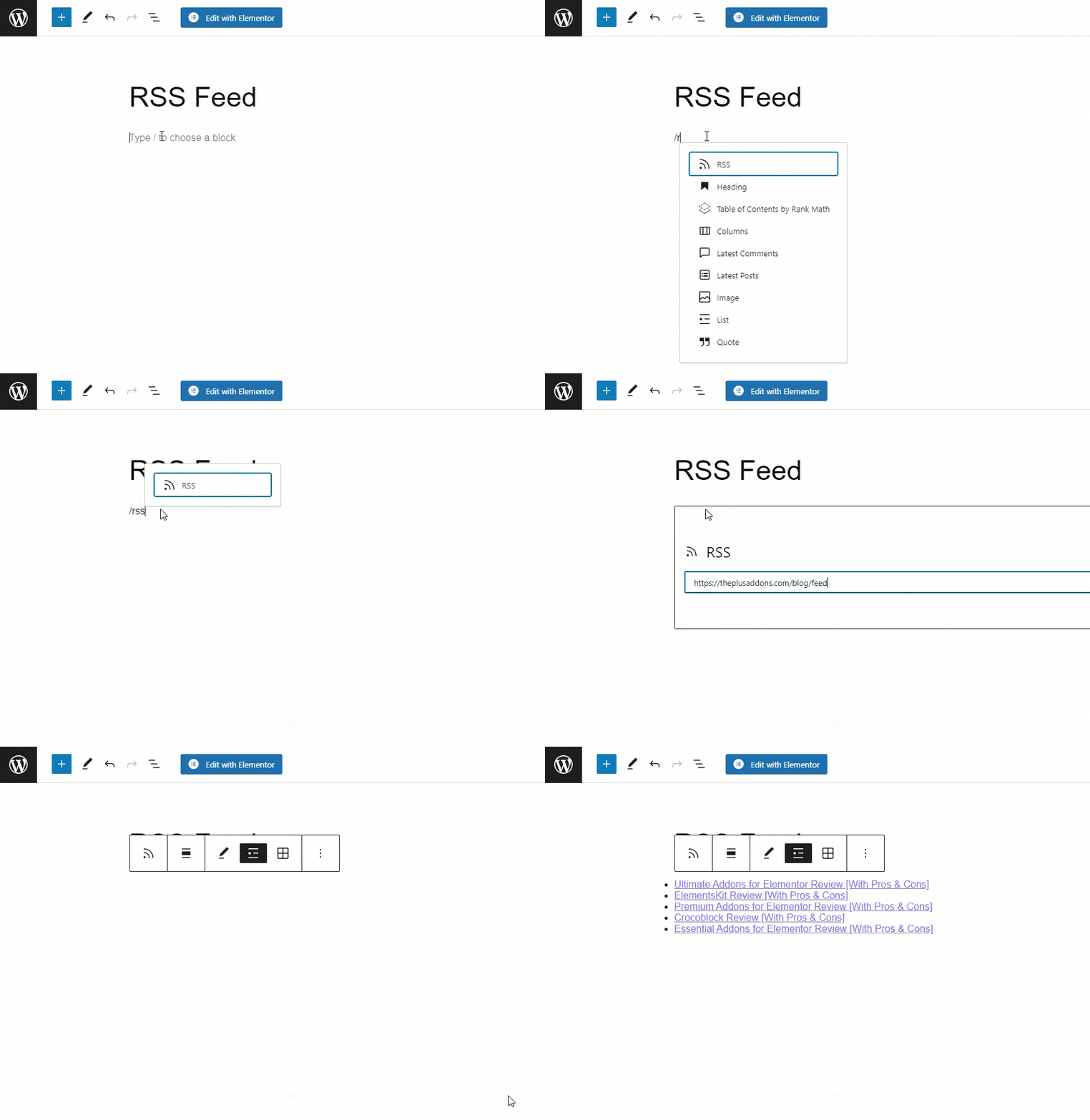
You can enhance your content by adding more elements using Gutenberg blocks.
Nexter Blocks offers a comprehensive collection of blocks specifically designed for the Gutenberg Block Editor.
Step 3: Get the Shortcode from Your Pattern
On the page listing your Patterns, you will see a shortcode assigned to each block. Copy the shortcode for the block you created.

This shortcode connects your Gutenberg block content with Elementor.
Step 4: Insert the Shortcode into Your Elementor Page
Open the Elementor page where you want the Gutenberg block to appear. Insert a shortcode widget or text editor widget, and paste the shortcode you copied in the previous step.
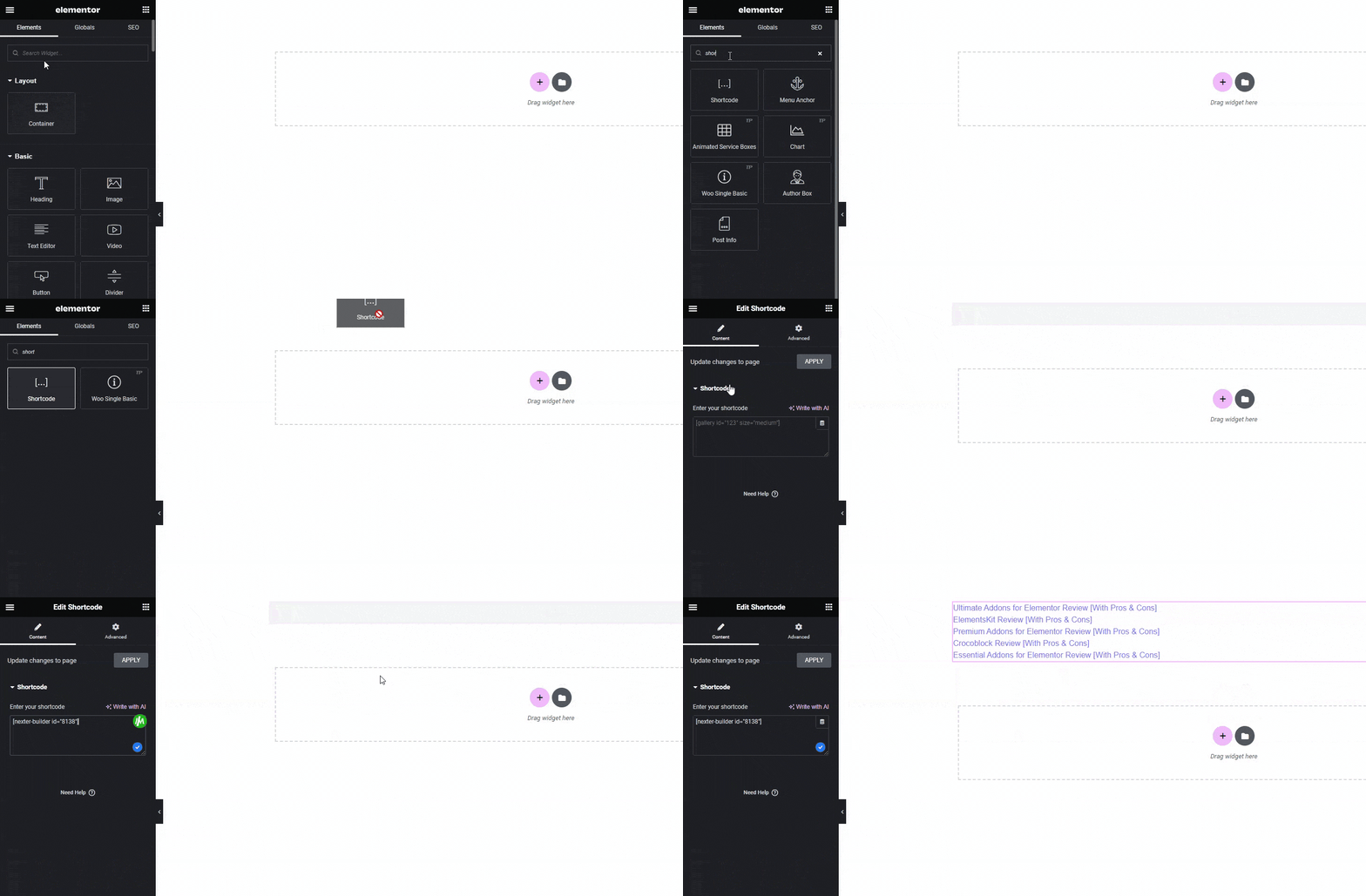
Once added, save or update the page.
Your Gutenberg block content will now display inside the Elementor design. This method lets you use the flexibility of Gutenberg blocks while working within Elementor pages.
FAQs on Displaying Gutenberg Blocks in Elementor
u003cstrongu003eCan I Use All Gutenberg Blocks in Elementor or Only Some?u003c/strongu003e
You can use any Gutenberg block within Elementor. All blocks from the Gutenberg library are available. To insert them easily, you may want to use a plugin like Nexter Blocks.u003cbru003e
u003cstrongu003eHow Do I Add a Gutenberg Block into Elementor?u003c/strongu003e
To add a Gutenberg block into Elementor, follow these steps:u003cbru003eu003cbru003eInstall Nexter Blocks plugin.u003cbru003eCreate a reusable block in Gutenberg.u003cbru003eCopy the shortcode for that reusable block.u003cbru003eUse the Shortcode widget in Elementor to paste the shortcode.u003cbru003eu003cbru003eThis method lets you show Gutenberg blocks inside Elementor.u003cbru003e
u003cstrongu003eCan Elementor Widgets Be Shown Inside Gutenberg Editor?u003c/strongu003e
Yes, Elementor widgets can be displayed in the Gutenberg editor. You will need the Elementor Blocks for Gutenberg plugin. Create a template in Elementor, then import it into Gutenberg using the Elementor Library.u003cbru003e
u003cstrongu003eIs It Possible to Change My Existing Gutenberg Content to Elementor?u003c/strongu003e
You can switch your Gutenberg content to Elementor. Keep in mind that the process depends on how complex your content is. Some elements may require extra work to adjust.u003cbru003e
Want the sticky header without the code?
Sticky Header Effects for Elementor drops in as a widget. Free plugin, no account needed.
