
Elementor Header: The Complete Guide to Every Way to Build One in 2026
Elementor gives you more than one way to build a header, and most of the confusion around “how do I make my header sticky” or “how do I add a mega menu” starts with not knowing which tool actually owns which job. This guide separates the four real options: Elementor Pro’s native header builder, third-party header and footer plugins, mega menu tools, and dedicated sticky-header plugins like Sticky Header Effects for Elementor.
For a closer look at what a dedicated scroll-effects plugin adds on top of a header you have already built, see what the plugin actually does.
Every elementor header decision in this guide comes down to which of the four tools actually owns the job you need done.
None of these do everything. That is the actual useful information here: what each one owns, where it stops, and which combination gets you a finished header without paying for capability you will not use.
Key Takeaways
- Elementor’s own sticky header control lives inside Elementor Pro’s theme builder. Elementor Free has no native sticky header setting at all.
- Sticky Header Effects for Elementor adds sticky behavior and 21 scroll effects to a header you already built, on Elementor Free or Pro. It does not build the header layout itself.
- Mega menus are a separate job. Elementor Pro’s Nav Menu widget supports dropdown submenus, but a true multi-column mega menu needs a dedicated widget or a page-builder addon.
- Header templates save layout time, not effect time. Import a header template, then add sticky and scroll effects on top of it.
- 300,000+ sites currently run Sticky Header Effects for Elementor, with a 4.5-star rating from 68 reviews on WordPress.org, as of this writing.
What “Building a Header in Elementor” Actually Means
A header in Elementor is not one feature. It is a stack of separate decisions: the layout (logo left, menu right, or centered logo with a split menu), the menu type (a simple nav bar, a dropdown, or a mega menu), whether it needs to stick to the top of the screen while scrolling, and whether anything about it should change on scroll (background, size, color, visibility).
Elementor Free lets you build the layout with the Nav Menu widget and standard containers. It does not include a template-conditions system, and it has no built-in sticky control. Elementor Pro adds the Theme Builder, which lets you assign a header template site-wide and turn on a basic sticky setting from the Advanced tab.
Elementor Pro’s Native Header Builder, and Where It Stops
Elementor Pro’s Theme Builder is the correct starting point for the header layout itself: logo, menu, buttons, and where each one sits at each breakpoint. Elementor’s own documentation covers this as the standard way to assign a header template across a site.
Where it stops is scroll behavior. Elementor Pro’s sticky setting is an on/off toggle: the header sticks, or it does not. There is no built-in way to shrink the logo on scroll, change the background color after a set scroll distance, hide the header on scroll down and reveal it on scroll up, or blur the background instead of filling it with a flat color. Those are scroll effects, not layout, and Elementor Pro’s own header tools were not built to cover them.
This is the exact gap Sticky Header Effects for Elementor fills, and its own FAQ states the wedge plainly: “Elementor’s own sticky header needs paid Elementor Pro. Sticky Header Effects for Elementor works on both Elementor Free and Elementor Pro, so you get advanced sticky headers without paying to upgrade Elementor.”
Sticky Headers: The Feature Elementor Pro Charges For and This Plugin Does Not
If your only goal is “keep the header visible while scrolling” on Elementor Free, a dedicated sticky plugin is the only route, because Elementor Free has no sticky setting to enable. On Elementor Pro, you already have a basic sticky toggle, so the decision becomes whether you need anything more than on/off.
Sticky Header Effects for Elementor adds 21 scroll effects on top of a sticky header, split 10 free and 11 Pro. The free tier alone covers Header Scroll Distance, Transparent Header Background, Dynamic Background Color Change, Bottom Border Styling, Header Shrinking, Logo Shrinking, Logo Color Change, Blur Background, Hide Header on Scroll Down, and Above Header Section, all controlled from the Elementor Advanced tab with no custom CSS. Every effect can be set independently for desktop, tablet, and mobile.
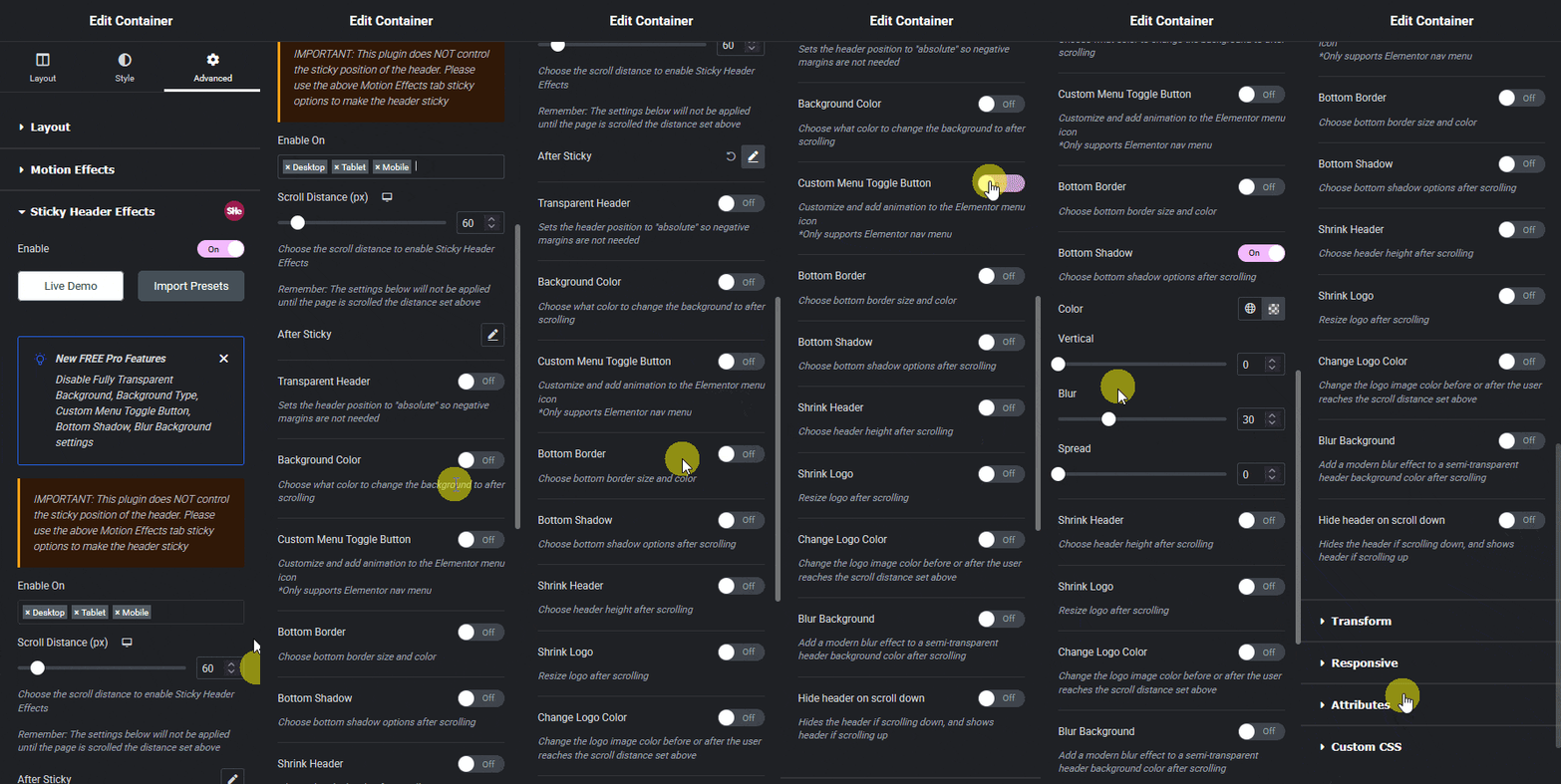
Transparent Headers, Explained
A transparent header sits over a hero image with no background of its own, then usually needs a background once the visitor scrolls past that hero, so the menu stays readable against normal page content. This two-state behavior (transparent at the top, solid on scroll) is not something Elementor Pro’s sticky toggle handles by itself.
Sticky Header Effects for Elementor’s Transparent Header Background effect, one of the 10 free effects, is built for exactly this transition. It is set from the same Advanced tab as the sticky control, with the scroll distance for the switch adjustable per device.
Mega Menus in Elementor: A Different Job Entirely
A mega menu is a multi-column dropdown, often with images, categories, or featured links, that replaces a single-column submenu. This is a menu-structure feature, not a scroll-effect feature, and it is worth being direct about scope here: Sticky Header Effects for Elementor does not build mega menus. Its job starts once your header, mega menu included, already exists and you want it to behave a certain way on scroll.
Elementor Pro’s Nav Menu widget supports basic dropdown submenus out of the box. A true mega menu with multiple columns and custom content per item typically needs a dedicated mega-menu widget, whether from a page-builder addon pack or a standalone mega-menu plugin. Once that mega menu is built, a sticky-header plugin can still make the header it lives in stick, shrink, or change color on scroll, exactly as it would for any other header.
Header Templates: What to Check Before You Import One
A header template gets you a finished layout fast: logo position, menu style, spacing, and often a matching footer. What it usually does not include is scroll behavior, because most header-template libraries are layout-focused, not effect-focused.
Sticky Header Effects for Elementor ships 50+ ready-made header templates of its own, each built around a specific effect (background color change, bottom border, blur, transparent, and more), so the template and the effect arrive together instead of needing to be assembled separately. Each template opens a live demo before import, which is worth doing regardless of which template source you use: check the demo at your actual target breakpoints, not just desktop.
Choosing the Right Approach for Your Build
If you are on Elementor Free and want any sticky behavior at all, a dedicated sticky-header plugin is not optional; it is the only path, since Elementor Free has none of its own. If you are on Elementor Pro and only want a plain sticky header with no scroll effects, the built-in toggle may be enough on its own.
If you want specific scroll behavior (shrink, color change, hide on scroll down, blur, logo swap, or any combination), you need a scroll-effects plugin regardless of which Elementor tier you run, because neither Elementor Free nor Elementor Pro ships those controls natively. If you need a mega menu, that is a separate widget decision made before any of the above, since a sticky-header plugin does not construct menu structure.
What Sticky Header Effects for Elementor Actually Adds
Sticky Header Effects for Elementor is free forever on unlimited sites for the 10 core effects, works on Elementor Free or Pro, and every effect runs on CSS transform and opacity only, which keeps the header at a smooth frame rate on scroll without touching Core Web Vitals scores. Pro unlocks all 21 effects and 50+ templates, licensed per site, backed by a money-back guarantee. Current pricing and any active promo code are on the pricing page, not repeated here since they move independently of this guide.
The plugin does not require Elementor Pro to function, does not replace Elementor’s own theme builder, and does not build menu structure or mega menus. What it adds is the scroll behavior layer that neither Elementor tier includes on its own: the full effect list, the specific docs for each one, and the live demo templates, are linked below.
See the full 21-effect grid, browse the documentation for setup detail on any individual effect, or check current pricing for the Free, Pro, and Agency plans.
Frequently Asked Questions
Do I need Elementor Pro to make my header sticky? No. Sticky Header Effects for Elementor works on Elementor Free, so a sticky header with scroll effects does not require upgrading to Elementor Pro at all.
Does a sticky-header plugin build my mega menu for me? No. Menu structure, including mega menus, is a separate widget decision. A sticky-header plugin controls how an already-built header behaves on scroll.
Will scroll effects work with any WordPress theme? Sticky Header Effects for Elementor is built for Elementor-constructed headers and, per its own FAQ, works well with most Elementor-optimized themes. The header itself still needs to be built in Elementor regardless of which theme sits underneath it.
For the technical mechanics behind sticky positioning itself, MDN’s CSS position reference documents how position: sticky works at the browser level, and Elementor’s own help center covers the Theme Builder’s native header assignment. The current install count, rating, and version for Sticky Header Effects for Elementor are always visible on its WordPress.org listing.
Want the sticky header without the code?
Sticky Header Effects for Elementor drops in as a widget. Free plugin, no account needed.
