
Sticky Header Effects for Elementor: What the Plugin Actually Does
Sticky Header Effects for Elementor is easy to misjudge from the name alone. It is not a header builder, and it does not make a header sticky by giving you a new layout to import. What it does is take a header you have already built in Elementor and add the sticky behavior and the scroll-triggered effects on top of it, with every control living inside the Advanced tab you already use.
Two of the ten free effects worth trying first are background color change and hide on scroll down, both set from the same Advanced tab panel.
As a Sticky Header Effects for Elementor plugin, its entire job is scroll behavior, never header layout or menu structure.
This post breaks down exactly what the plugin does, what it does not do, and how its 21 effects split across the free and Pro tiers.
Key Takeaways
- Sticky Header Effects for Elementor adds sticky positioning plus 21 scroll effects to a header you already built. It does not build header layout, menu structure, or mega menus.
- The free tier includes 10 effects on unlimited sites, forever, with no time limit and no feature countdown.
- Every control is set from the same Advanced tab panel on the section or container that holds your header, with no custom CSS and no separate settings screen.
- All effects run on CSS transform and opacity, which is why the plugin’s own claim is that scroll performance and Core Web Vitals scores stay unaffected.
- 300,000+ sites currently run the free plugin, with a 4.5-star rating from 68 reviews on WordPress.org, as of this writing.
What the Plugin Actually Adds to Your Header
Start with what already has to exist before this plugin does anything: a header, built in Elementor, as a section or container with your logo and navigation inside it. Sticky Header Effects for Elementor attaches to that existing element and adds two things: the sticky position itself (so the header stays pinned at the top while the page scrolls) and a set of effects that trigger once the scroll passes a distance you set.
On Elementor Free, this is the only way to get a sticky header at all, since Elementor Free’s own toolset has no sticky setting. On Elementor Pro, the built-in Theme Builder already includes a basic sticky toggle, so the value of adding this plugin there is specifically the scroll effects, not the sticky behavior by itself.
Where Every Setting Lives: the Advanced Tab
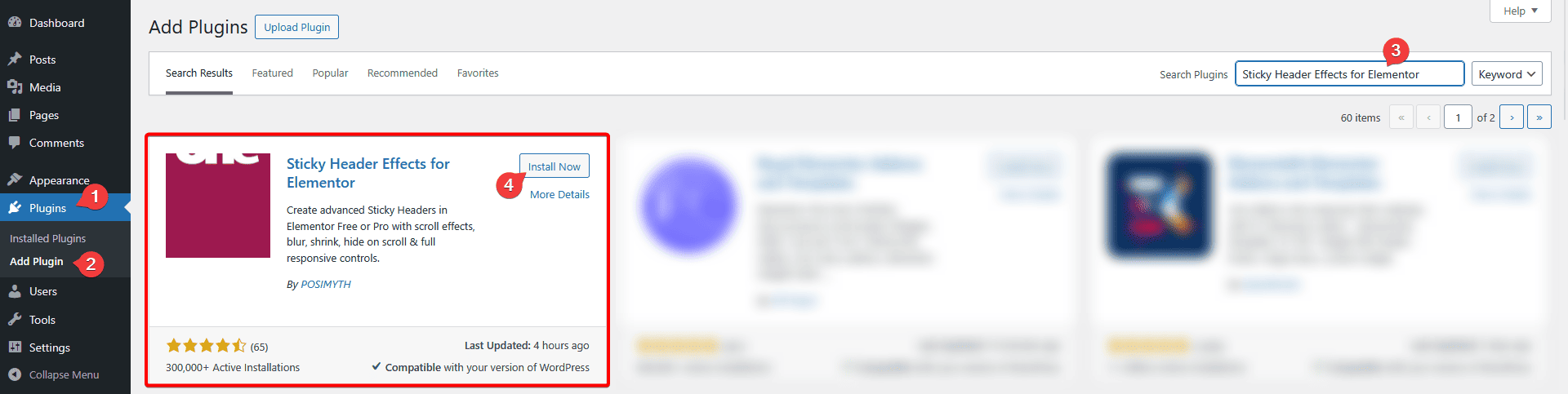
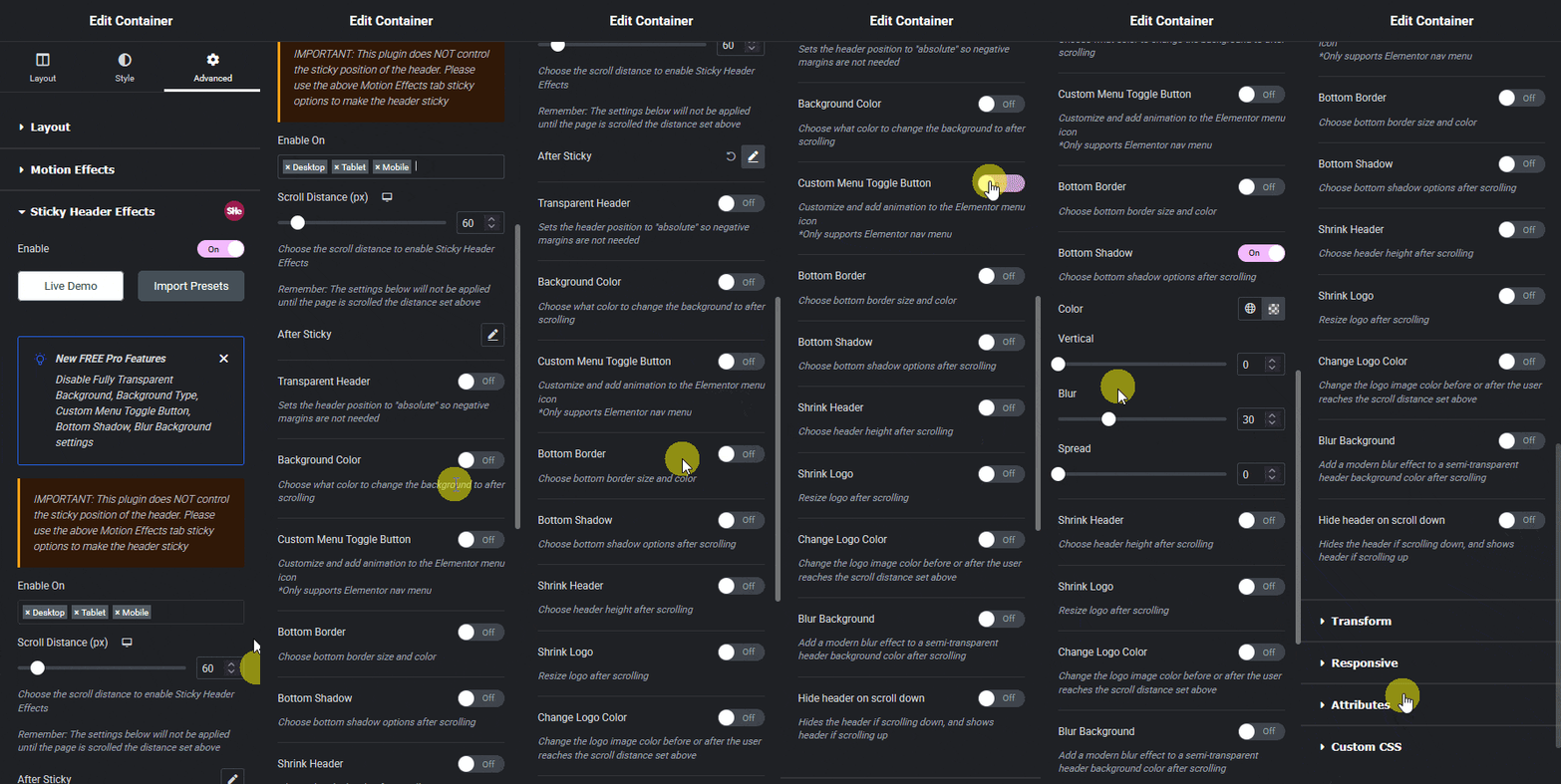
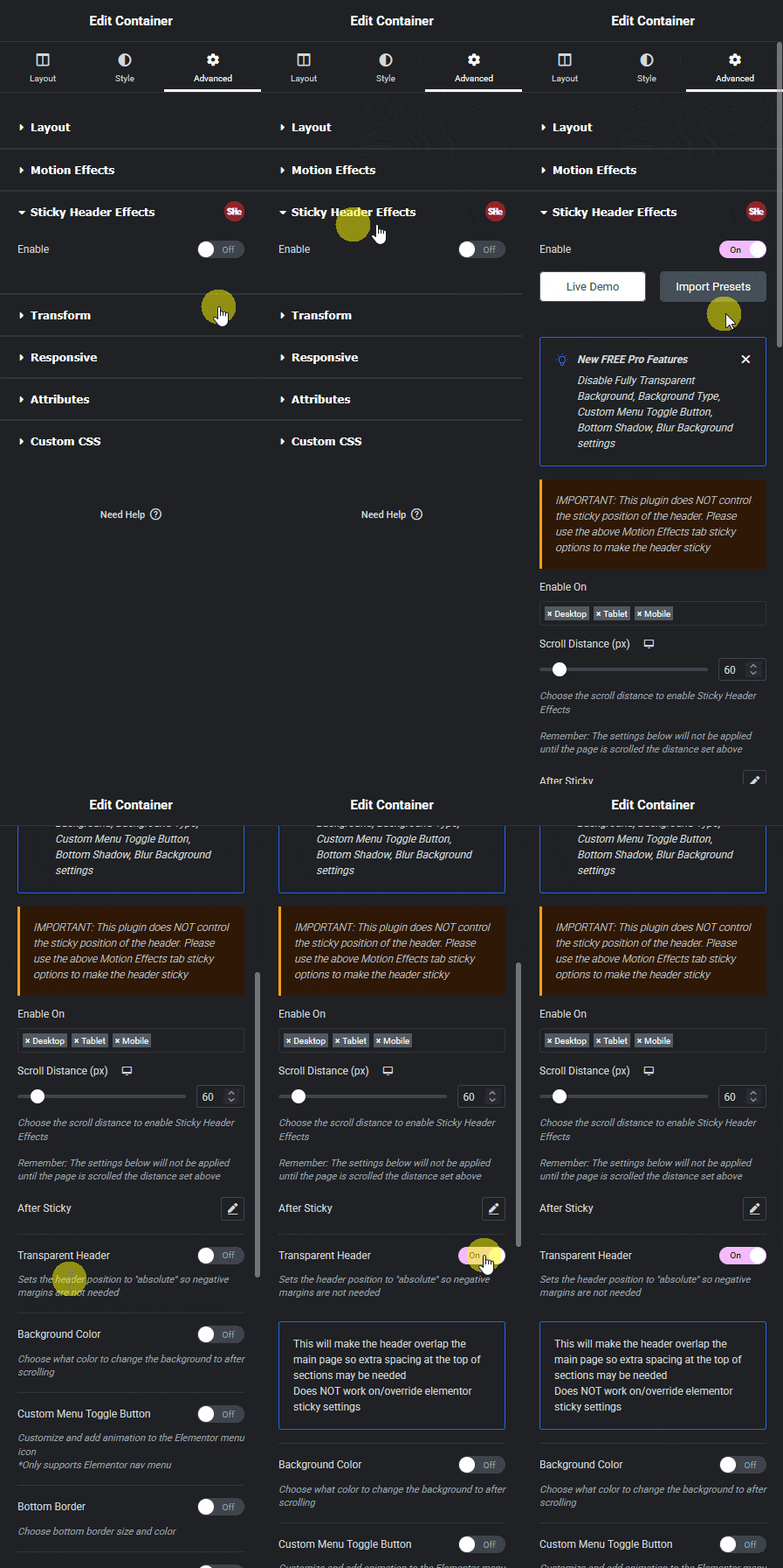
Once active, the plugin adds a new panel to the Advanced tab of any section or container in the Elementor editor, called Sticky Header Effects. Turning on the main Enable switch there makes that element sticky, and every effect toggle appears underneath it once enabled.
Each effect is an independent toggle, not a preset bundle, so turning on a background color change does not automatically turn on shrinking or blur. Every effect also carries its own responsive controls, meaning you can enable an effect on desktop only, tune a different scroll distance for tablet, or turn an effect off entirely on mobile.
The 10 Free Effects
The free plugin includes Header Scroll Distance (setting exactly how far a visitor scrolls before the sticky effect activates), Transparent Header Background, Dynamic Background Color Change, Bottom Border Styling, Header Shrinking, Logo Shrinking, Logo Color Change, Blur Background, Hide Header on Scroll Down, and Above Header Section. All 10 are available on unlimited sites at no cost, with no watermark and no trial period.
As one concrete example, the Transparent Header Background effect lets a header sit with no background over a hero image, then switch to a solid or semi-transparent background once the visitor scrolls past a distance you set, so the menu text stays readable against normal page content further down the page.
The 11 Pro Effects
Pro adds Display Conditions, Sticky Until (Boundary Control), Reveal and Entrance Animations, Header Replace on Scroll, Logo Image Swap, Sticky Menu Styling, Extended Backdrop Filters, Background Image on Sticky, Header Opacity Transition, Logo Styling on Sticky, and Multi-Sticky Coordination, for 21 effects total.
Several of these solve specific problems that come up once a build gets more advanced. Display Conditions lets a sticky header run only on the pages you choose, and Multi-Sticky Coordination handles a page with more than one sticky element without one canceling the other out.
Pro is licensed per site, with a separate Agency tier for unlimited sites. Current pricing for both is on the pricing page, along with the active guarantee terms, rather than repeated here where they would go stale the moment the page changes.
What the Plugin Does Not Do
It does not build your header’s layout. Logo placement, menu structure, and container width are Elementor’s own job, whether that is Elementor Pro’s Theme Builder or a header built manually with sections and containers on Elementor Free. Sticky Header Effects for Elementor attaches to whatever header already exists.
It does not build mega menus or dropdown menu structure. A multi-column mega menu needs a dedicated menu widget or plugin; this plugin’s effects apply to the header as a whole once that menu is already in place, regardless of how simple or complex it is.
It does not require Elementor Pro. The FAQ on the product’s own site states this directly: Elementor’s own sticky header setting needs paid Elementor Pro, while Sticky Header Effects for Elementor works on Elementor Free or Pro, so a sticky header with scroll effects does not force an Elementor upgrade.
Performance: What “Zero Layout Shift” Actually Refers To
Every effect in the plugin runs on CSS transform and opacity rather than properties like height, width, or margin, which is the same technique the browser rendering community documents as the cheapest way to animate without forcing the page to recalculate layout on every frame. MDN’s own backdrop-filter reference covers the blur effect specifically, which is the one exception that is inherently more demanding than a plain transform, though still GPU-accelerated in modern browsers.
In practice, this means a header that shrinks or changes color on scroll does not push page content up or down while it animates, and a well-built header using these effects should not show up as a layout shift in a Core Web Vitals audit. That claim depends on the rest of the page being built cleanly too; a plugin that only touches the header cannot fix layout shift caused elsewhere on the page.
Honest Limits
The plugin works with Elementor-built headers specifically. Per its own FAQ, it works well with most Elementor-optimized themes, not literally any WordPress theme, and the header itself still has to be built inside Elementor regardless of which theme sits underneath it. A header built entirely in a theme’s own customizer, with no Elementor section involved, is outside what this plugin can attach to.
Real support tickets also show where effects can interact in ways worth knowing about upfront: enabling a sticky background color change has, in at least one documented case, disabled a separately configured logo color swap on the same header, an interaction worth testing directly on your own build rather than assuming every effect combination behaves independently.
Frequently Asked Questions
Does Sticky Header Effects for Elementor build my header for me? No. It adds sticky behavior and scroll effects to a header you build with Elementor’s own tools, whether that is the Theme Builder in Pro or sections and containers on Free.
How many effects are actually free? 10 of the 21 total effects are free on unlimited sites, permanently. The remaining 11 are part of the paid Pro tier.
Do I need to write any CSS to use it? No. Every effect is a toggle and a set of sliders inside the Elementor Advanced tab, with per-device controls built in.
The full effect grid with live demos is on the homepage, setup detail for any individual effect is in the documentation, and the plugin’s current version, install count, and rating are always visible on its WordPress.org listing.
Want the sticky header without the code?
Sticky Header Effects for Elementor drops in as a widget. Free plugin, no account needed.
