
How to Change Header Background Color on Scroll in Elementor
Changing a header’s background color the moment a visitor scrolls is a small detail that does a lot of work: it separates the header visually from the page content, signals that the site is responding to interaction, and keeps a header that started transparent or light readable once real content scrolls underneath it. In Elementor, this specific behavior comes from the Dynamic Background Color Change effect in Sticky Header Effects for Elementor.
This effect is one of three named in a real conflict between it and Logo Color Change from an actual support ticket, worth reading before combining the two.
This elementor sticky header background color change is one of the plugin’s ten free effects, set from a single color picker in the Advanced tab. For how CSS itself handles color transitions, see MDN’s color reference.
This guide covers setting it up, the two most common mistakes builders make with it, and where it fits next to the plugin’s other free effects.
Key Takeaways
- Dynamic Background Color Change is one of the 10 free effects in Sticky Header Effects for Elementor, available on Elementor Free or Pro.
- It sets two separate colors: a Normal color for the top of the page, and a Sticky color that applies once the scroll distance is reached.
- A real, closed support ticket for this plugin shows the single most common mistake: setting the Normal text color and assuming it also controls the color after scrolling, when the two are independent settings.
- The scroll distance that triggers the change is a responsive control, set separately per device, the same as every other effect in the plugin.
- Elementor Pro’s own sticky toggle applies one fixed style the whole time a header is sticky; it does not support a scroll-triggered color change on its own.
What This Effect Actually Changes
Dynamic Background Color Change gives a sticky header two background states: one for when the page is at the top, and a different one once the visitor scrolls past a distance you set. Unlike the Transparent Header Background effect, which moves from no background to a solid one, this effect moves between two backgrounds you choose, useful when your header already has a background at the top and simply needs a different one once it becomes sticky.

Setting Up the Two Background States
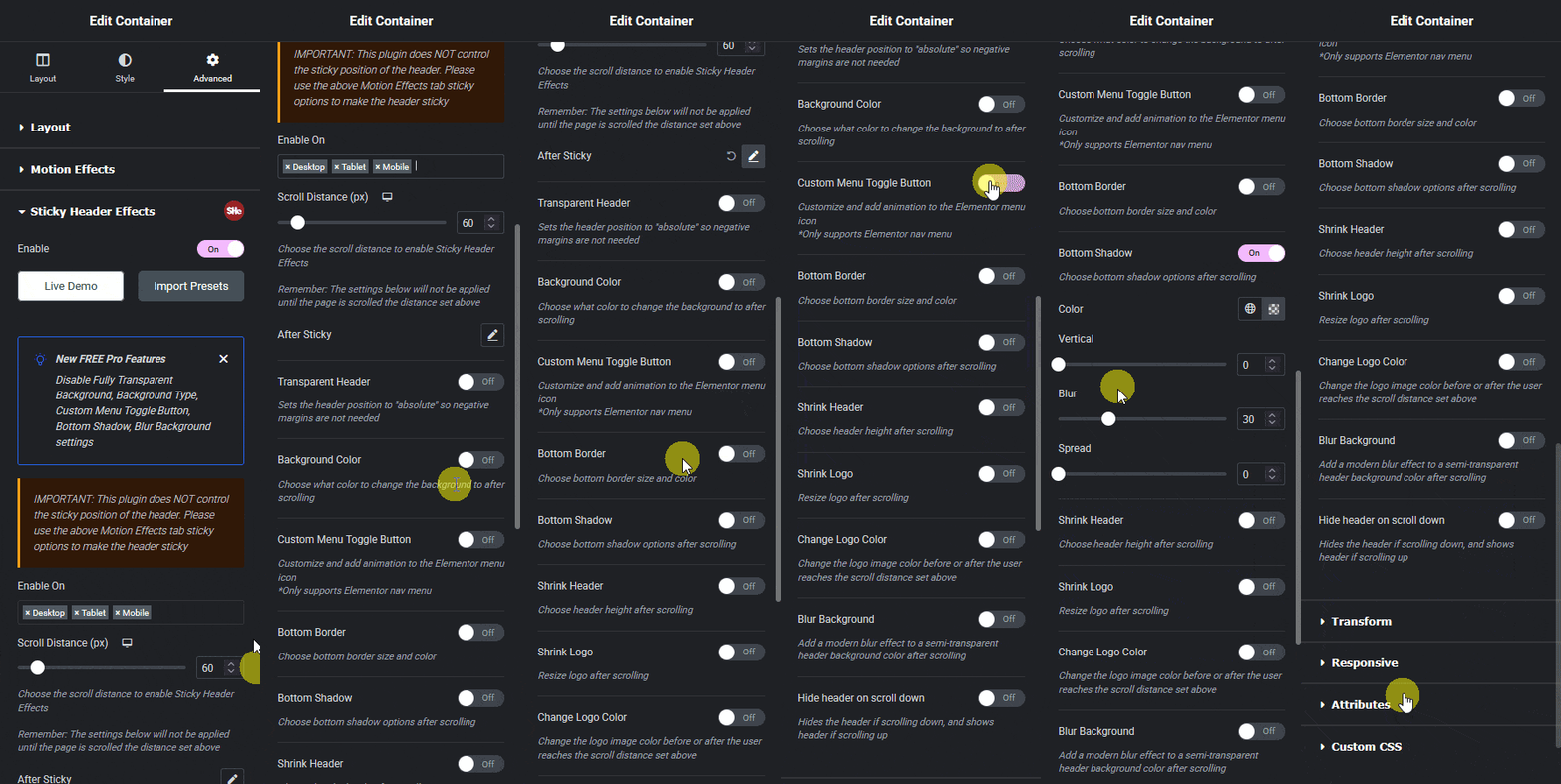
With your header built as a section or container in Elementor, open the Advanced tab and find the Sticky Header Effects panel. Turn on the main Enable switch, then turn on Dynamic Background Color Change specifically.
The panel adds a Normal background control, which applies at the top of the page, a Sticky background control, which applies once the scroll distance is reached, and the Scroll Distance field itself, set in pixels and adjustable per device. Set both background colors, set a scroll distance that roughly matches where your hero or top section ends, and preview the live page rather than the editor canvas, since the editor does not always reflect scroll-triggered states accurately.
The Most Common Mistake: Text Color Is a Separate Setting
A real, closed support ticket for this plugin captures the single most common confusion with this effect exactly: “it seems unable to change the text color after scrolling, I can only change the background color, not the text color.” The Dynamic Background Color Change effect controls background only. Menu text and logo color are separate settings, found elsewhere in the same panel or, for the logo specifically, in the plugin’s own Logo Color Change effect.
A second closed ticket describes a related version of the same confusion: “the sticky behavior is fine, the issue is just that the color being applied when it becomes sticky isn’t the one I set,” which traces back to setting a color in the wrong one of the two controls, Normal versus Sticky, rather than a plugin defect. Before assuming something is broken, double check which of the two color fields was actually edited.
Getting the Scroll Distance Right
Set the scroll distance to roughly match the height of whatever sits directly below your header, so the color change happens as that section ends rather than midway through it. As with every effect in this plugin, this value should be checked separately on desktop, tablet, and mobile, since section heights rarely match across breakpoints.
If the color change feels like it happens too abruptly, most site builds pair this effect with a short CSS transition already present in the plugin’s own styling, which softens the switch rather than snapping instantly between the two colors.
Combining With Logo and Text Effects
Because this effect only changes the background, a header with a dark Normal background and a light Sticky background usually needs its logo and menu text colors changed to match, using the plugin’s separate Logo Color Change effect, also free. Test the combination directly rather than assuming both effects will read each other’s settings automatically, since a documented support case shows enabling a sticky background color change has, in at least one build, disabled a separately configured logo color swap on the same header.
Choosing Colors That Actually Work Together
Because the Normal and Sticky backgrounds are set independently, it is easy to pick two colors that clash the moment the switch happens, especially if the Normal state was designed months before the Sticky state was added. Pick both colors in the same sitting, and check the transition live rather than judging each color in isolation inside the Elementor color picker.
A common, reliable pattern is a Normal state that matches the hero or top section behind the header, and a Sticky state that matches the site’s neutral page background, so the header effectively disappears into whatever content sits directly below it once scrolled. This keeps the header from competing visually with page content it now sits above permanently.
Testing on the Live Page, Not the Editor
Confirm the color change on the actual published page rather than the Elementor editor canvas. The editor’s own scrolling behavior inside its toolbar and iframe does not always match a real browser window exactly, which can make a scroll distance that is correct in the editor trigger a little early or late once the page goes live.
Honest Limits
Dynamic Background Color Change controls background color only, on the header element itself. It does not touch text color, logo color, border, or shadow, each of which is a separate control elsewhere in the same panel or a separate effect entirely. It also requires the header to already be a sticky Elementor section or container; it has nothing to change on a header that is not enabled as sticky first.
Installing the Plugin, If You Have Not Already
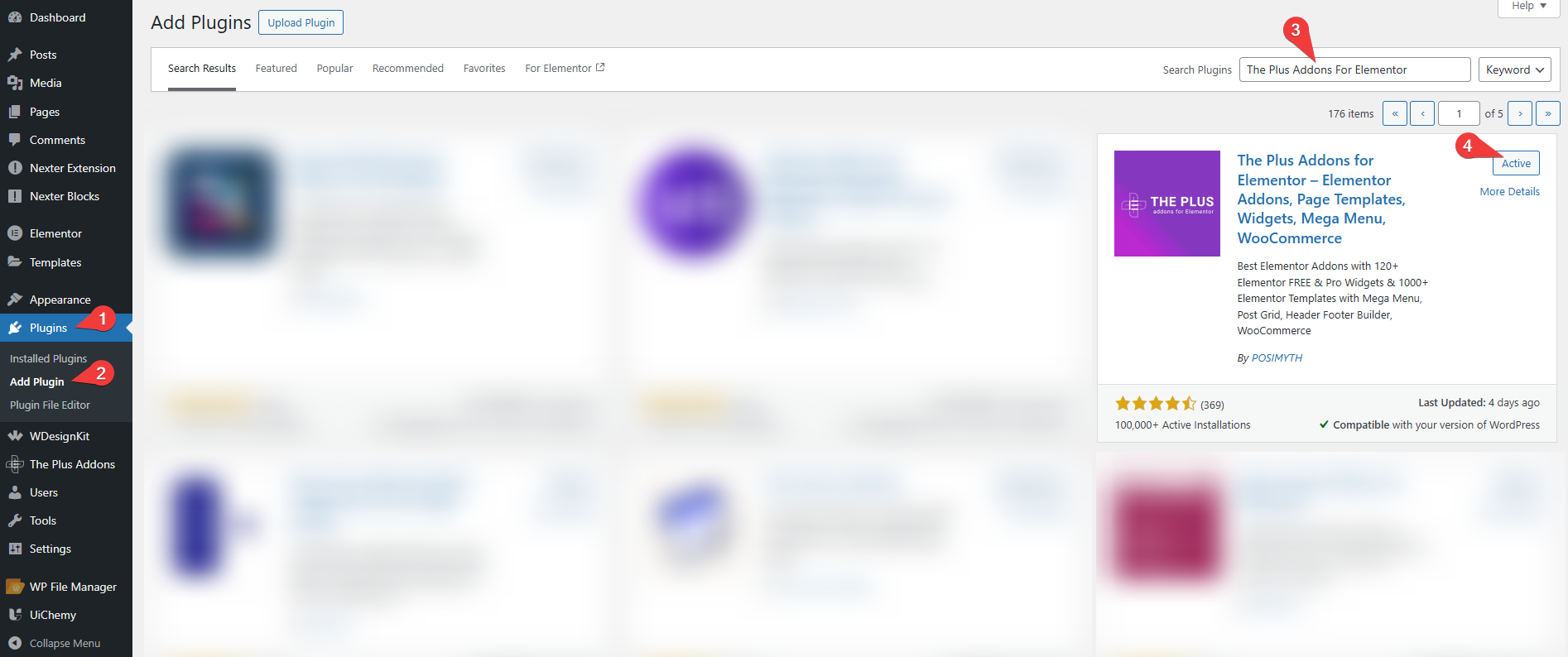
Dynamic Background Color Change requires Sticky Header Effects for Elementor active alongside Elementor Free or Pro. Install it from the WordPress plugin directory the same way as any other plugin, then activate it before the Sticky Header Effects panel appears in the Advanced tab.
Frequently Asked Questions
Is this effect free? Yes. Dynamic Background Color Change is one of the 10 free effects in Sticky Header Effects for Elementor, on unlimited sites.
Why did my menu text not change color with the background? Text color is a separate control from background color in this effect. Check the Normal and Sticky text color fields directly, or use the plugin’s Logo Color Change effect for the logo specifically.
Can I use a gradient for either background state? Yes, both the Normal and Sticky background controls accept the same color and gradient options as Elementor’s standard background settings.
For the effect’s exact controls, see the product’s own Dynamic Background Color Change documentation. For the underlying CSS property, MDN’s background-color reference covers browser support and syntax, and current plan details for the Pro effects mentioned above are on the pricing page.
Want the sticky header without the code?
Sticky Header Effects for Elementor drops in as a widget. Free plugin, no account needed.
