
How to Add a Bottom Border to a Sticky Header in Elementor
A flat sticky header with no visual separation from the page content underneath it is a common finished-but-unfinished look: functional, sticking correctly, and still missing the one detail that makes it look deliberate. A single bottom border on scroll is usually that detail. Bottom Border Styling is one of the 10 free effects in Sticky Header Effects for Elementor, and this walks through setting it up along with the two things people usually get wrong the first time.
A real support-ticket writeup on effect conflicts calls this the safest effect to pair with almost anything else, since a border rarely competes visually with a background or logo change.
Key Takeaways
- Bottom Border Styling is a free effect, one of 10 available forever on unlimited sites, no Pro license required.
- It adds a border only while the header is in its sticky (scrolled) state, not on initial page load, which is the point of the effect: a visual cue that the header has changed state.
- The control lives in the same Elementor Advanced tab panel as every other Sticky Header Effects toggle, directly below Elementor’s own Motion Effects section.
- Border width, color, and style are all separately controllable, and every setting can differ across desktop, tablet, and mobile.
- “elementor sticky header css” gets 10 searches a month, DataForSEO, pulled 2026-09-15, reflecting builders searching for exactly this kind of visual-detail fix.
Before You Start
You need a header already built as an Elementor section or container, with the sticky control already enabled through Sticky Header Effects for Elementor. Bottom Border Styling attaches to that existing sticky state; it does not create sticky behavior on its own, so enable the base sticky toggle first if you have not already.
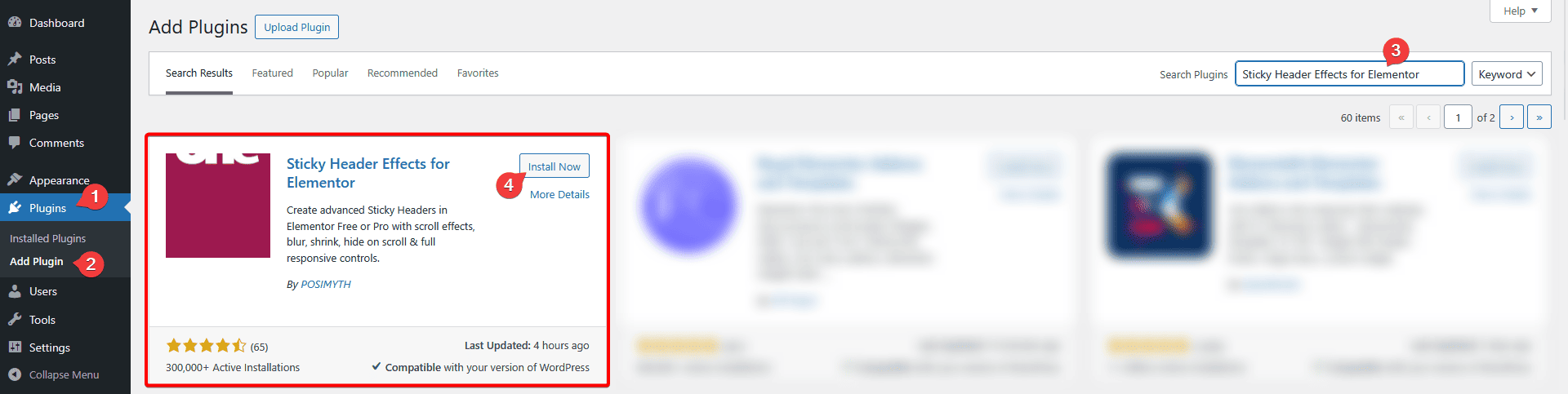
Install Sticky Header Effects for Elementor from the WordPress.org plugin directory if it is not active yet: Plugins, Add New, search, Install, Activate. No license key is required for the free tier.
Step 1: Find the Bottom Border Styling Toggle
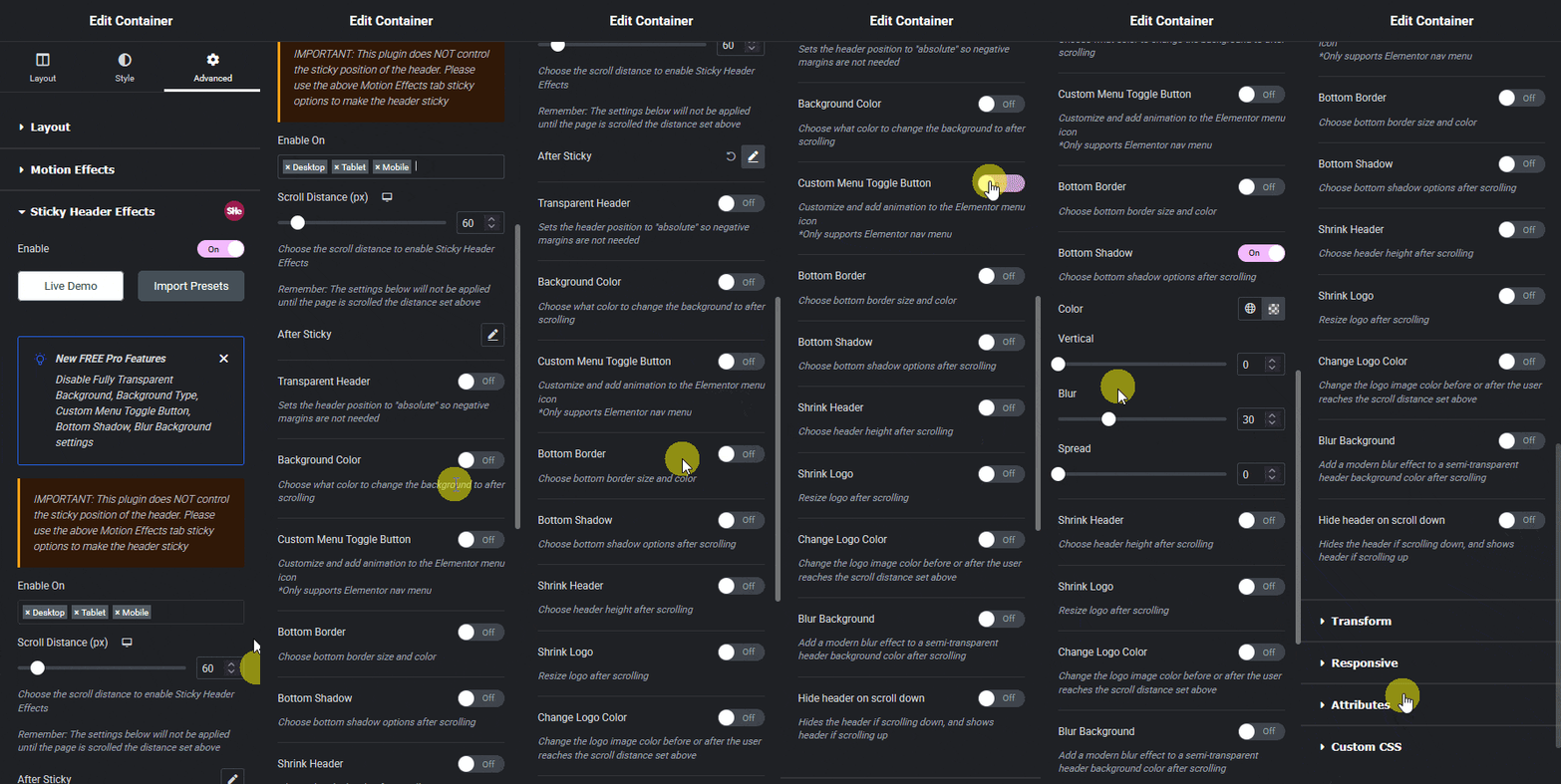
Select the section or container that wraps your entire header, open the Advanced tab, and expand the Sticky Header Effects panel. Bottom Border Styling is one of 10 toggles listed there alongside Header Scroll Distance, Transparent Header Background, Dynamic Background Color Change, Header Shrinking, Logo Shrinking, Logo Color Change, Blur Background, Hide Header on Scroll Down, and Above Header Section.
Step 2: Set Border Width, Color, and Style
Once enabled, Bottom Border Styling exposes standard border controls: width in pixels, a color picker, and a style choice (solid, dashed, or similar). A 1 to 2 pixel solid border in a color with enough contrast against your sticky background is the most common working setup, since a border thinner than 1 pixel is easy to lose entirely on lower-resolution displays.
If you are also running Dynamic Background Color Change on the same header, set the border color after confirming the sticky background color, not before, since a border that reads clearly against a transparent or light background can disappear once the sticky background switches to something close to the same color.
Step 3: Set Behavior per Device
Border width and color can be set independently for desktop, tablet, and mobile through Elementor’s standard responsive-mode icons at the top of the panel. A border that reads well at desktop width can look heavier proportionally on a narrow mobile header, so it is worth checking at your actual mobile breakpoint rather than assuming the desktop value scales down cleanly.
Why a Border Instead of a Shadow
A bottom border and a drop shadow solve the same underlying problem, visually separating a sticky header from the content scrolling underneath it, but they read very differently. A border is a hard, deliberate line that works well on flat, high-contrast designs. A shadow is softer and tends to suit designs that already use elevation and depth elsewhere, like cards or floating buttons.
Bottom Border Styling only produces the hard-line version. If your design language leans toward soft shadows rather than borders, a 1 pixel border in a color close to your background can be styled to read almost like a subtle line rather than a bold rule, which is usually the closer visual match without needing custom CSS for a box-shadow effect instead.
Testing the Effect Properly Before Publishing
Preview the actual front end, not only the Elementor editor canvas, before calling the setup finished. The editor iframe generally reproduces Bottom Border Styling correctly, but scroll-triggered effects in general are worth double-checking outside the editor frame, since editor scroll behavior does not always match the rendered page exactly, particularly once other scroll effects are stacked on the same header.
Check the border at your actual Header Scroll Distance value on a real page, not a guess. A tall hero section and a short one trigger the sticky state, and therefore the border, at different scroll depths if the same pixel value is copied across page templates without adjustment.
Two Things That Go Wrong
The border does not appear at all. This is almost always the sticky control itself not being active yet, since Bottom Border Styling only renders in the sticky state. Confirm the base sticky toggle is on and that the page has actually scrolled past the configured Header Scroll Distance before assuming the border effect is broken.
The border looks like it is flickering or double-rendering on scroll. This usually means a theme or another plugin is also applying a border or box-shadow to the same header element outside of Elementor. Check your theme’s own header styling and any custom CSS targeting the header selector before assuming the effect itself is unstable.

What This Effect Does Not Do
Bottom Border Styling adds a single border along the bottom edge of the sticky header. It does not add borders to individual menu items, does not add a shadow, and does not animate the border’s appearance beyond the same transition timing as the rest of the sticky transition. A drop shadow instead of a hard border line is a different visual and is not what this specific effect produces.
There is not yet a dedicated Sticky Header Effects documentation page specifically for Bottom Border Styling at the time of this writing; the general documentation index and the troubleshooting guide cover the shared Advanced tab mechanics that apply to this effect along with the other 9 free effects.
Frequently Asked Questions
Is Bottom Border Styling free? Yes. It is one of the 10 effects included forever on unlimited sites in the free plugin, no Pro license needed.
Can I combine it with Header Shrinking or Dynamic Background Color Change? Yes, all three are independent free effects and commonly used together: shrink the header, change its background, and add a bottom border, all triggered by the same scroll distance.
Does this work on Elementor Free? Yes. Sticky Header Effects for Elementor, including all 10 free effects, runs on Elementor Free, which has no native sticky header setting of its own.
For the CSS mechanics behind border rendering at the browser level, MDN’s border property reference and position reference (relevant to how the sticky state itself is applied) are the primary sources. See the full 21-effect grid for how this effect fits alongside the other 20, and the complete setup guide for the base sticky configuration this effect depends on.
Want the sticky header without the code?
Sticky Header Effects for Elementor drops in as a widget. Free plugin, no account needed.
