
How to Add a Transparent Sticky Header in Elementor
A transparent header sits over a hero image with no background of its own, letting the image show through behind the logo and menu. The tricky part is not the transparent state itself, it is what happens once a visitor scrolls past the hero: the header usually needs a solid or semi-transparent background at that point, or the menu text becomes unreadable against whatever content comes next.
A related effect worth knowing about is Blur Background, an alternative treatment for the same header-background problem.
An elementor transparent header pattern like this one needs the background switch timed to exactly when content behind it becomes hard to read.
This guide covers building that two-state transparent-to-solid transition in Elementor, using the free Transparent Header Background effect in Sticky Header Effects for Elementor.
Key Takeaways
- A transparent header needs two states, not one: transparent at the top of the page, and a background once the visitor scrolls, so menu text stays readable.
- Transparent Header Background is one of the 10 free effects in Sticky Header Effects for Elementor, available on Elementor Free or Pro.
- The scroll distance that triggers the switch to a solid background is a responsive setting, adjustable separately for desktop, tablet, and mobile.
- Elementor Pro’s own sticky toggle does not include this transparent-to-solid transition on its own; it is strictly on or off, with a single fixed background.
- Text and logo contrast against the transparent state is the most common thing builders miss, since a logo designed for a solid background can disappear against a busy hero image.
Why a Plain Sticky Toggle Is Not Enough Here
Elementor Pro’s Theme Builder includes a sticky setting that pins a header in place while scrolling, but it applies one fixed style to that header the entire time it is sticky. A transparent header needs the opposite of a fixed style: no background at the top, then a background that appears only after a scroll distance you choose.
Elementor Free does not include a sticky setting at all, so a transparent-to-solid header on Free requires a plugin regardless. On Pro, the gap is specifically this scroll-triggered transition, not stickiness itself.
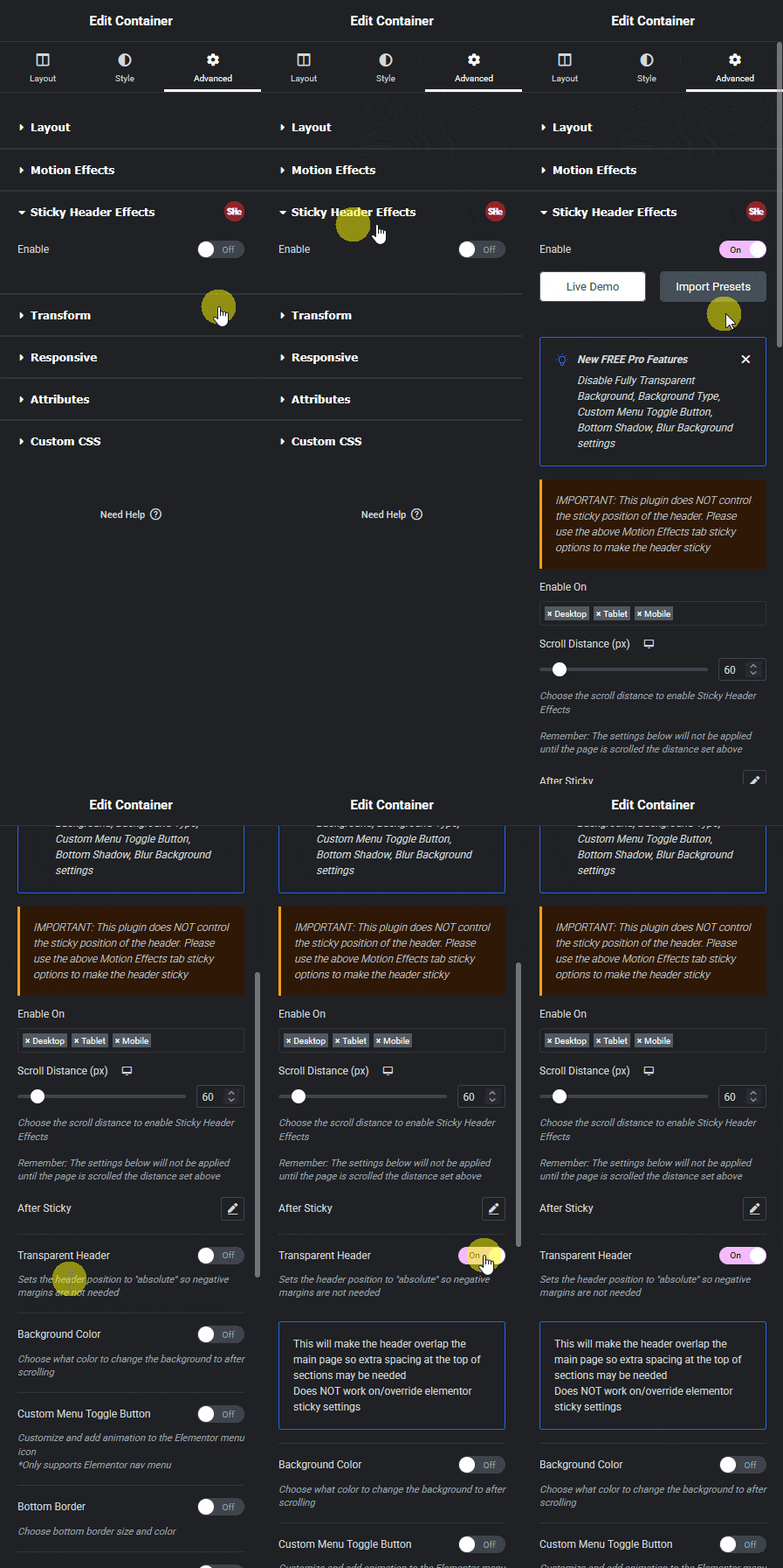
Setting Up the Transparent Header Background Effect
Start with your header already built as a section or container in Elementor, sitting directly over your hero image or video with no background color of its own. Select that section or container, open the Advanced tab, and find the Sticky Header Effects panel added by the plugin.
Turn on the main Enable switch to make the header sticky, then turn on Transparent Header Background specifically. This adds a Scroll Distance field, which sets how many pixels a visitor scrolls before the header switches from transparent to its background color, and a background color or gradient control for the solid state.
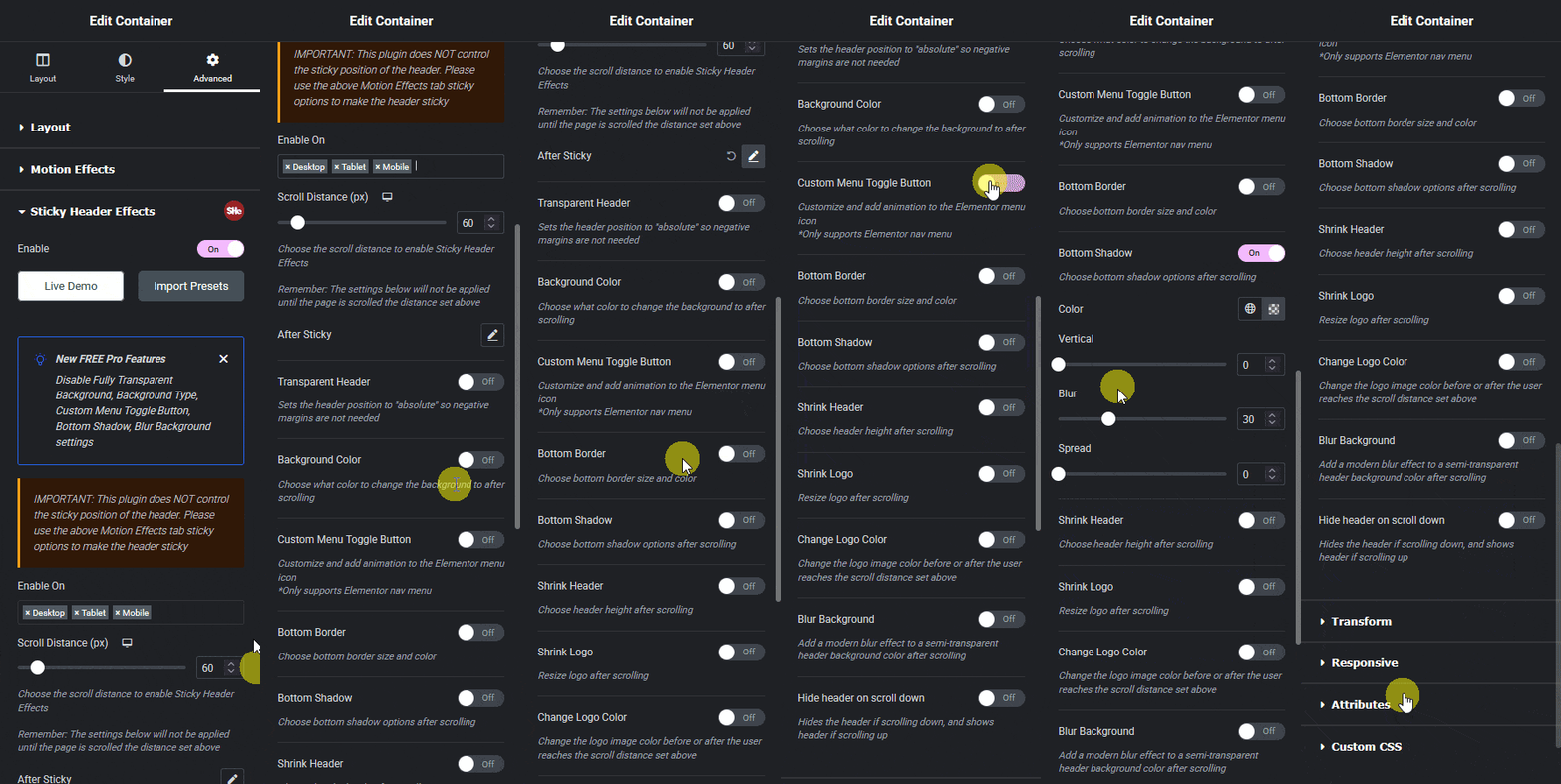

Getting the Scroll Distance Right
The scroll distance should roughly match your hero section’s height, so the switch happens right as the hero ends rather than midway through it or well after. A distance set too short makes the header switch to solid while still overlapping the hero image, which looks like a rendering glitch rather than an intentional design choice.
Test this at each breakpoint separately. A hero section that is 800 pixels tall on desktop is often much shorter on mobile, so a single scroll distance set for desktop will trigger far too late on a phone. Set the value per device using the plugin’s responsive controls rather than relying on one number everywhere.
Contrast: the Detail Most Builds Miss
A logo and menu designed to sit on a dark, busy hero image often use white or light text. Once the header switches to a solid light-colored background, that same light text becomes nearly invisible. The Transparent Header Background effect changes the header’s background, not your logo or text color automatically, so those need their own attention.
The cleanest fix is a second logo variant, swapped in through the plugin’s Logo Color Change or Logo Image Swap effects (free and Pro respectively) so the logo itself changes alongside the background. Without one of those, check contrast manually against your chosen solid background color before calling the header finished, using a tool like the WebAIM contrast checker against WCAG’s minimum ratios.
Combining With Other Free Effects
Transparent Header Background is commonly paired with Bottom Border Styling, which adds a thin border line that only appears once the header is in its solid state, giving a subtle visual separation from the page content below. It can also run alongside Header Shrinking, so the header both gains a background and reduces in height at the same scroll point.
Each effect toggles independently, so test combinations one at a time rather than turning several on at once. Real support cases show that stacking effects on the same header can occasionally produce interactions worth checking directly, such as a background change interfering with a separately configured logo swap.
Testing the Transition Properly
Preview transparent-header changes on the live published page rather than trusting the Elementor editor canvas alone. The editor’s own toolbar and iframe scrolling do not always reproduce the exact scroll distance calculation a real browser window uses, so a transition that looks correct while editing can trigger a few pixels early or late once the page is live.
Test on an actual phone, not just the editor’s mobile preview mode, since real mobile browsers add and remove their own address bar height as a visitor scrolls, which changes the effective viewport height mid-scroll in a way a desktop preview cannot simulate. A transparent header that switches at exactly the right moment on desktop can trigger noticeably early or late on an actual phone for this reason.
When a Transparent Header Is the Wrong Choice
A transparent header works best over a single large hero image or video with predictable contrast. It works poorly over a hero that rotates between several images or a background video with mixed light and dark areas, since no single logo or text color reads clearly against all of them. If your hero content varies significantly, a solid header with the Dynamic Background Color Change effect instead is often the more reliable choice, since it does not depend on what happens to be behind the header at any given moment.
Honest Limits
The Transparent Header Background effect changes background color and opacity only. It does not automatically adjust text color, logo color, or menu item contrast, which is why the contrast step above is worth doing manually rather than assuming the transition handles it. It also requires a header already built in Elementor; it cannot make a theme’s own header template transparent unless that header lives inside an Elementor section or container.
Frequently Asked Questions
Does this work on Elementor Free? Yes. Transparent Header Background is one of the 10 free effects in Sticky Header Effects for Elementor, and the plugin works on Elementor Free or Pro.
Why does my header look solid immediately, even at the top of the page? Check that the section or container itself has no background color set in Elementor’s own Background control under the Style tab; the plugin’s transparent state only shows through if the element has no background of its own to begin with.
Can I use a gradient instead of a flat color for the solid state? Yes, the background control for the solid state accepts the same color and gradient options as Elementor’s standard background settings.
For the effect’s exact controls, see the product’s own Transparent Header Background documentation. For the CSS mechanics behind opacity and background transitions generally, MDN’s background-color reference covers the underlying property, and current pricing for the Pro effects mentioned above is on the pricing page.
Want the sticky header without the code?
Sticky Header Effects for Elementor drops in as a widget. Free plugin, no account needed.
