
How to Create a Transparent Sticky Header in Elementor?
Do you want to create a transparent sticky header in Elementor? A transparent sticky header blends beautifully with the content behind it, especially your hero section. This gives your website a clean, modern, and professional look.
With the Sticky Header Effects for Elementor plugin, you can easily create a transparent sticky header in Elementor.
To check the complete feature overview documentation of Sticky Header Effects for the Elementor plugin, click here.
Requirement – This feature is a part of Sticky Header Effects for Elementor plugin, make sure it’s installed & activated.
To do this, add the Elementor Container widget, then design the header content as per your requirements or use a header template and follow the steps –
1. Select the main Container widget of the header, then go to the Advanced > Sticky Header Effects tab and turn on the Enable toggle.
2. Then enable the Transparent Background toggle.
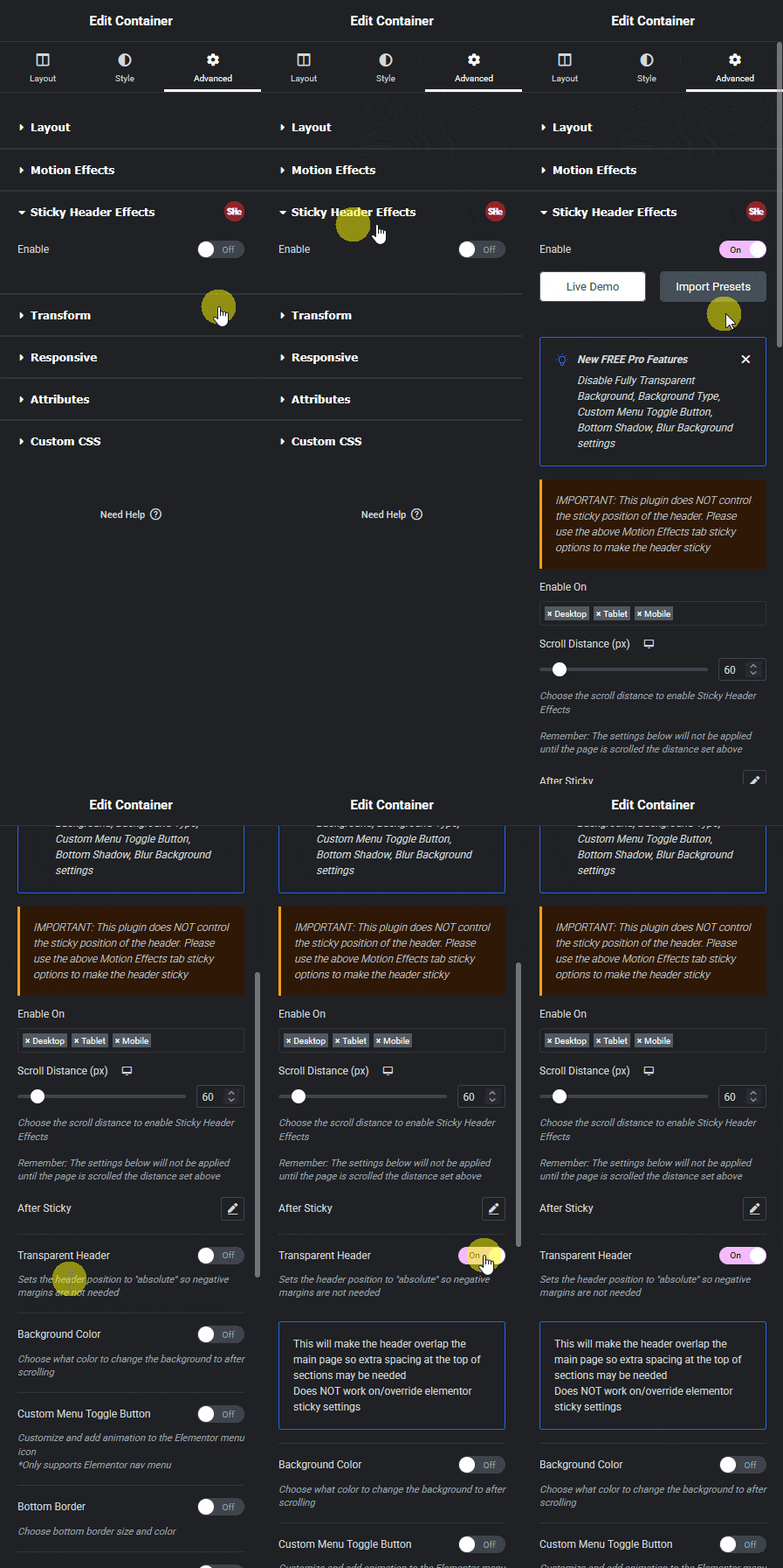
This will make the header transparent, and it will overlap the page content. If you have set any background to the header, it will show the background when it becomes sticky.

More in Sticky Header Effects
Still stuck?
Ask in the community — real answers from the team and other builders.