
How to Add Grayscale, Brightness & Contrast Effects to Elementor Sticky Header?
Want to push your sticky header’s backdrop effects further than just blur? With Extended Backdrop Filters, you can layer grayscale, brightness, contrast, and hue-rotate on top of the Blur Background effect – so the content behind your sticky header is filtered exactly the way you want.
With the Sticky Header Effects for Elementor plugin, you can easily add extended backdrop filters to your Elementor sticky header.
To check the complete feature overview documentation of Sticky Header Effects for the Elementor plugin, click here.
Requirement – This feature is a part of Sticky Header Effects for Elementor PRO, so make sure both the Free & Pro plugins are installed & activated. Extended Backdrop Filters build on top of the Blur Background effect, so the Blur Background option must be enabled.
To do this, add the Elementor Container widget, then design the header content as per your requirements or use a header template and follow the steps –
1. Select the main Container widget of the header, then go to the Advanced > Sticky Header Effects tab and turn on the Enable toggle.
2. Turn on the Blur Background effect and set your Blur Amount and Saturation. (Extended Backdrop Filters build on top of Blur + Saturate, so this needs to be on. See How to Blur Sticky Header Background on Scroll.)
3. Turn on the Extended Backdrop Filters toggle.
4. Adjust Grayscale (0–100%) to desaturate the backdrop behind the header.
5. Adjust Brightness (0–200%; 100% = no change).
6. Adjust Contrast (0–200%; 100% = no change).
7. Adjust Hue Rotate (0–360°) to shift the colors of the backdrop.
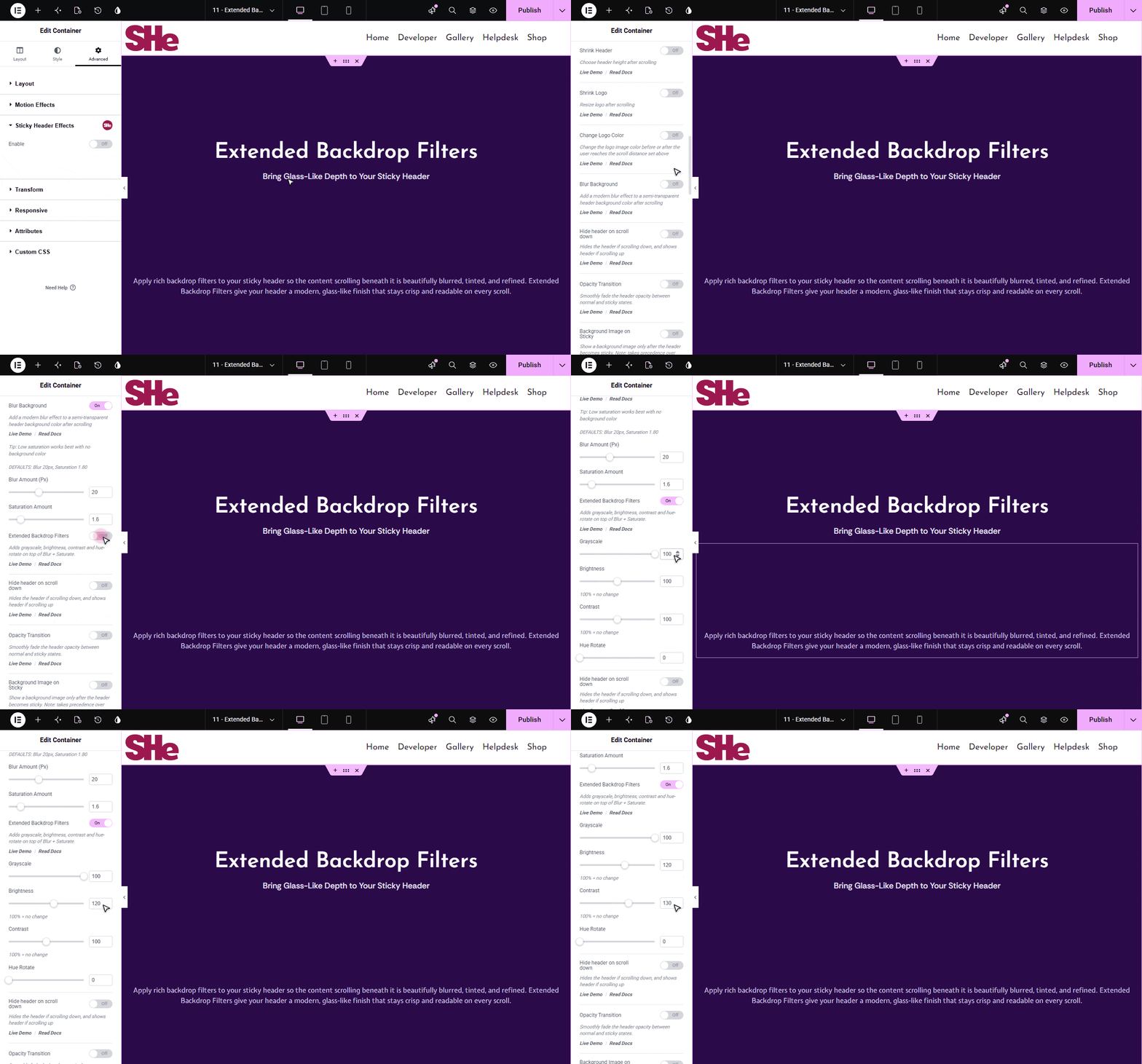
All of these filters combine into a single backdrop effect applied to the area behind your sticky header. The defaults are set to “no effect” (0% grayscale, 100% brightness and contrast, 0° hue), so turning the toggle on keeps the original blur look until you start moving the sliders.

More in Extended Backdrop Filters
Still stuck?
Ask in the community — real answers from the team and other builders.