
How to Add Reveal Animation to Elementor Sticky Header?
Do you want your Elementor header to animate into view the moment it becomes sticky? With the Reveal Animation feature, you can play a smooth entrance effect – slide, fade, zoom, or flip – on the header as it enters its sticky state, giving your site a polished, dynamic feel.
With the Sticky Header Effects for Elementor plugin, you can easily add a reveal animation to your Elementor sticky header.
To check the complete feature overview documentation of Sticky Header Effects for the Elementor plugin, click here.
Requirement – This feature is a part of Sticky Header Effects for Elementor PRO, so make sure both the Free & Pro plugins are installed & activated.
To do this, add the Elementor Container widget, then design the header content as per your requirements or use a header template and follow the steps –
1. Select the main Container widget of the header, then go to the Advanced > Sticky Header Effects tab and turn on the Enable toggle.
2. Turn on the Reveal Animation toggle.
3. Choose an Effect – Slide Down (default), Slide Up, Slide Left, Slide Right, Fade In, Zoom In, Zoom Out, Flip X, or Flip Y.
4. Set the Duration of the animation (default 0.5s, in seconds or milliseconds).
5. Pick an Easing curve – Linear, Ease, Ease In, Ease Out (default), Ease In Out, Back, or Bounce.
6. Optionally add a Delay before the animation starts (default 0s).
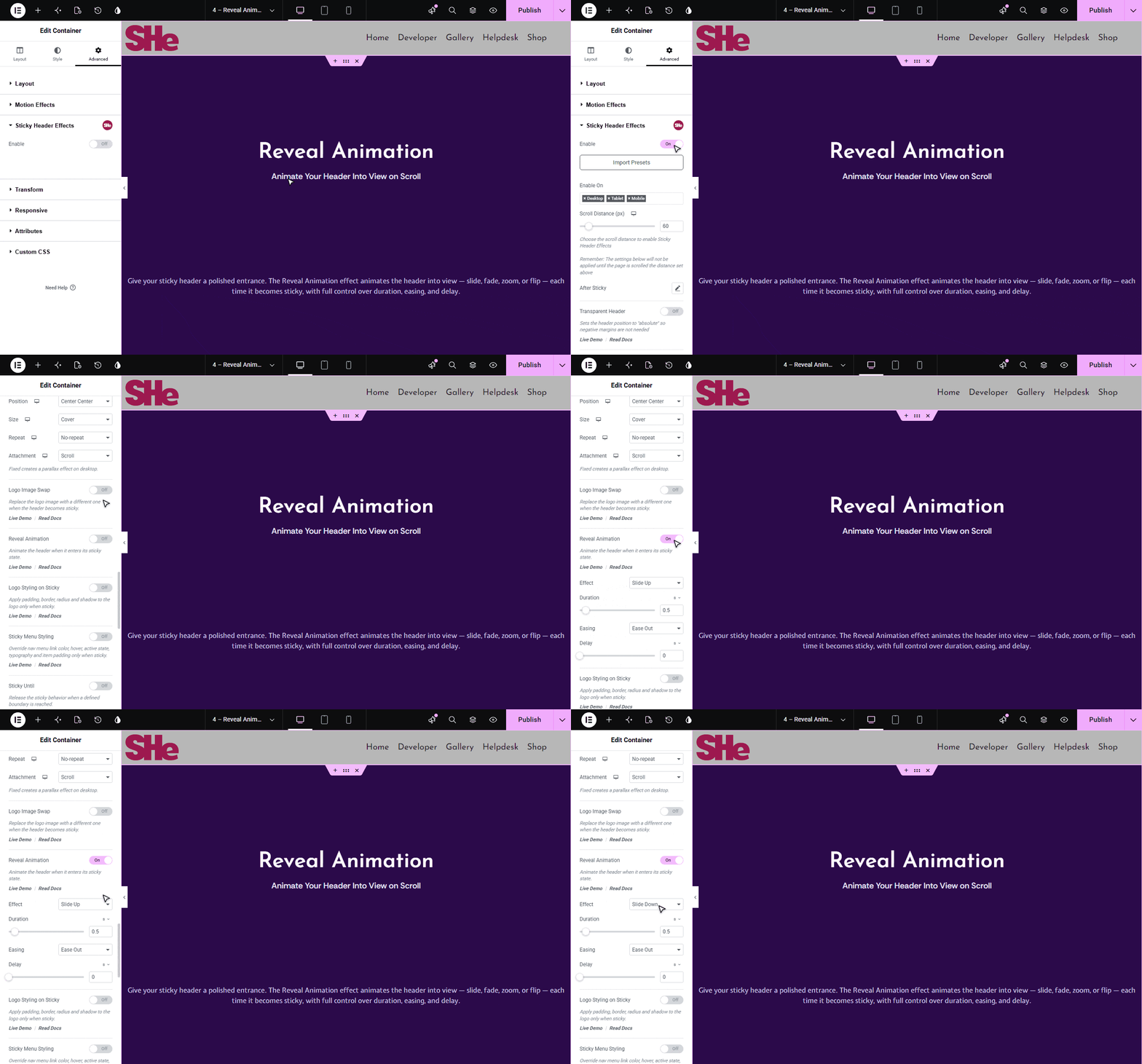
The animation plays each time the header enters its sticky state. (In this version the reveal is an entrance effect only – the header simply snaps back to its normal flow when you scroll back to the top.)

More in Reveal Animation
Still stuck?
Ask in the community — real answers from the team and other builders.