
How to Add a Scroll Progress Bar to an Elementor Sticky Header?
Do you want visitors to see how far they have read the moment your Elementor header locks to the top? The Scroll Progress Bar adds a thin, animated bar to your sticky header that fills from left to right as people scroll down the page. It is a simple, familiar cue that makes long pages feel shorter and gives your header a polished, app-like finish.
Requirement, this feature is a part of Sticky Header Effects for Elementor PRO, so make sure both the Free and Pro plugins are installed and activated, and that the header has the Sticky Header Effects toggle turned on.
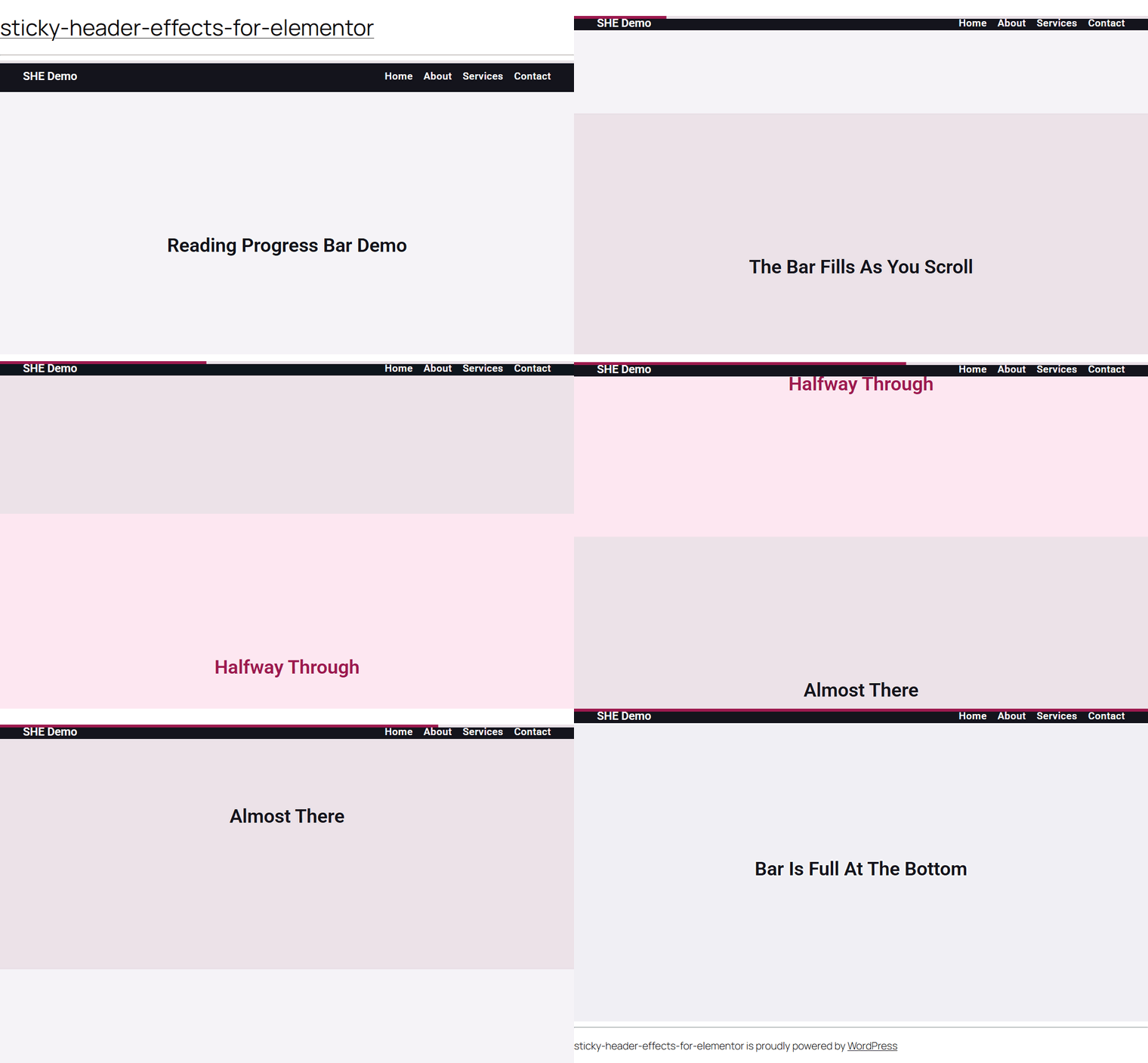
What It Does
The Scroll Progress Bar draws a slim bar across your sticky header and fills it in real time as the visitor scrolls the page. At the very top of the page the bar is empty, and by the time the visitor reaches the bottom it is completely full. The amount filled always reflects how far down the whole page the reader has travelled, so it works as a live reading-progress indicator.
The bar is attached to the header you already made sticky, so it rides along with the header as it pins to the top of the screen. You can also detach it and pin it to the very edge of the browser window instead, turning it into a page-wide reading bar. Everything is styled from inside Elementor, with no code and no separate widget to place on the canvas.
Why It Matters
Long articles, documentation, sales pages, and single-page sites can feel endless. A progress bar answers the reader’s unspoken question, how much is left, without them having to guess from the scrollbar. That small reassurance keeps people moving down the page instead of bouncing away.
Because the bar lives in the sticky header, it stays visible the entire time the header is pinned, so the cue is always on screen exactly where the reader’s eye already returns. It is a low-effort, high-recognition pattern that instantly signals a considered, modern design.
What You Get
- A scroll-driven progress bar built right into your existing sticky header, with a single on and off switch.
- Two anchor modes, attached to the header or pinned to the top of the screen as a page-wide reading bar.
- Top or bottom placement, so the bar can sit above or below your header content.
- Full styling control over thickness, fill color or gradient, track color, corner radius, border, and shadow or glow.
- Visibility options, always on or only once the header becomes sticky, plus an auto-hide for pages too short to scroll.
- A Smooth Fill control that eases the bar from instant to a gentle trailing motion.
Benefits
- Keeps readers engaged. A visible sense of progress encourages people to finish long pages.
- No extra widget to manage. The bar is part of the header, so it appears on every page that header serves without any per-page setup.
- Fast and smooth. The fill is animated with a transform-only technique that stays on a smooth 60 frames-per-second path and never triggers heavy layout work.
- On brand. Solid colors, gradients, radius, borders, and glow let the bar match your palette exactly.
- Loads only where used. The bar’s script and styles are added only for headers that actually turn the feature on, so other pages stay lean.
Capabilities
- Scroll Progress Bar. The master switch that turns the bar on for this header. Off by default.
- Anchor. Choose Attached to Header to place the bar on the header itself, or Top of Screen to pin it to the browser edge as a reading bar.
- Position. Place the bar at the Top or the Bottom edge.
- Show Bar. Keep it Always visible, or set it to Only When Sticky so it fades in once the header pins.
- Hide on Short Pages. Automatically removes the bar on pages that are not tall enough to scroll.
- Thickness. Set the bar height from 1 to 20 pixels, with a 4-pixel default, per device.
- Fill. A solid color or a gradient for the filled portion. The default is a deep magenta.
- Track Color. The color of the unfilled background behind the fill.
- Border Radius, Border, and Box Shadow. Round the corners, add an outline on the track, or add a shadow or glow on the fill.
- Smooth Fill. An easing time from 0 to 1000 milliseconds. Zero is instant, higher values give a smoother trailing motion. The default is 150 milliseconds.
How It Works
When the feature is on, a lightweight script builds the bar inside your sticky header the moment the page loads. It then listens to the page’s scroll position through a single, shared, throttled listener that runs in step with the browser’s paint cycle, so many bars on a site never add up to a performance cost.
On every update the script measures how far the visitor has scrolled against the total scrollable height of the page and turns that into a value between empty and full. The fill is then scaled horizontally, which is the reason it stays smooth even during fast scrolling. If the page height changes, for example when lazy-loaded images or an accordion open, the bar recalculates automatically so the progress stays accurate.
Anchor, Position, and Show Bar are handled purely through CSS, while the enable switch and Hide on Short Pages are read by the script. That split is what keeps the bar both flexible and fast.
How to Use It
- Make sure both Sticky Header Effects for Elementor and its Pro add-on are installed and activated.
- Edit your header template, or the section or container that acts as your header, in Elementor.
- Open the Advanced tab and find the Sticky Header Effects panel, then turn the main sticky effect on.
- Scroll down to the Scroll Progress Bar switch and turn it On.
- Choose the Anchor, either Attached to Header or Top of Screen, and set the Position to Top or Bottom.
- Pick when the bar shows with Show Bar, and turn on Hide on Short Pages if you only want it on pages that scroll.
- Style the bar, set the Thickness, Fill, Track Color, Border Radius, Border, and Box Shadow to match your design.
- Adjust Smooth Fill to taste, then update the page and view it on the front end to watch the bar fill as you scroll.
Note that the Elementor editor does not run the scroll script, so the live filling motion is only visible on the published page, not inside the editor canvas.
Use Cases
- Long-form blog posts and guides. Give readers a clear sense of how much article is left.
- Documentation and knowledge bases. Help readers gauge the length of a reference page at a glance.
- Single-page and long sales pages. Keep visitors moving toward the call to action at the bottom.
- Portfolios and case studies. Add a subtle, premium detail that signals attention to craft.
- News and magazine layouts. Use a page-wide reading bar pinned to the top of the screen for a familiar editorial feel.
Limitations
- This is a Pro feature. It needs both the free plugin and the Pro add-on active, and it only works on a header that has the Sticky Header Effects toggle enabled.
- The bar tracks progress through the whole page, not a single article element, so it measures the full document from top to bottom.
- On pages that are not tall enough to scroll the bar has nothing to fill, so it stays empty. Turn on Hide on Short Pages to remove it in that case.
- The Fill supports a solid color or a gradient only. Background images and video are not available for the bar.
- The live fill animation does not play inside the Elementor editor. Preview it on the published page.
Troubleshooting
The bar does not appear at all. The most common cause is that the header’s main Sticky Header Effects toggle is off, or the Pro add-on is not active. The Scroll Progress Bar and all of its style controls only apply when the sticky effect is enabled, and the bar’s assets load only for headers that have it on. Turn on the Sticky Header Effects switch first, confirm both the free and Pro plugins are active, then enable the Scroll Progress Bar.
The bar shows but never fills, or looks stuck empty. Progress is measured against how far the page can scroll, so a page that is shorter than the screen has nothing to fill and the bar stays at zero. Test on a page that is tall enough to scroll. If you would rather the bar simply disappear on such pages, turn on Hide on Short Pages.
The bar is invisible until you scroll. If Show Bar is set to Only When Sticky, the bar is intentionally hidden until the header enters its sticky state, then it fades in. Set Show Bar to Always if you want it visible from the very top of the page.
You can see the fill but not the track, or the colors blend in. The Track Color has no color by default, so only the filled portion is visible against the header. If the fill color is close to your header background, the bar can look faint. Set a Track Color and a Fill color that both contrast with the header so the whole bar reads clearly.
A page-wide bar overlaps or sits behind other elements. When Anchor is set to Top of Screen the bar is pinned to the browser edge. If a theme’s own fixed bar or another sticky element sits in the same spot, switch the Position to the opposite edge, or use the Attached to Header anchor so the bar rides with your header instead.

More in Scroll Progress Bar
Still stuck?
Ask in the community — real answers from the team and other builders.