
How to Add a Back to Top Button to an Elementor Sticky Header?
Do you want visitors to jump back to the top of a long page without scrolling all the way up? A Back to Top button appears once the visitor has scrolled past a distance you set, then smooth scrolls them back to the top when clicked. It keeps long posts and one page layouts easy to navigate.
With the Sticky Header Effects for Elementor plugin, you can add a Back to Top button to your Elementor header in a few clicks, with full control over its position, size, colors and the point at which it shows up.
To check the complete feature overview documentation of Sticky Header Effects for the Elementor plugin, click here.
Requirement. This feature is a part of the Sticky Header Effects for Elementor plugin, so make sure it is installed and activated.
What It Does
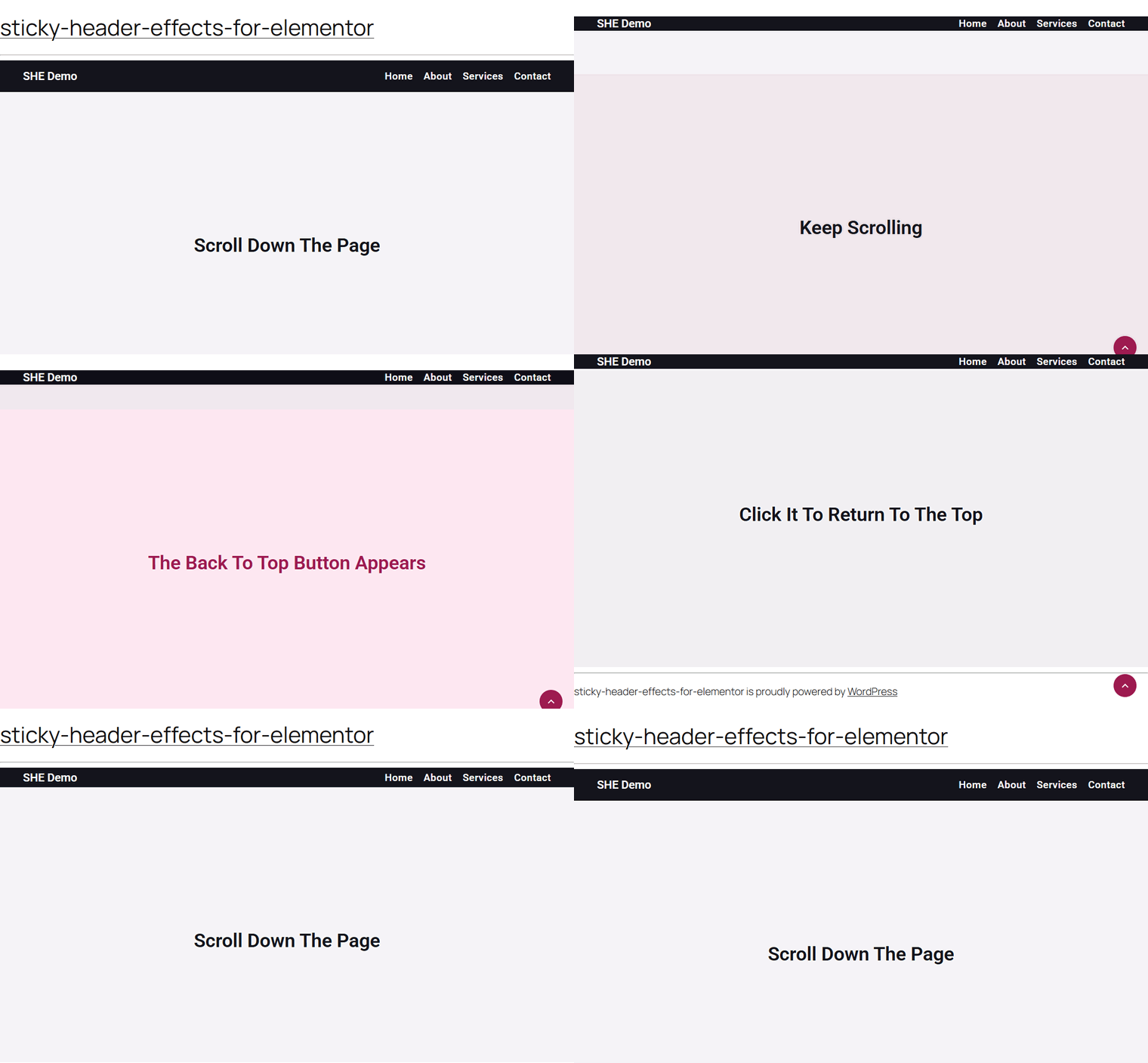
The Back to Top button adds a single floating button to your page that returns the visitor to the very top with one click. It stays hidden while the visitor is near the top, then fades into a corner of the screen once they scroll past the distance you choose. Clicking it triggers a smooth scroll back to the top, so the visitor never has to swipe or flick their way up a long page.
The button is built into the same Sticky Header Effects panel you already use for your header, so there is no extra widget to drag in and no separate plugin to install. You enable it on your header, and it renders on the front end for every page that header appears on.
Why It Matters
Long pages are everywhere, from blog posts and documentation to one page portfolios and landing pages. When a visitor reaches the bottom, getting back to the menu or the top of the page can mean a long, tiring scroll. That friction is enough to make people leave instead of exploring more of your content.
A Back to Top button removes that friction. It gives visitors a reliable, always visible way to return to the top, which keeps them moving through your site and makes long layouts feel lighter to navigate. It is a small touch that has become a familiar convenience, and its absence is quickly noticed on content heavy pages.
What You Get
Turning on the Back to Top button gives you a complete, ready to use control set inside the Sticky Header Effects panel. You do not build the button yourself, you simply style the one the plugin provides:
- A floating button with a built in up arrow icon, injected once per page.
- A Position choice to place it in the right or left corner.
- A Show After (px scrolled) value that sets when it appears.
- Button Size, Distance from Edge and Border Radius for shape and placement.
- Icon Color, Background Color and Background Hover for full color styling.
- Smooth scroll behavior that respects a visitor’s reduced motion preference.
Benefits
- Easier navigation. Visitors return to the top of long pages instantly, with no manual scrolling.
- Longer sessions. Less friction keeps people reading and exploring more of your content.
- On brand styling. Match the button’s colors, size and shape to your design instead of settling for a generic widget.
- No extra tools. The feature lives inside your existing header settings, so there is nothing new to install or maintain.
- Accessible by default. The button carries a clear label and honors the reduced motion setting for visitors who prefer it.
Capabilities
- Corner position. Place the button in the right corner (default) or the left corner.
- Appearance threshold. Set Show After (px scrolled) to control how far a visitor scrolls before the button shows, with a default of 300px.
- Button size. Adjust the button dimensions, which default to 44px.
- Edge spacing. Set the Distance from Edge, which defaults to 24px, to keep the button clear of the screen edges.
- Corner rounding. Control the Border Radius, defaulting to 50% for a fully round button.
- Full color control. Set the icon color, background color and a separate background color for the hover state.
- Works on both header types. The button is available whether you build your header with a Section or a Container.
How It Works
When a page loads, the plugin looks for the first sticky header that has the Back to Top button enabled and reads its settings. It then creates one button, applies your chosen position, size, radius and colors, and places it in a fixed corner of the screen so it stays put as the visitor scrolls.
As the visitor scrolls, the plugin watches the scroll distance. Once they pass the Show After value you set, the button becomes visible. Scroll back up above that point and it hides again. When the visitor clicks the button, the page smooth scrolls back to the top, unless the visitor’s browser is set to reduce motion, in which case it jumps to the top instantly.
Because the button is placed at the page level rather than inside the header markup, it stays clear of the header’s own scroll transforms. That means it will not drift or overlap when the header shrinks, hides or otherwise animates on scroll.
How To Use It
To add a Back to Top button, add the Elementor Container widget, then design the header content as per your requirements or use a header template and follow the steps.
- Select the main Container widget of the header, then go to the Advanced > Sticky Header Effects tab and turn on the Enable toggle.
- Turn on the Back to Top Button toggle.
- Choose the Position to place the button in the corner you want.
- Set Show After (px scrolled) to control how far the visitor scrolls before the button appears.
- Adjust the Button Size, Distance from Edge and Border Radius to suit your design.
- Set the Icon Color, Background Color and Background Hover to match your brand.
- Update the page, then open it on the front end and scroll down to see the button appear.
The controls stay hidden until the main Enable toggle is on, since the Back to Top button rides along with your sticky header setup.
Use Cases
- Long blog posts and articles. Let readers return to the menu the moment they finish reading.
- One page websites. Give visitors a quick way back to the top navigation from any section.
- Documentation and knowledge bases. Help readers reset to the top after working through a long reference page.
- Product and landing pages. Bring visitors back to the primary call to action after they scroll through the details.
- Portfolios and galleries. Keep tall, image heavy pages comfortable to browse.
Limitations
- The Back to Top controls only appear after the main Enable toggle for sticky effects is on. The button is part of the Sticky Header Effects panel, not a standalone widget.
- Only one button is rendered per page. If more than one header has the option enabled, the plugin uses the settings from the first enabled sticky header it finds.
- The button uses a built in up arrow icon. You can style its colors, size, radius, position and spacing, but the icon glyph itself is fixed.
- The button is a fixed element in a page corner. If you run other floating elements in the same corner, such as a chat widget, plan the position and edge spacing so they do not stack on top of each other.
- Visibility is driven by scroll distance, not by whether the header is currently sticky. The button appears based purely on how far the visitor has scrolled.
Troubleshooting
The button does not appear on the front end. The most common cause is that the main Enable toggle for Sticky Header Effects is off, which hides the Back to Top controls and stops the button from rendering. Open the header’s Advanced > Sticky Header Effects tab, turn on Enable, then turn on the Back to Top Button toggle and update the page.
The button never shows even after scrolling. This usually means the Show After (px scrolled) value is higher than the page can scroll. The button only appears once the visitor scrolls past that distance, so on a short page it may never trigger. Lower the Show After value, or test on a longer page, so the scroll position can pass the threshold.
The button overlaps another floating element. Because the button is fixed in a page corner, it can sit on top of a chat widget or other floating button placed in the same corner. Change the Position to the opposite corner, or increase the Distance from Edge, so each element has its own space.
Only one button shows when the option is set on multiple headers. This is expected behavior. The plugin injects a single button per page and reads its settings from the first sticky header that has the option enabled. Enable and style the Back to Top button on the header that loads first on the page, rather than on several headers at once.
Still stuck? Browse the full documentation for more guides, and our team will be happy to help.

More in Back to Top Button
Still stuck?
Ask in the community — real answers from the team and other builders.