
How to Hide Elementor Sticky Header on Scroll Down?
Want your sticky header to disappear when users scroll down and reappear when they scroll up? This trick gives visitors more space to view your content while still keeping the menu just a scroll away. It’s a smart way to keep your site clean and user-friendly.
With the Sticky Header Effects for Elementor plugin, you can easily hide the Elementor sticky header background on scroll down and show it as you scroll up.
To check the complete feature overview documentation of Sticky Header Effects for the Elementor plugin, click here.
Requirement – This feature is a part of Sticky Header Effects for Elementor plugin, make sure its installed & activated.
To do this, add the Elementor Container widget, then design the header content as per your requirements or use a header template and follow the steps –
1. Select the main Container widget of the header, then go to the Advanced > Sticky Header Effects tab and turn on the Enable toggle.
2. Then enable the Hide header on scroll down toggle.
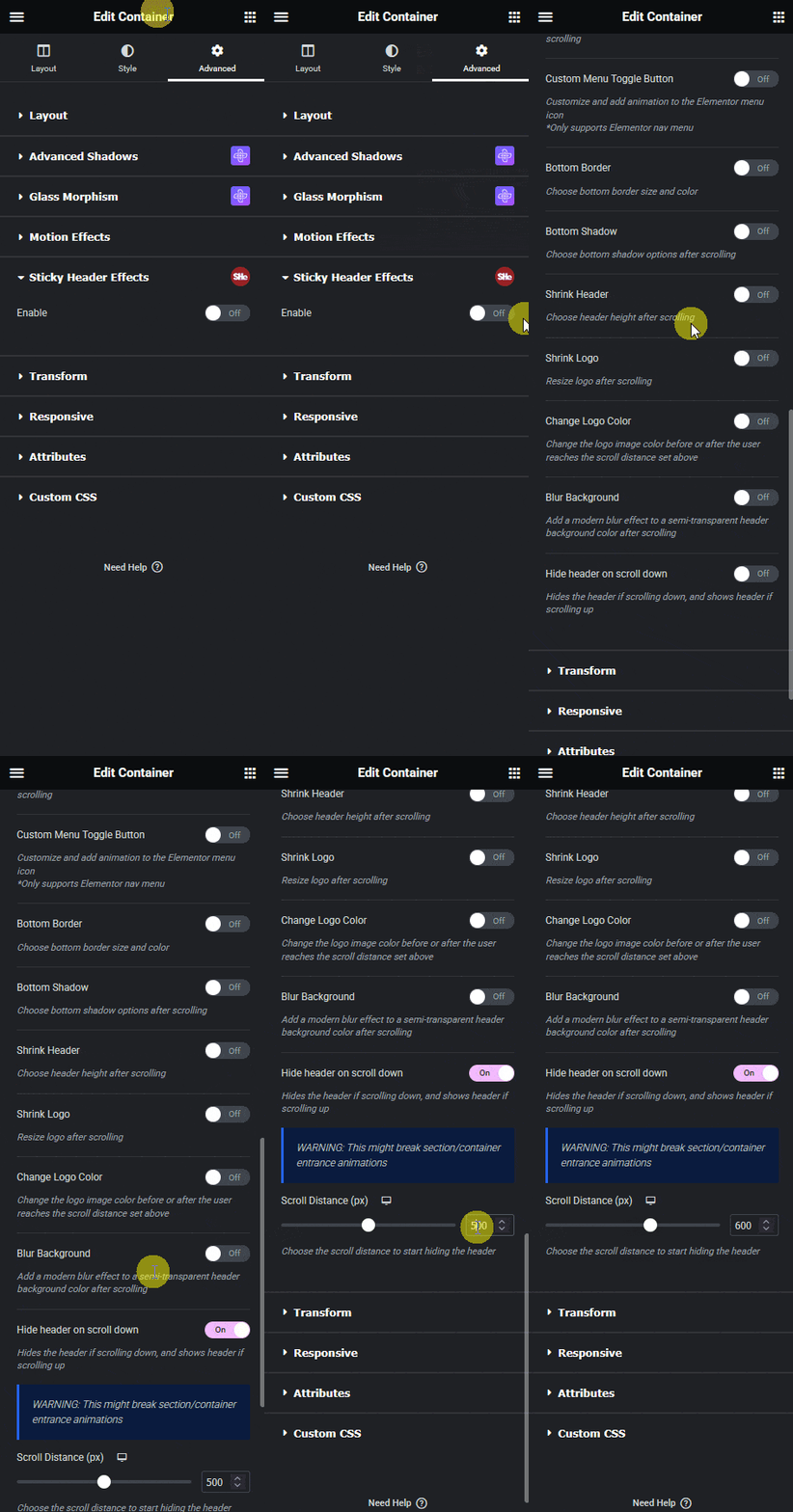
3. After that, from the Scroll Distance (px) section, you have to set the scroll distance (in pixels), i.e., how far you have to scroll down from the top when the sticky header will hide.
Now, when you scroll down to your specified distance, the sticky header will hide, and once you scroll up, it will show again.

More in Hide Header on Scroll Down
Still stuck?
Ask in the community — real answers from the team and other builders.