
How to Swap Logo Image in Elementor Sticky Header on Scroll?
Do you want a completely different logo to appear once your Elementor header becomes sticky? Instead of recoloring the same graphic with a filter, the Logo Image Swap feature loads a separate, purpose made logo for the sticky state. It is perfect for non monochrome logos, switching between a full wordmark and a compact icon, or serving a retina crisp sticky logo.
With the Sticky Header Effects for Elementor plugin, you can swap the logo image in your Elementor sticky header on scroll in just a few clicks, with no custom code.
To check the complete feature overview documentation of Sticky Header Effects for the Elementor plugin, click here.
Requirement, this feature is a part of Sticky Header Effects for Elementor PRO, so make sure both the Free and Pro plugins are installed and activated.
What It Does
Logo Image Swap replaces the actual logo image on your header the moment it becomes sticky, then restores the original logo when the header returns to its normal state. This is a real image swap at the source level, not a CSS color filter, so the sticky logo can be an entirely different graphic. It also supports a high resolution retina version, so the swapped logo stays sharp on modern displays.
Why It Matters
One logo rarely looks perfect in every context. A mark designed for a large transparent hero can feel oversized or low contrast once it sits inside a compact, solid sticky bar. A color filter can only recolor the same shape, which does not help logos with multiple colors, gradients, or fine detail. Logo Image Swap solves this by letting you load a second, purpose built asset for the sticky state. You can drop from a full wordmark to a small icon, flip a light logo to a dark one, or serve a tighter, retina ready version, all without touching your original branding on the rest of the page.
What You Get
- Logo Image Swap toggle, turns the whole feature on for the selected header container.
- Sticky Logo Image, the image that replaces your logo while the header is sticky.
- Retina Logo (@2x), an optional high resolution version for retina and high density screens.
- Sticky Logo Width, an optional responsive control to resize the logo while sticky, with automatic revert.
- Logo CSS Selector, an optional field to target a logo built with a custom widget the defaults do not cover.
- not-logo exclusion class, add it to any image you want the swap to leave untouched.
Benefits
- Show a sticky specific logo that is designed for a smaller, solid header rather than a stretched version of the original.
- Keep full color and detailed logos looking correct, since you are swapping the whole image rather than filtering it.
- Serve a crisp retina asset so the sticky logo never looks soft on high density displays.
- Fine tune the sticky logo width per device, then let it revert automatically when the header is not sticky.
- Exclude decorative images in the same header from the swap with a single CSS class.
- Works out of the box with Elementor Site Logo and Image widgets, and extends to custom widgets through the selector field.
Capabilities
- Targets Elementor Site Logo and Image widgets inside the header by default, honoring the
not-logoopt out class. - Extends targeting to any custom logo markup through the optional Logo CSS Selector, which is used in addition to the defaults.
- Swaps the image source, and builds a fresh srcset of 1x and 2x when a retina logo is supplied.
- Preserves the original source, srcset, and sizes so the logo restores cleanly when the header leaves the sticky state.
- Applies an optional responsive sticky width to the logo, reverting automatically when not sticky.
- Runs as vanilla JavaScript that reacts to the sticky class change, so it stays decoupled from the core scroll engine and does not compete with it.
- Loads its script only on headers that actually enable the feature, keeping other pages lean.
How It Works
Logo Image Swap sits on top of the core sticky behavior. When you scroll and the plugin marks your header as sticky, it adds a sticky class to the header container. The Logo Image Swap script watches that container for the class change and, the moment it appears, swaps each matched logo image to your chosen Sticky Logo Image. If you provided a Retina Logo (@2x), it also sets a matching srcset so browsers on high density screens pull the sharper file.
Before the first swap, the original source, srcset, and sizes of each logo are cached. When the header scrolls back and the sticky state is removed, those cached values are restored, so your normal logo returns exactly as it was. The whole feature is gated behind the main Enable toggle, which means the swap only runs when sticky is active for that header.
The swap reacts to the sticky state rather than the scroll handler itself, so it never fights the core engine. It simply mirrors whatever sticky decision the plugin has already made.
How to Use It
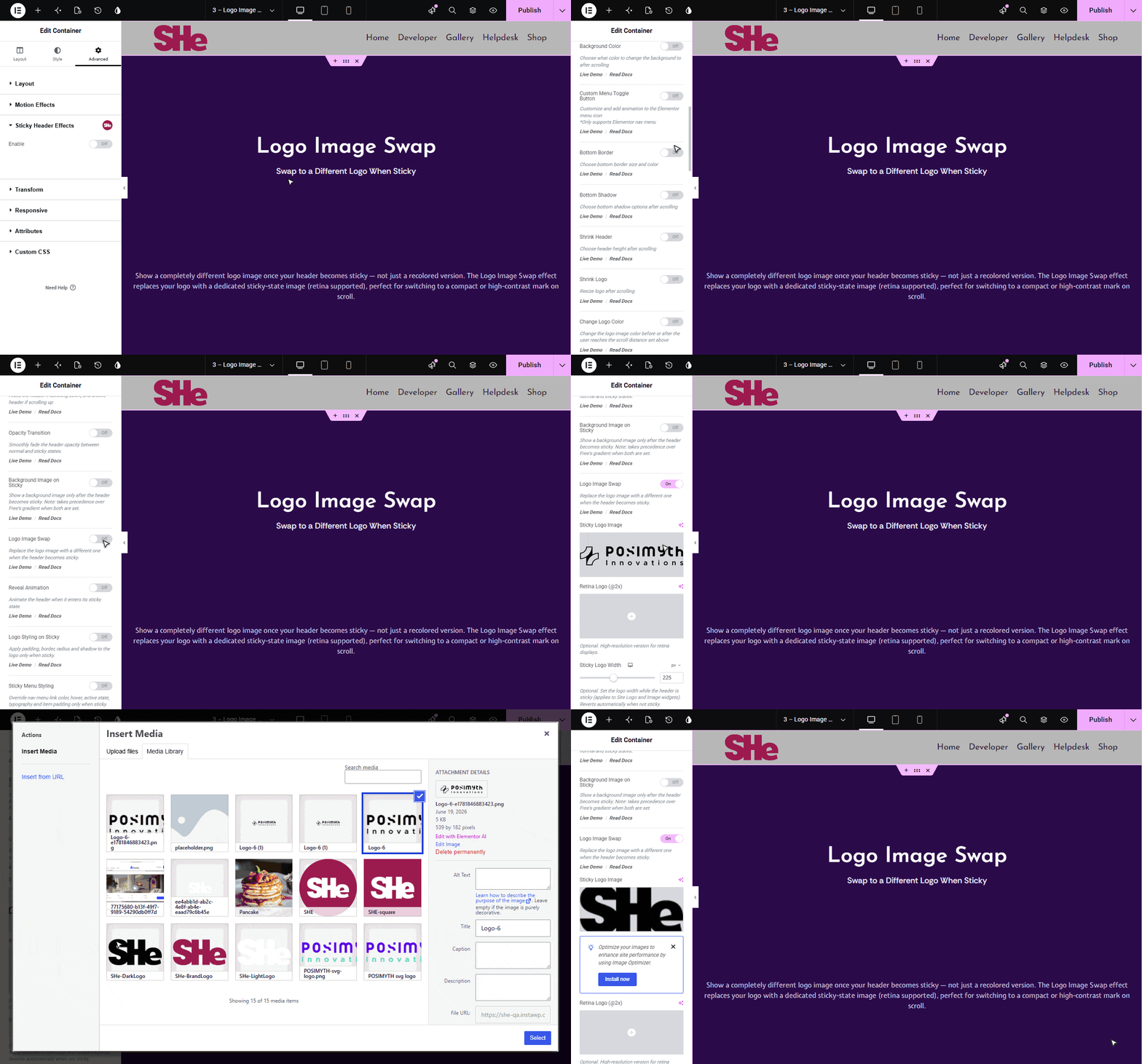
Add the Elementor Container widget, then design the header content as per your requirements or use a header template and follow the steps.
- Select the main Container widget of the header, go to the Advanced > Sticky Header Effects tab, and turn on the Enable toggle.
- Turn on the Logo Image Swap toggle.
- Choose your Sticky Logo Image, the image that replaces the logo when the header is sticky.
- Optionally add a Retina Logo (@2x), a higher resolution version for retina displays.
- Optionally set the Sticky Logo Width if you want the logo resized while the header is sticky.
- If your logo uses a custom widget and the swap does not work, enter a Logo CSS Selector (for example
.site-branding img) to target the logo image.
The swap targets the Site Logo and Image widgets inside the header. To exclude a decorative image in the same section, add the CSS class
not-logoto it.
Use Cases
- Wordmark to icon, show your full brand name over a tall hero, then drop to a compact icon in the slim sticky bar.
- Contrast switch, use a light logo over a dark transparent header, then swap to a dark logo once the sticky background turns solid and light.
- Retina sharpening, keep a small sticky logo crisp on high density screens by pairing it with an @2x asset.
- Brand variant, present a detailed multi color logo at the top and a simplified variant while scrolling.
- Custom header builds, target a logo placed inside a non standard widget by supplying your own CSS selector.
Limitations
- This is a Pro feature, so both the Free and Pro plugins must be installed and active.
- The main Enable toggle must be on for that header, since the swap only runs while the header is sticky.
- A Sticky Logo Image is required for the swap to happen. A retina logo alone, with no primary sticky image, will not trigger it.
- By default the swap only reaches Site Logo and Image widgets. Any other markup needs the Logo CSS Selector.
- Images carrying the
not-logoclass are always skipped, by design. - The swap is a frontend behavior and does not run inside the Elementor editor, so preview or view the live page to see it.
Troubleshooting
Nothing swaps at all. The most common cause is that the Pro plugin is not active, or the main Enable toggle for this header is off. Make sure both the Free and Pro plugins are activated, then open the header container and turn on the Enable toggle in the Sticky Header Effects tab before testing again.
The header goes sticky but the logo never changes. This usually means no Sticky Logo Image has been set. The retina field on its own does not start the swap. Open the Logo Image Swap section and choose an image in the Sticky Logo Image control.
A logo built with a custom widget is not swapping. The default targeting only reaches Elementor Site Logo and Image widgets, so a logo inside another widget is not matched. Enter a Logo CSS Selector that points at the image, for example .site-branding img, to include it.
The sticky logo looks blurry on a high resolution screen. This happens when only a standard image is provided and the display is retina. Add a Retina Logo (@2x) at double the pixel dimensions so browsers can pull the sharper file.
An image you did not want to change got swapped, or one you want excluded keeps changing. It is matching the logo target. Add the CSS class not-logo to that specific image so the feature leaves it untouched.

More in Logo Image Swap
Still stuck?
Ask in the community — real answers from the team and other builders.