
How to Style the Logo in Elementor Sticky Header on Scroll?
Do you want to give your logo a different look once your Elementor header becomes sticky? With the Logo Styling on Sticky feature, you can add padding, a border, rounded corners, and a shadow to the logo – applied only in the sticky state, with a smooth transition between the two looks.
With the Sticky Header Effects for Elementor plugin, you can easily style the logo in your Elementor sticky header on scroll.
To check the complete feature overview documentation of Sticky Header Effects for the Elementor plugin, click here.
Requirement – This feature is a part of Sticky Header Effects for Elementor PRO, so make sure both the Free & Pro plugins are installed & activated.
To do this, add the Elementor Container widget, then design the header content as per your requirements or use a header template and follow the steps –
1. Select the main Container widget of the header, then go to the Advanced > Sticky Header Effects tab and turn on the Enable toggle.
2. Turn on the Logo Styling on Sticky toggle.
3. Set the Padding around the logo for the sticky state.
4. Set a Border Radius to round the logo’s corners.
5. Add a Border and/or Box Shadow to frame the logo.
6. Adjust the Transition Duration to control how smoothly the styling eases in and out (default 0.4s).
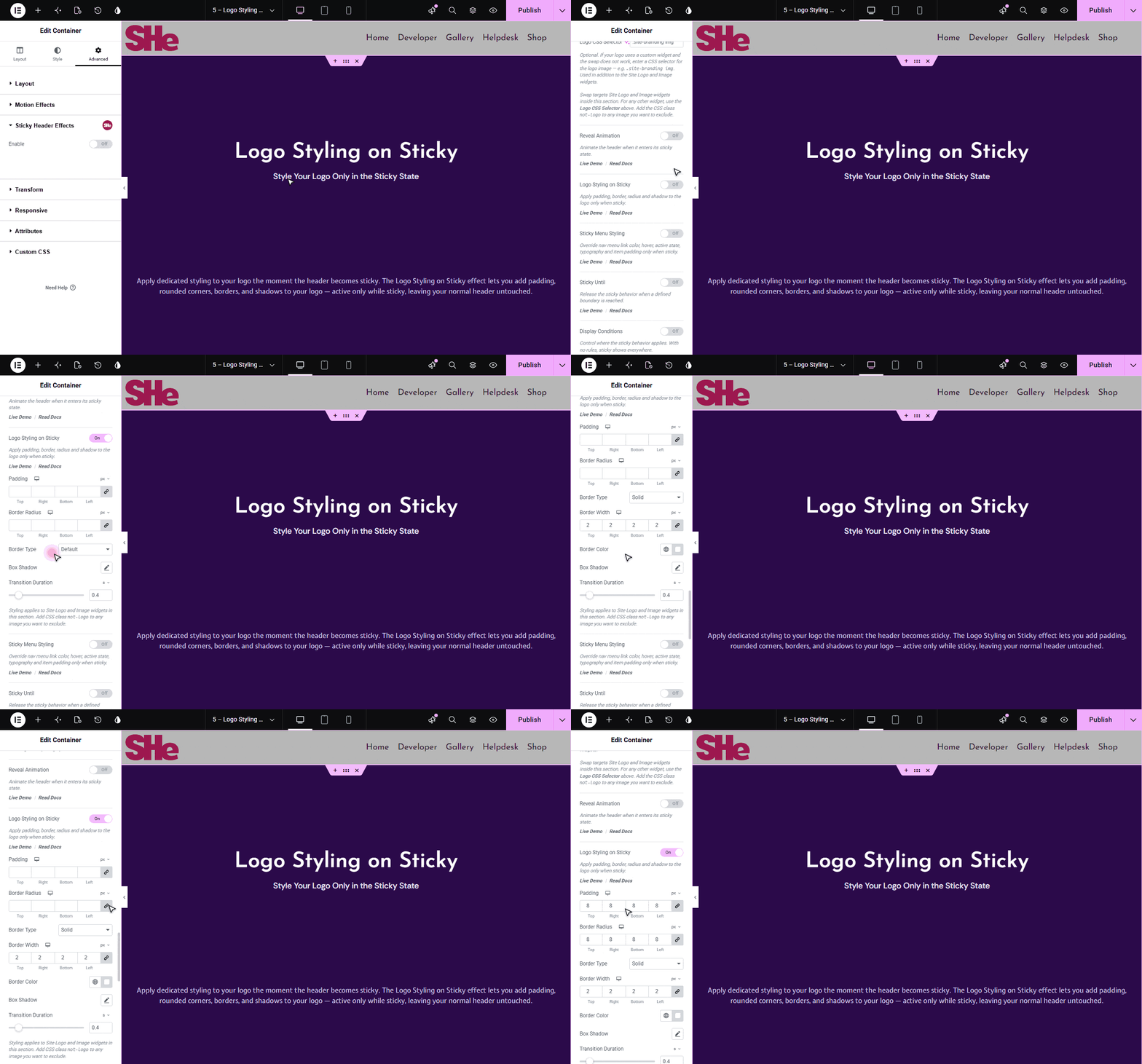
The styling applies to the Site Logo and Image widgets inside the header. To exclude a decorative image in the same section, add the CSS class not-logo to it.

More in Logo Styling
Still stuck?
Ask in the community — real answers from the team and other builders.