
How to Replace Elementor Header with a Different Design on Scroll?
Do you want a completely different header design to appear when your Elementor header becomes sticky? With the Header Replace on Scroll feature, you can show one header at the top of the page and swap in a different one the moment the header sticks, which is perfect for switching layouts, colors, or logos between states.
With the Sticky Header Effects for Elementor plugin, you can replace your Elementor header with a different design on scroll, using no separate template and adding no measurable page-load cost.
To check the complete feature overview documentation of Sticky Header Effects for the Elementor plugin, click here.
Requirement. This feature is a part of Sticky Header Effects for Elementor PRO, so make sure both the Free and Pro plugins are installed and activated.
What It Does
Header Replace on Scroll shows one header design at the top of the page and reveals a completely different design the moment the header becomes sticky. Instead of loading a second Elementor template, you build both looks as sticky header sections inside a single header, and the plugin toggles between them with CSS as the visitor scrolls.
This is a PRO feature that works on both Sections and Containers. It builds directly on Free’s core sticky engine, so the normal look and the sticky look share one header and switch cleanly without a page reload or a flash of the wrong design.
Why It Matters
A standard sticky header keeps the same design and simply follows the visitor down the page. That is fine for many sites, but it limits how much you can adapt the header to the scrolled state. Sometimes you want a tall, spacious header at the top and a compact, high-contrast bar once the visitor starts reading.
Header Replace on Scroll gives you that full redesign on scroll without the usual cost. Older approaches rendered a second template on sticky, which forced an extra full render, re-processed assets, and slowed the page. This feature uses a pure CSS visibility swap instead, so you get two distinct header looks with essentially zero extra page-load work on every page.
What You Get
- A Header Replace on Scroll toggle inside Free’s existing Sticky Header Effects panel.
- A Sticky Visibility control with three modes, so each section knows when to appear.
- Support for both Elementor Sections and Containers.
- A CSS-only swap that reveals the sticky look and hides the normal look automatically on scroll.
- No separate template, no AJAX, no custom JavaScript, and no per-page database work.
Benefits
- Two distinct looks, one header. Design a spacious top-of-page header and a compact sticky header in the same place.
- Fast by design. The swap is handled entirely with CSS, so it adds essentially zero page-load cost.
- No flash on load. The show and hide CSS is printed inline in the page head, so the sticky section is hidden on the very first paint.
- Built inside Elementor. You design both headers with the same widgets and controls you already use, with no code required.
- Broad browser support. The core swap works in all modern browsers without relying on newer CSS selectors.
Capabilities
- Header Replace on Scroll toggle. Turns the feature on for a section or container. It appears only after Free’s main Enable toggle is on.
- Sticky Visibility: Default (always visible). The section stays visible in both the normal and sticky states.
- Sticky Visibility: Show only before sticky. The section is visible at the top of the page and hides once the header becomes sticky. Use this for the normal look.
- Sticky Visibility: Show only when sticky. The section stays hidden until the header becomes sticky, then appears. Use this for the sticky look.
- Automatic swap on scroll. The plugin reacts to Free’s sticky state and toggles the two looks with no click from the visitor.
How It Works
When you set a section’s Sticky Visibility, the plugin tags that section’s wrapper with a small class at render time. A “Show only before sticky” section gets the she-sv-normal class, and a “Show only when sticky” section gets the she-sv-sticky class. A tiny block of CSS, printed inline in the page head, then shows and hides those sections based on Free’s sticky state.
Free already adds its she-header class to a header once it becomes sticky on scroll. The Header Replace CSS keys off that class. Before the header sticks, the “when sticky” section is hidden and the “before sticky” section is shown. Once the header sticks, the plugin hides the normal look and reveals the sticky look. Because the CSS is inline in the head, the sticky section is hidden on the first paint, so there is no flash of the wrong header while the page loads.
The core swap uses simple, widely supported CSS, so it works across modern browsers with no dependency on newer selectors. For the advanced case of two separate sticky headers on the same page, the plugin adds a progressive enhancement that uses the CSS :has() selector. That enhancement is wrapped in an @supports check, so browsers without :has() simply fall back to the core swap, which already covers the standard single-header setup. The enhancement is scoped to skip Multi-Sticky containers so it does not hide unrelated sticky elements.
Good to know. The swap is pure CSS with no template render, no AJAX, and no extra JavaScript, so it adds no measurable load time to your pages.
How to Use It
Instead of loading a separate template, you build both header designs as two sticky header sections and choose when each one shows. Follow the steps below.
- Create two header sections (Containers) inside your header. Design one as the normal, top-of-page header, and one as the sticky header.
- On each Container, open the Advanced tab, go to the Sticky Header Effects section, and turn on the Enable toggle.
- Turn on the Header Replace on Scroll toggle on both Containers.
- On the normal-look Container, set Sticky Visibility to Show only before sticky.
- On the sticky-look Container, set Sticky Visibility to Show only when sticky.
- Save your header, then open the live page and scroll to see the two designs swap.
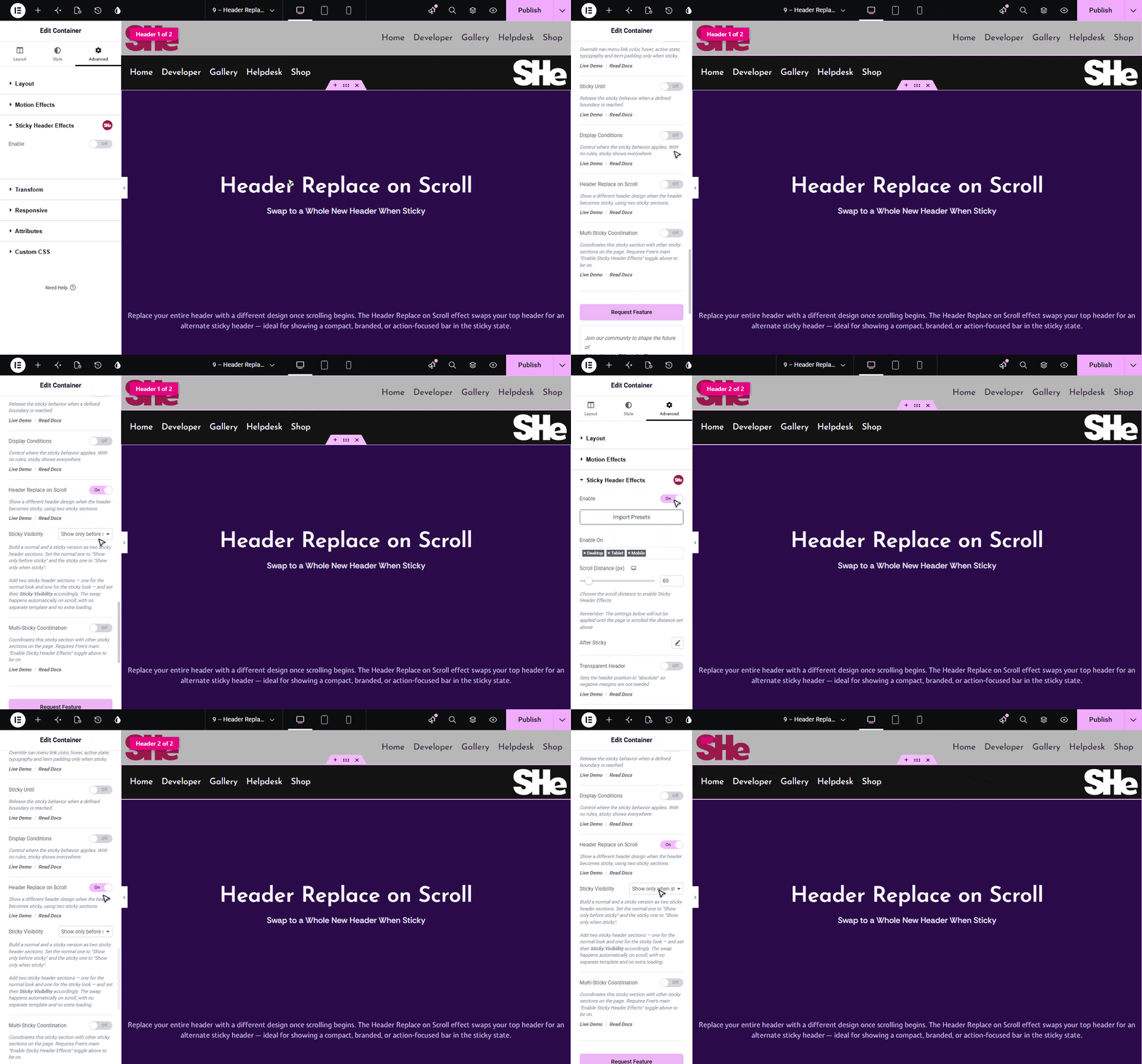
As the visitor scrolls, the plugin hides the normal header and reveals the sticky one automatically. The swap is handled entirely with CSS, so there is no second template render and no extra page-load cost.
Use Cases
- Tall to compact. Show a spacious header with a large logo and full menu at the top, then switch to a slim bar on scroll to save screen space.
- Transparent to solid. Use a transparent header over a hero image, then reveal a solid, high-contrast header once the visitor scrolls past the hero.
- Different logos. Present a full-color logo at the top and a simplified or reversed logo in the sticky state.
- Extra actions on scroll. Add a prominent call-to-action button to the sticky header that is not shown in the normal header.
- Reordered layout. Rearrange the menu, search, and buttons for the compact sticky state without touching the top-of-page design.
Limitations
- This is a PRO feature. Both the Free and the Pro plugins must be installed and active, along with Elementor.
- The feature is a CSS visibility swap, not a template render. You build both looks as sticky sections in one header, so there is nothing to swap if you create only a single section.
- The Header Replace on Scroll toggle appears only after Free’s main Enable toggle is on for the section or container.
- The swap is skipped in the Elementor editor and preview, so both sections stay visible while you build. Check the live page to see the swap.
- The advanced two-separate-headers enhancement uses the CSS
:has()selector. In browsers without:has(), that specific enhancement does not run, though the core single-header swap still works.
Troubleshooting
The Header Replace on Scroll toggle is missing. The toggle lives inside Free’s Sticky Header Effects panel and only shows after the main Enable toggle is on. Confirm that Sticky Header Effects for Elementor PRO is installed and active alongside the Free plugin, then open the section’s Advanced > Sticky Header Effects tab and turn on Enable first.
Nothing changes on scroll. Header Replace needs two sections with the correct Sticky Visibility, because it swaps between them rather than rendering a new template. Make sure you built both a normal section and a sticky section, set the normal one to Show only before sticky, and set the sticky one to Show only when sticky. If both are left on Default, there is nothing to hide or reveal.
Both headers show while editing. This is expected. The swap is deliberately skipped in the Elementor editor and preview so you can see and build both sections. Save the header and view the live page, then scroll to confirm the normal and sticky looks swap correctly.
Two separate sticky headers do not swap in an older browser. The setup that uses two separate sticky headers relies on the CSS :has() enhancement, which does not run in browsers that lack :has() support. For the widest compatibility, build the normal and sticky looks as two sticky sections inside one header, which uses the core swap and works across modern browsers.
Still stuck? Reach out to our support team, and we will help you set up Header Replace on Scroll for your header.

More in Header Replace
Still stuck?
Ask in the community — real answers from the team and other builders.