
How to Change Elementor Header Opacity on Scroll?
Do you want to fade your Elementor header in or out as visitors scroll? The Opacity Transition effect lets you set a different opacity for the normal and sticky states of your header and smoothly animates between them. This gives your website a subtle, modern reveal as the page scrolls.
With the Sticky Header Effects for Elementor plugin, you can easily add an opacity transition to your Elementor sticky header.
To check the complete feature overview documentation of Sticky Header Effects for the Elementor plugin, click here.
Requirement – This feature is a part of Sticky Header Effects for Elementor PRO, so make sure both the Free & Pro plugins are installed & activated.
To do this, add the Elementor Container widget, then design the header content as per your requirements or use a header template and follow the steps –
1. Select the main Container widget of the header, then go to the Advanced > Sticky Header Effects tab and turn on the Enable toggle.
2. Turn on the Opacity Transition toggle.
3. Set Opacity Before Sticky – the header’s opacity at the top of the page, before it sticks (0 = fully transparent, 1 = fully opaque). The default is 1.
4. Set Opacity After Sticky – the opacity once the header becomes sticky (default 1). Both sliders are responsive, so you can set different values on desktop, tablet, and mobile.
5. Fine-tune the fade with Transition Duration (how long the fade takes – default 0.4s, up to 5s, in seconds or milliseconds) and Transition Easing (Linear, Ease, Ease In, Ease Out, or Ease In Out – default Ease).
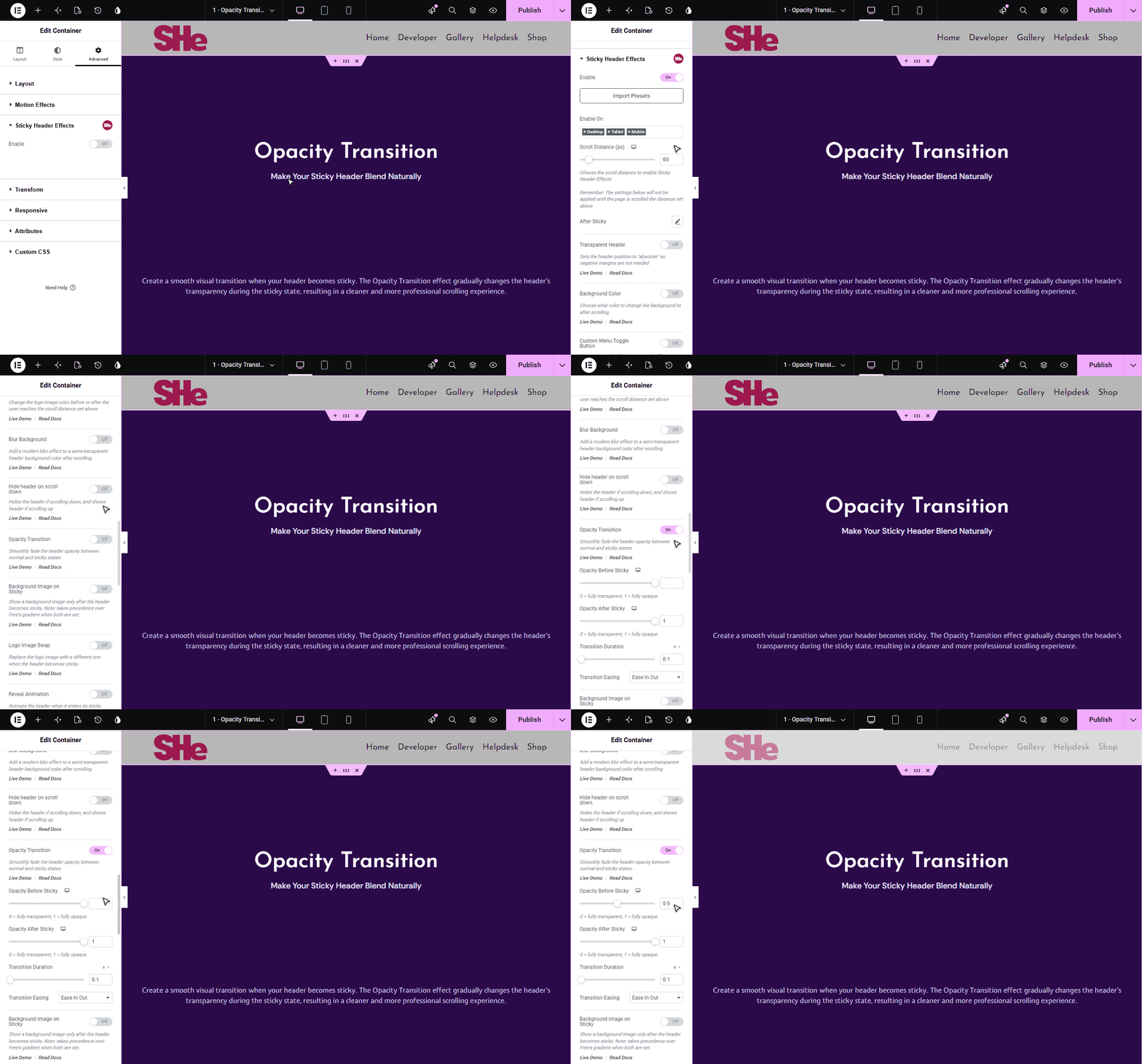
This will smoothly fade the header between your chosen opacity values as it switches between its normal and sticky states. Note that opacity applies to the whole header, including its content – to fade only the background instead, use a semi-transparent Background Color.

More in Opacity Transition
Still stuck?
Ask in the community — real answers from the team and other builders.