
Elementor Anchor Links and Sticky Headers: Fixing the Scroll Offset
Click a one-page menu link in Elementor, and the section you wanted often lands hidden behind the sticky header instead of clearly in view. The browser is doing exactly what it was told: scroll the target element to the very top of the window. The problem is that a fixed header sits right in that space, covering the first few lines of whatever you just jumped to.
This offset interacts directly with Header Scroll Distance, since both are measured against the same scroll position.
This elementor anchor link sticky header fix takes about two minutes once you know which single value controls the offset.
This is a scroll offset problem, and it has a specific, well understood fix. This guide covers why it happens, how to fix it with native CSS, and how a dedicated toggle in Sticky Header Effects for Elementor automates the same fix without manual pixel math.
Key Takeaways
- Anchor links land under a sticky header because the browser scrolls the target to the very top of the viewport, exactly where a fixed header already sits.
- The standard CSS fix is
scroll-padding-top, set on the page or a scrolling container, to the header’s height. - A header that shrinks on scroll or changes height on mobile needs that offset value to update dynamically, not stay fixed at one number.
- Keyboard and screen reader users hit the same problem when focus moves to a heading via the Tab key, not only when a visitor clicks a visible link.
- Smooth scrolling for anchor jumps should respect a visitor’s reduced motion preference rather than animating for everyone regardless of their system settings.
Why the Header Covers the Target Section
An anchor link, whether it is a one-page navigation menu item or a table of contents entry, tells the browser to scroll a specific element to the top edge of the viewport. On a page with no fixed header, that works exactly as expected. On a page with a sticky header, the browser still scrolls the target to the very top of the window, but the header is rendered on top of that same space, since it stays fixed regardless of scroll position.
The result is a heading or section that technically scrolled into view, sitting directly behind 60 to 120 pixels of header, depending on how tall your header is. Visitors lose their place, scroll back up manually to see what they clicked on, and the page feels broken even when the rest of the build is solid.
The Native CSS Fix: Scroll Padding Top
The browser-level fix for this is the CSS property scroll-padding-top, documented in MDN’s scroll-padding-top reference. Set on the scrolling container, usually the page’s html element, it reserves space at the top of the viewport that anchor scrolling will not scroll into, the same way padding reserves space inside a box.
Setting scroll-padding-top to a value equal to your header’s rendered height fixes the immediate problem: an anchor jump now lands with that much clearance below the header instead of directly behind it. The catch is that this value has to be typed in manually, and it has to be updated by hand every time the header’s height changes, whether from a design update, a responsive breakpoint, or a header that shrinks once it becomes sticky.
Where a Hand-Typed Offset Breaks Down
Three situations reliably break a fixed, manually typed scroll offset. A header that uses the Header Shrinking effect changes height once it becomes sticky, which means the offset needed at the top of the page is different from the offset needed once scrolled. A responsive header is often shorter on mobile than desktop, so one offset value cannot be correct at every breakpoint. A header edited later, even a small padding change, silently breaks a hardcoded number until someone remembers to update it.
None of these are edge cases. A header that changes height on scroll or across devices is the normal case for most Elementor builds using a sticky header, which is why a fixed number typed into custom CSS tends to work at launch and quietly drift wrong months later.
An Automated Fix: Measuring the Header Instead of Guessing It
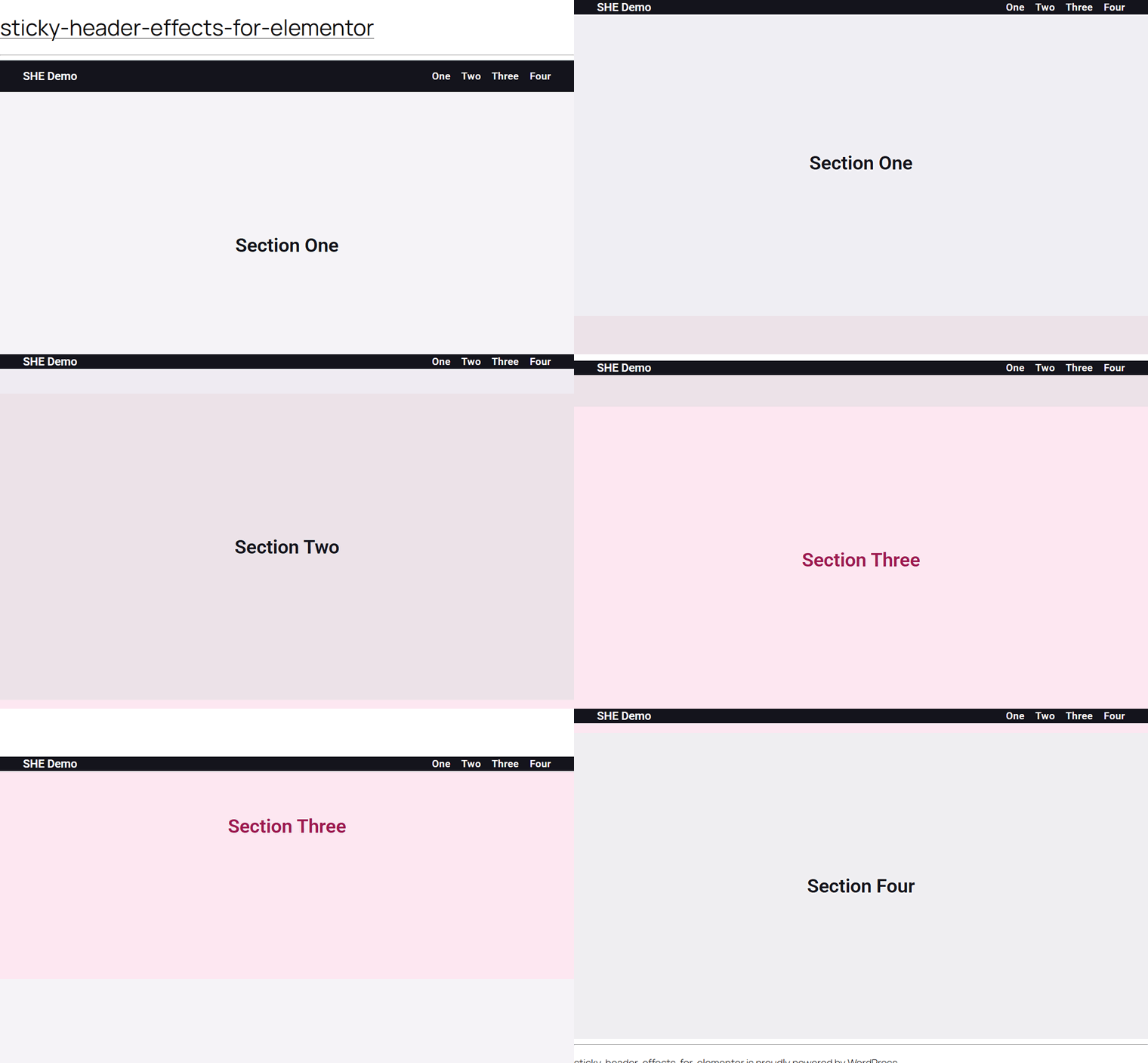
Sticky Header Effects for Elementor includes a Fix Anchor Scroll control for exactly this problem, alongside its other free and Pro scroll effects. Instead of a number typed once, it reads the header’s actual rendered height and applies that as the scroll offset automatically, re-checking it as the page scrolls and when the window resizes.
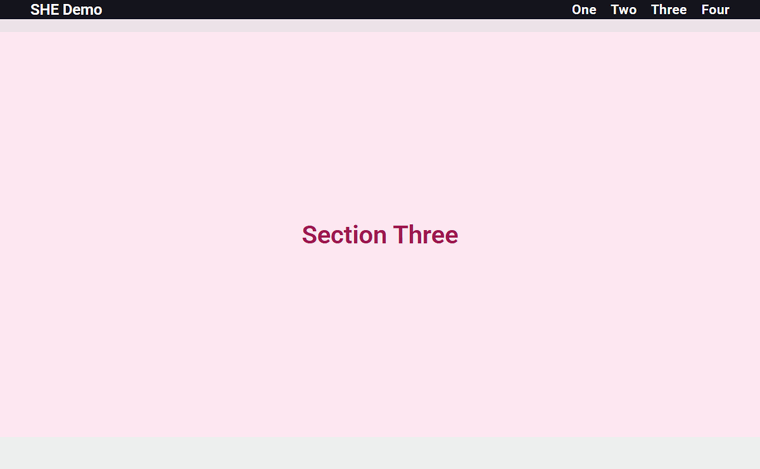
That means a header that shrinks on scroll, or renders at a different height on mobile, keeps a correct offset without anyone updating a number by hand. The control also includes an Extra Offset slider, from 0 to 200 pixels, for a bit of additional breathing room past the header’s own height, and it is a responsive control, so desktop, tablet, and mobile can each have their own extra value.
Where the Toggle Lives
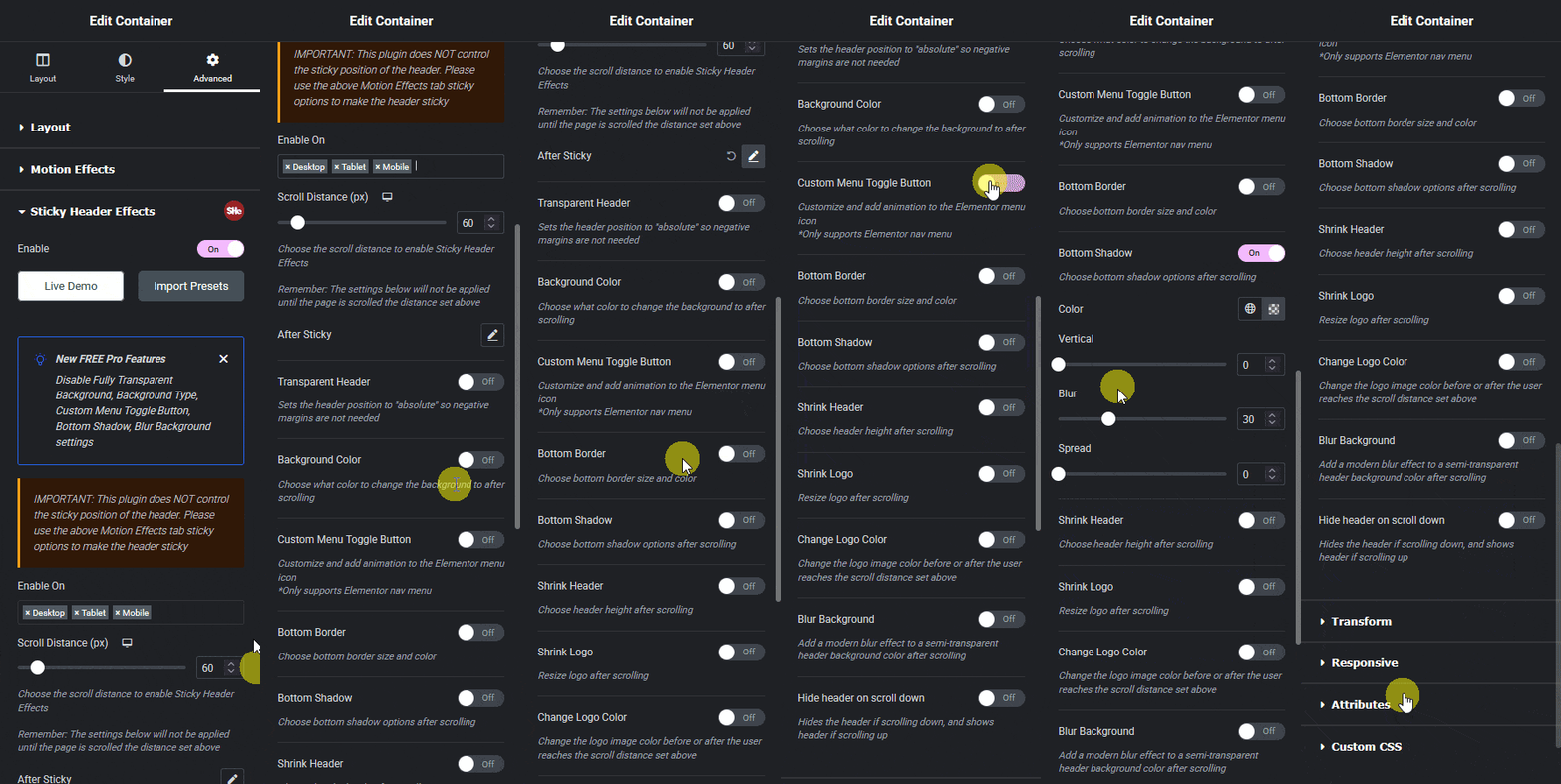
Like every other effect in the plugin, Fix Anchor Scroll and its Extra Offset and Smooth Scroll controls sit in the same Advanced tab panel used for sticky positioning, background changes, and every other effect, once the header’s main sticky toggle is turned on.
Smooth Scrolling and Reduced Motion
An optional Smooth Scroll toggle animates the anchor jump instead of snapping instantly to the target. Handled correctly, this should respect a visitor’s operating system preference for reduced motion rather than animating unconditionally, the same standard MDN documents for the prefers-reduced-motion media feature: when a visitor has that setting turned on, the jump should fall back to an instant scroll instead of an animated one.
This detail matters beyond comfort. Some visitors with vestibular disorders can experience real discomfort from unexpected scrolling animation, and respecting the system-level preference is the accepted way to avoid that without needing a site-specific settings toggle.
Keyboard and Screen Reader Users Hit This Too
The scroll offset problem is usually described as a clicked-link issue, but it applies equally to keyboard navigation. When focus moves to a heading through the Tab key or a skip link, the browser scrolls that element into view the same way it does for a clicked anchor, which means a header covering the target hides it from keyboard users exactly as it does from mouse users. A scroll-padding-top fix, whether hand-typed or automated, benefits both groups equally, since it operates at the browser’s native scroll behavior rather than intercepting only click events.
Honest Limits
An automated offset fix reads the sticky header’s height and applies it as scroll padding; it does not intercept link clicks or rewrite URLs, which means it plays well with existing menus but also means a theme or another plugin running its own anchor-scrolling script with a hardcoded offset of its own can still override it. If more than one sticky header exists on a page, this kind of fix generally follows whichever header has the setting enabled first, not every sticky element simultaneously.
A hash link arriving from a different page, rather than a click within the same page, can also trigger the browser’s default jump before an offset script has finished running on first paint, an edge case worth testing directly if your site links to in-page anchors from external pages.
Frequently Asked Questions
Why does my anchor link land behind the header only sometimes? This usually means the header’s height changes, for example through a shrink-on-scroll effect or a different height on mobile, and a fixed scroll offset was set for only one of those states.
Can I fix this without a plugin? Yes, by setting scroll-padding-top in custom CSS to your header’s height and updating that value manually whenever the header’s height changes.
Does smooth scrolling cause accessibility problems? Only if it ignores a visitor’s reduced motion preference. Implemented correctly, smooth scrolling checks that system setting first and falls back to an instant jump when it is enabled.
For the full property syntax, see MDN’s scroll-padding-top reference, and for the reduced motion standard referenced above, MDN’s prefers-reduced-motion documentation. Sticky Header Effects for Elementor’s other free and Pro effects are listed on the effect grid, and setup guides for each are in the documentation.
Want the sticky header without the code?
Sticky Header Effects for Elementor drops in as a widget. Free plugin, no account needed.
