
Header Scroll Distance: Controlling Exactly When Sticky Kicks In
A sticky header that activates the instant the page loads looks broken on any design with a tall hero image behind it. Header Scroll Distance is the setting that fixes exactly that: it decides how far a visitor has to scroll before the sticky behavior and any other effects turn on. It is effect #1 of the 10 free effects, and it is the one setting almost every other effect depends on getting right first.
Check this value specifically on mobile too, since per-device testing often surfaces a trigger point that only causes problems on a narrower screen. A mismatched value here is also the root cause behind a real mismatched-trigger conflict documented from an actual support ticket.
This elementor sticky header change on scroll setting is the single value that decides how far a visitor scrolls before anything visually happens. The scroll event reference covers how browsers fire this trigger under the hood.
Key Takeaways
- Header Scroll Distance sets, in pixels, how far the page must scroll before the sticky header and its effects activate.
- It lives in the same Advanced tab section as every other Sticky Header Effects for Elementor control, on Elementor Free or Pro.
- The value should match your actual hero height, not a guess copied from another page template.
- It can be set independently for desktop, tablet, and mobile, since hero heights usually differ by device.
- It controls when sticky behavior starts. A separate Pro effect, Sticky Until, controls when it stops; the two are not the same setting.
What Header Scroll Distance Actually Controls
By default, sticky positioning in Elementor (native or via this plugin) activates as soon as the header would otherwise scroll out of view, which for a header placed at the very top of the page is almost immediately. Header Scroll Distance overrides that: it sets a pixel threshold the page must scroll past first.
Until the threshold is reached, the header behaves as a normal, non-sticky element and scrolls with the page. Past it, the sticky behavior and any other enabled effects (background color change, shrink, blur, and the rest) engage together.
Where to Set It
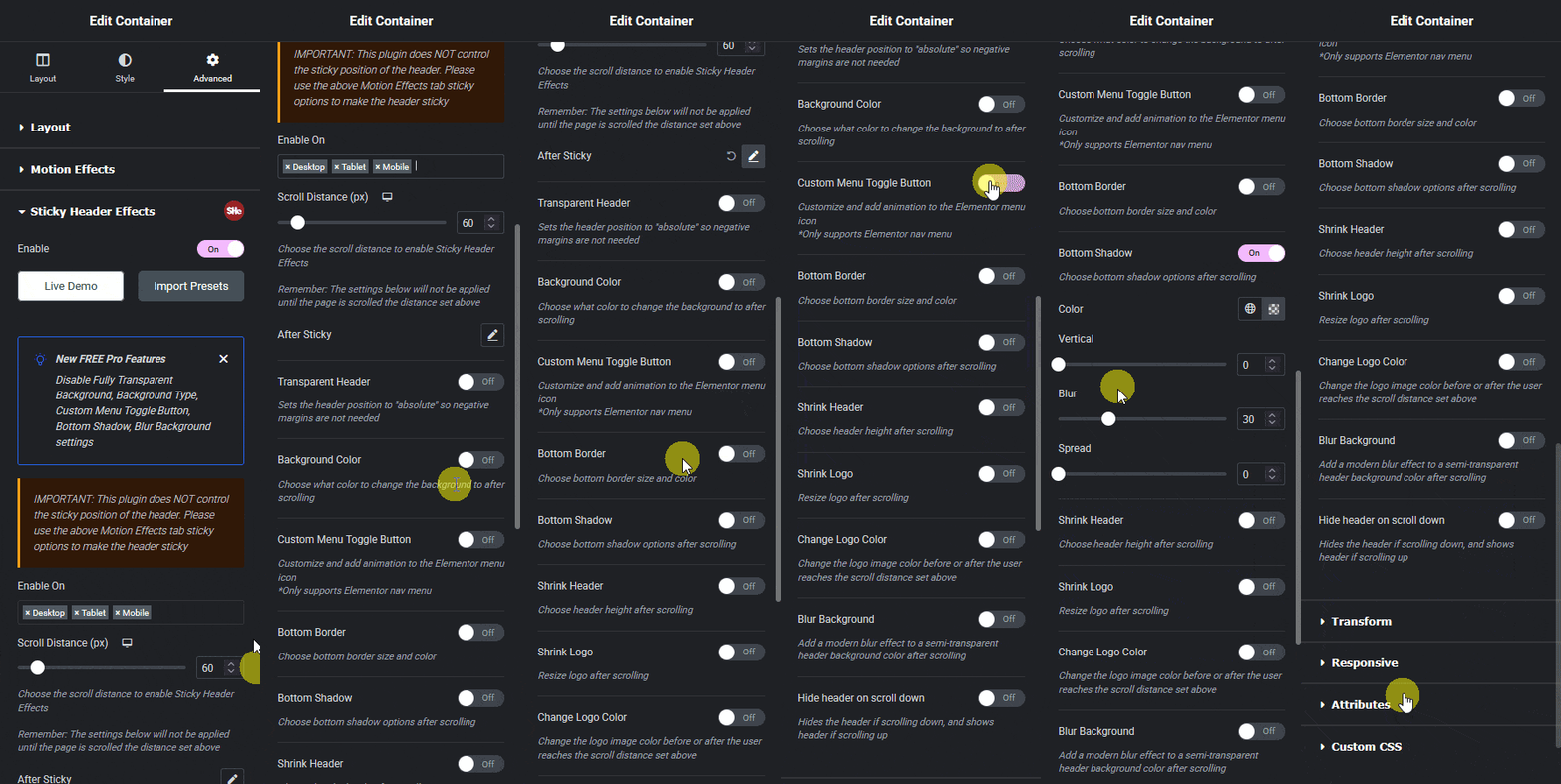
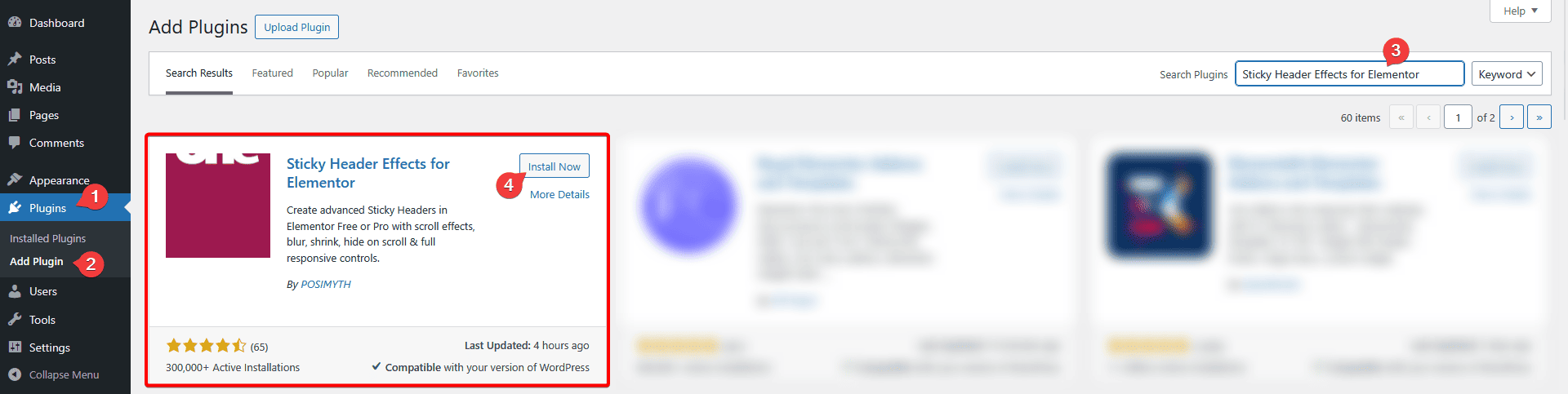
Select the section or container that wraps your header, open the Advanced tab, and find the Sticky Header Effects panel. Turn on the main Enable toggle first, since Scroll Distance has nothing to trigger without it. The Scroll Distance (px) field sits directly under that toggle.
Picking the Right Value for Your Hero
Measure your actual hero section’s rendered height in the browser, not the value in the editor sidebar, since padding, margin, and responsive font sizing can all shift the real number. A full-viewport hero on desktop commonly renders between 700 and 1,000 pixels tall; a shorter hero used mainly for a page title might be closer to 300 to 400 pixels.
Set Scroll Distance at or slightly below that measured height. Too low, and effects trigger while the hero is still mostly visible, which looks premature. Too high, and a visitor has to scroll unusually far before anything happens, which reads as the plugin not working at all.
Setting It per Device
Hero height rarely stays the same across desktop, tablet, and mobile, so Scroll Distance supports its own value on each, through Elementor’s standard responsive-mode icons at the top of the panel. A hero that runs 900 pixels tall on desktop might render closer to 500 on mobile once the layout stacks and font sizes shrink; copying the desktop value to mobile is one of the more common reasons this effect looks inconsistent between devices.
What Happens If You Get It Wrong
A value set too low produces a header that changes state almost immediately after the page loads, which can look like a rendering glitch rather than an intentional effect, especially if a background color change or shrink is paired with it.
A value set too high, or a value copied from a page template with a much taller hero, produces the opposite complaint: the effect appears not to work, because most visitors never scroll far enough to reach the threshold on that particular page. This is one of the more common setup mistakes across the plugin’s effects generally, and it is worth checking first whenever an effect seems inactive.
Combining It With Other Effects
The same panel that holds Scroll Distance also holds the After Sticky group: Offset (distance from the top once stuck), Width, and Padding. These apply once the Scroll Distance threshold is crossed, so all of them share the same trigger point. Change Scroll Distance and every effect tied to “once sticky” shifts together, which is useful for keeping a multi-effect header in sync without adjusting each effect separately.
A Worked Example
Take a landing page with a full-viewport hero that renders at 860 pixels on desktop and 540 on mobile once the layout stacks. Setting Scroll Distance to roughly 800 on desktop and 480 on mobile keeps the trigger just before the hero fully clears the viewport on both, rather than leaving a visible gap where the header is neither at the top nor sticky.
On a shorter page, such as a blog post template with only a 250-pixel title band above the content, a Scroll Distance anywhere from 150 to 220 keeps the header from feeling delayed, since there is far less page for a visitor to scroll through before reaching the body content.

Honest Limits
Header Scroll Distance only controls the start of sticky behavior, the scroll point where it turns on. It has no control over when sticky behavior turns back off partway down a page; that release-on-boundary behavior is a separate Pro effect, Sticky Until (Boundary Control), and the two should not be confused when planning a build.
It also will not compensate for a hero section whose height changes dynamically after load (a slider that resizes, or content loaded asynchronously). In that case, measure the hero’s height after everything has finished loading, not the height visible on first paint.
Frequently Asked Questions
Does Header Scroll Distance work on Elementor Free? Yes. It is one of the 10 effects included free, on unlimited sites, and does not require Pro.
What unit does Scroll Distance use? Pixels, set directly in the field, with per-device values available through Elementor’s responsive icons.
My sticky effect still triggers immediately even after setting a value. What else could it be? Confirm the main Enable toggle is on and that you selected the correct section or container, since Scroll Distance has no effect if the base sticky toggle for that element is off.
Should Scroll Distance match the hero height exactly, or come in slightly under it? Slightly under is usually the better feel, since it lets the sticky transition begin just before the hero fully scrolls away rather than after a visible gap where neither state is active.
See the effect live, alongside all 21 on the effect grid, or filtered on its own in the Header Scroll Distance template demos. Full setup steps, including this exact field, are in the documentation. For how CSS itself defines a scroll-triggered “stuck” state at the browser level, MDN’s position reference covers the underlying sticky positioning model. Pro pricing, which adds Sticky Until and 10 other effects, is on the pricing page.
Want the sticky header without the code?
Sticky Header Effects for Elementor drops in as a widget. Free plugin, no account needed.
