
Elementor Pro Mega Menu vs Free: What Actually Changes
“Elementor Pro adds mega menus” gets repeated so often that the actual mechanism behind it gets lost. Elementor Pro does not add a “mega menu builder” as a separate product. It adds one specific widget, Nav Menu, and one specific control inside it, Dropdown Content, and that combination is what everyone means when they say Elementor does mega menus. This post is about exactly what that widget changes, and what it does not.
Once the mega menu decision is settled, what the plugin actually does covers the separate scroll-behavior layer that works on either tier.
This is a menu-structure comparison only. It does not cover Sticky Header Effects for Elementor, because that plugin has nothing to do with how a menu is built. It only decides what an already-built header, mega menu included, does once a visitor scrolls.
Key Takeaways
- Elementor Free has no menu widget of its own at all. The Nav Menu widget, including its basic dropdown submenus, is 100% an Elementor Pro feature.
- Elementor Pro’s Nav Menu widget adds a Dropdown Content toggle per menu item, letting you drag any widget, images and icon boxes included, into that item’s dropdown. This toggle is Elementor’s actual native mega-menu mechanism.
- Even with Pro active, a real multi-column mega menu still means building that dropdown’s layout by hand, one menu item at a time. Pro does not ship a pre-made mega-menu template library of its own.
- “elementor pro mega menu” gets 20 searches a month in the US with a keyword difficulty of 3, DataForSEO, pulled 2026-09-15, confirming this is a real but modest-volume comparison question.
- None of this changes scroll behavior. A mega menu built in Free (via a theme menu) or Pro (via Nav Menu) still needs a separate plugin for the header around it to stick, shrink, or change color on scroll.
What Elementor Free Actually Ships for Menus
Elementor’s own free plugin has no widget for placing and styling a WordPress menu at all. Nav Menu, the widget everyone pictures when they think of an Elementor menu, is listed on Elementor’s own help center as “Nav Menu Widget (Pro),” and it is not available on Free at any settings level.
On Elementor Free, your navigation comes from your theme’s own menu location (Appearance, Menus, assigned to a theme slot) or the core WordPress Navigation block if your theme supports full site editing. Either route gives you a standard, single-level dropdown submenu at best, styled by your theme rather than Elementor.
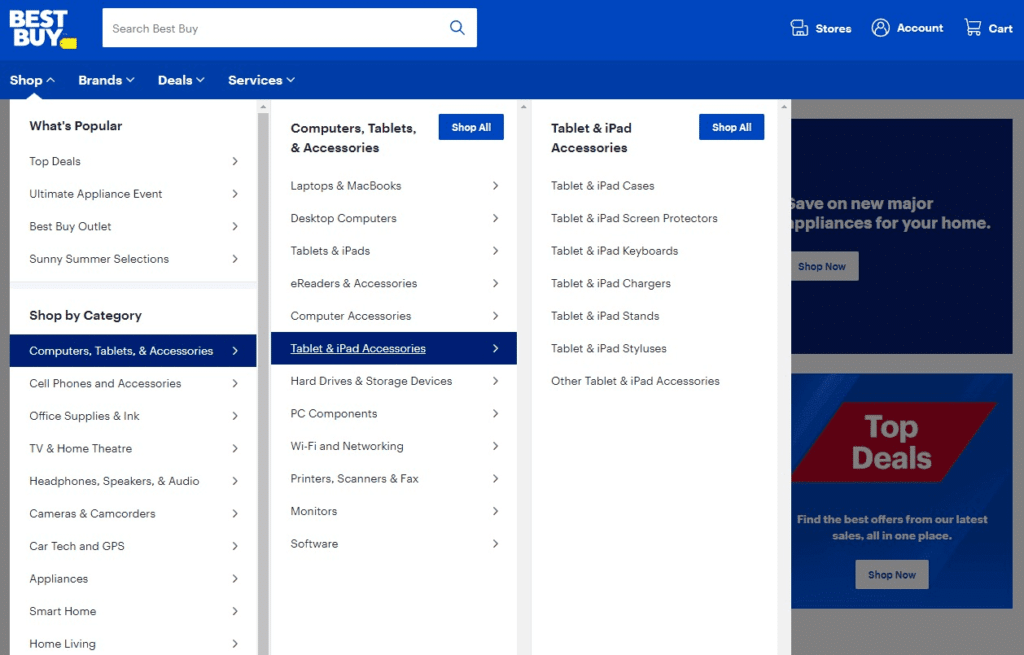
The Nav Menu Widget: Elementor Pro’s Real Mega-Menu Mechanism
Elementor Pro’s Nav Menu widget replaces the theme-dependent approach with a menu built and styled entirely inside the Elementor editor. Selecting a menu item and toggling Dropdown Content to on turns that item’s submenu into an empty canvas you can drag any Elementor widget into: an Image widget, an Icon Box, a Text Editor, even a full multi-column layout.
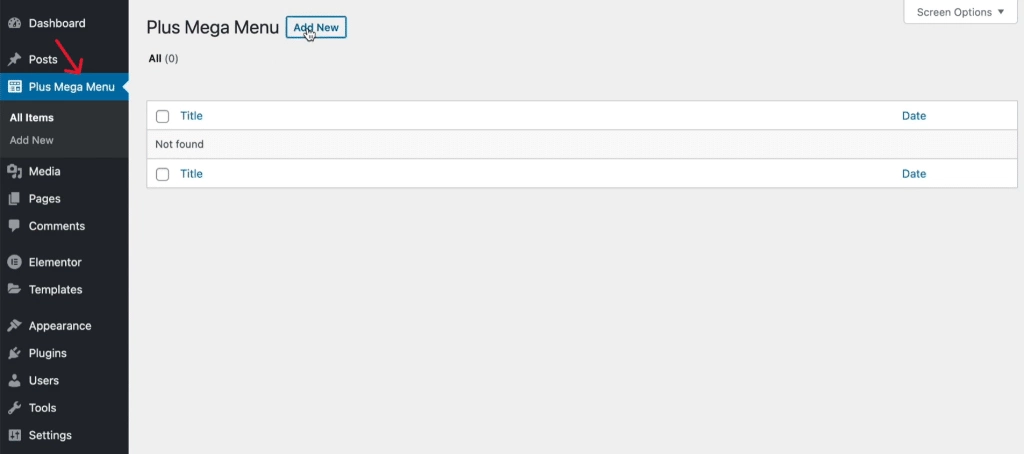
This is the entire mechanism. There is no separate “Mega Menu” widget with its own name in Elementor Pro’s widget panel. Dropdown Content on Nav Menu is the feature, and it is available the moment Elementor Pro is active, no extra setup step required.
What “Dropdown Content” Does Not Do
Dropdown Content gives you an empty container, not a finished mega-menu layout. You still choose the column count, add each widget individually, and set spacing and breakpoints yourself, the same way you would build any other Elementor section. Nothing about a multi-column grid, a category-plus-image layout, or a featured-links block comes pre-built.
This matters because “Elementor Pro has mega menus” gets read as “Elementor Pro has a mega-menu builder,” and that overstates it. What you get is a blank canvas inside a menu item and full access to Elementor’s own widget library to fill it, which is real capability, but it is manual work, not a template.
Where a Dedicated Mega-Menu Widget Still Wins
If you want a genuine mega-menu template, a saved layout you can reuse across menu items, or drag-and-drop column presets built specifically for mega menus, that is a job for a dedicated mega-menu widget or addon rather than Nav Menu’s Dropdown Content alone. Several Elementor addon packs ship a purpose-built mega-menu widget with its own template options for exactly this reason.
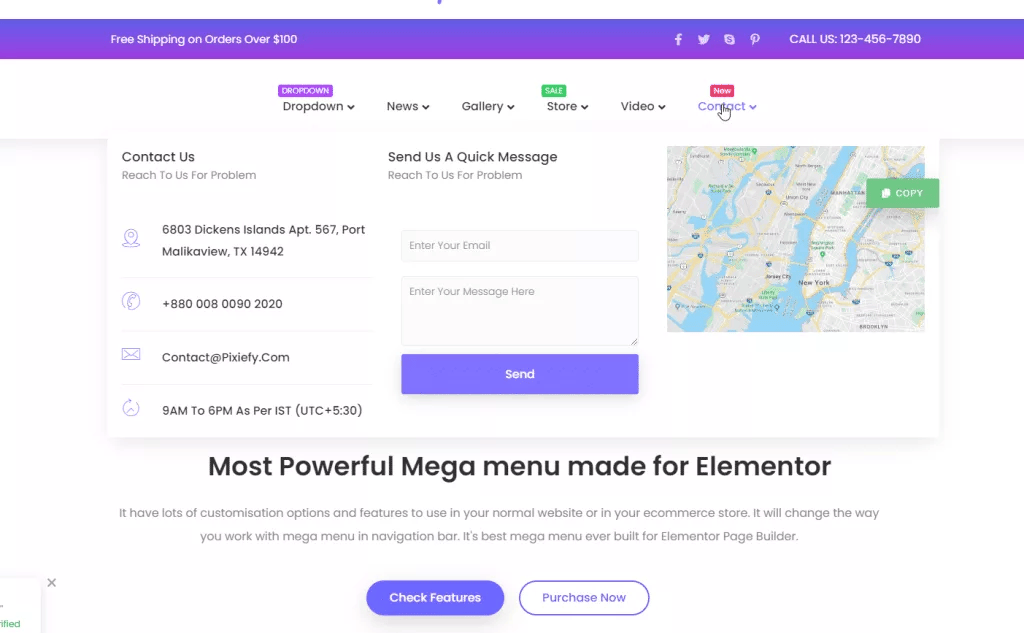
Whether that trade is worth a second plugin depends entirely on how many mega menus you build and how often. A one-off dropdown with three links and an image is fine built directly in Dropdown Content. A recurring, multi-column mega menu used across several sites is where a dedicated widget starts paying for itself in saved time.
What Does Not Change Between Free and Pro
Your WordPress menu structure itself, the actual list of pages and links under Appearance, Menus, is identical on Free and Pro. Elementor Pro does not add new menu-structure options at the WordPress level; it adds a different way to render and style the same menu data you already have.
Accessibility behavior also does not automatically improve with Pro. A Dropdown Content mega menu still needs the same keyboard-navigation and screen-reader checks as any other dropdown, since Elementor’s own widget does not guarantee ARIA disclosure-pattern behavior out of the box.
Scroll Behavior Is a Separate Decision Entirely
Whichever way the mega menu itself gets built, the header it lives in is a separate question: should it stick to the top of the screen while scrolling, shrink, change background color, or hide on scroll down. Neither Elementor Free nor Elementor Pro’s Nav Menu widget controls any of that.
Sticky Header Effects for Elementor handles that layer on Elementor Free or Pro, with 10 free scroll effects and 11 more in Pro, all set from the Advanced tab with no custom CSS. It does not touch menu structure or build mega menus; see the complete sticky header setup guide for the actual effect list and setup steps once your menu, mega menu included, is already built.
Frequently Asked Questions
Does Elementor Free have any mega-menu option at all? No. Elementor Free has no menu widget, so mega-menu capability specifically, which requires Nav Menu’s Dropdown Content control, is not available without Pro.
Do I need a separate mega-menu plugin if I already have Elementor Pro? Not necessarily. Dropdown Content covers a genuine mega menu for many builds. A dedicated mega-menu widget mainly saves time on layouts you reuse often or want as a ready template.
Will a mega menu slow my header down? The menu itself has no bearing on scroll performance. If the header around it also runs scroll effects, Sticky Header Effects for Elementor’s effects run on CSS transform and opacity only, which avoids the layout-recalculation cost that heavier scroll-JS approaches add.
For the mechanism itself, Elementor’s own documentation on the Nav Menu widget and its dedicated mega menu walkthrough cover every field in the Dropdown Content panel. W3C’s disclosure pattern guidance is the primary source for making any dropdown, mega menu included, usable by keyboard and screen reader. For where scroll effects fit once the menu itself is finished, see the full 21-effect grid and current pricing for Sticky Header Effects for Elementor.
Want the sticky header without the code?
Sticky Header Effects for Elementor drops in as a widget. Free plugin, no account needed.
