
Elementor Sticky Header vs Fixed vs Static: Which to Choose
“Make the header stay in place” can mean three different behaviors in CSS, and Elementor exposes some version of all three depending on which control you use. Picking the wrong one produces a header that either never moves at all, covers your content, or jumps around unpredictably during scroll. Here is the actual difference, and which one fits which build.
For the sticky option specifically, see the setup guide; for the full range of header-building tools, see the complete guide to building one.
The sticky header vs fixed header decision usually comes down to one question: should content underneath reflow when the header changes size or disappears?
Key Takeaways
- Static is the default: the header sits in normal document flow and scrolls away with the page.
- Fixed pins an element to the viewport permanently, removed from document flow, which can cause it to overlap the content below unless you compensate with padding.
- Sticky is a hybrid: it behaves like static until a scroll threshold is crossed, then behaves like fixed within the boundaries of its parent container.
- A plain CSS or Elementor Pro sticky toggle gives you positioning only. Scroll effects (shrink, color change, hide on scroll) are a separate layer on top.
- Sticky Header Effects for Elementor uses sticky-style positioning as its foundation, then adds 21 scroll effects (10 free, 11 Pro), on Elementor Free or Pro.
Static: The Default Nobody Notices
Static is what every element gets unless a position value overrides it. A static header sits at the top of the page in normal document flow and scrolls out of view along with everything else the moment the visitor scrolls past it. There is no persistent header at all once the visitor moves down the page.
This is the right choice more often than the marketing around sticky headers suggests: a very short page, a single-scroll landing page where the header’s job is done once the visitor moves past the hero, or any layout where keeping navigation visible at all times adds clutter rather than value.
Fixed: Pinned, No Matter What
A fixed element is positioned relative to the viewport itself and stays exactly where it is placed regardless of how far the page scrolls. Per MDN’s CSS position reference, a fixed element is removed from normal document flow entirely, meaning the space it would have occupied collapses and the content below it shifts up to fill the gap, unless that gap is compensated for manually with padding or margin equal to the header’s height.
That collapse is the most common fixed-header bug: the page’s first section renders partially hidden underneath the header, because nothing told the layout to leave room for it. Fixed headers require this compensation from the very first page load, not only after scrolling.
Sticky: Static Until It Isn’t
Sticky positioning is a hybrid, and MDN’s own definition states it precisely: a stickily positioned element “is treated as relatively positioned until its containing block crosses a specified threshold… at which point it is treated as stuck until meeting the opposite edge of its containing block.” In plain terms, it behaves like a normal, static element up to a scroll point you define, then switches to fixed-like behavior, but only within the bounds of its own parent container rather than the whole page.
That container boundary is the detail fixed positioning does not have and static positioning does not need: a sticky element stops sticking once its parent container scrolls out of view, rather than remaining pinned for the entire remaining page like a fixed element would.
Which to Choose for a Header
Choose static for a short page or a single landing page where a persistent header adds no real navigation value. Choose fixed, or Elementor Pro’s native sticky toggle (which behaves functionally like a fixed pin once triggered), when you want the header pinned immediately with no scroll-triggered transition and no additional effects. Choose a sticky-based effects layer when the header needs to react visibly to scrolling: appearing transparent at first and gaining a background on scroll, shrinking, changing logo color, or hiding when the visitor scrolls down.
The third case is where a dedicated plugin earns its place. Raw CSS sticky or fixed positioning only controls where the header sits; it says nothing about background color transitions, shrink animations, or direction-aware hide behavior. Those are effects layered on top of the positioning choice, not alternatives to it.
How Elementor Implements Each One
A section or container left alone in Elementor renders static, by default, the same as any HTML element. Elementor Pro’s own Motion Effects tab includes a basic sticky setting that pins a section once scrolled past, available on Elementor Pro only. Elementor Free has no equivalent native setting.
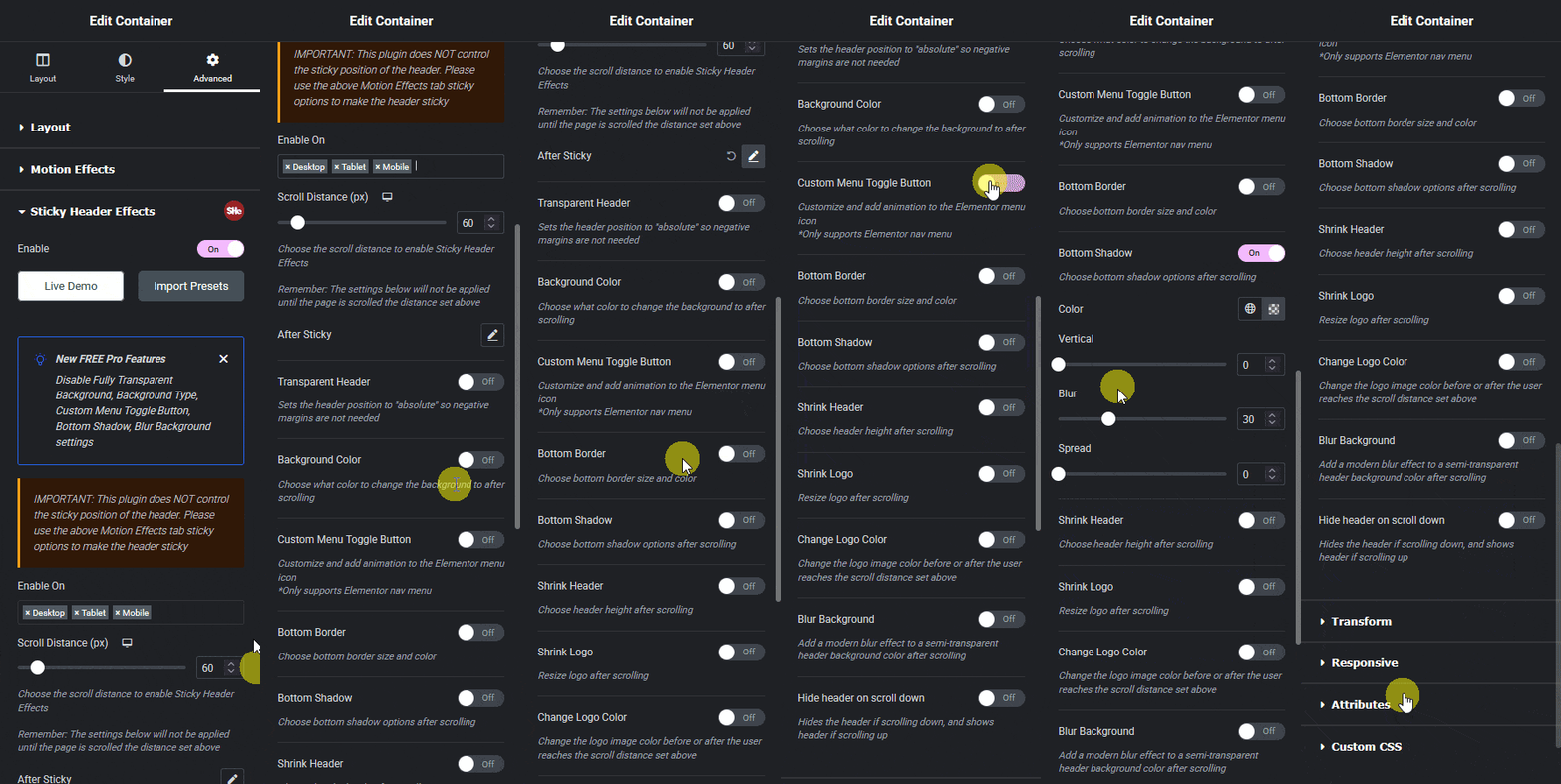
Sticky Header Effects for Elementor adds sticky-based positioning to either Elementor Free or Pro from the section’s Advanced tab, plus the 21 scroll effects that raw sticky or fixed positioning does not provide on its own. Because the positioning and the effects sit in the same panel, it is easy to think of them as one feature; they are worth understanding separately when diagnosing why a header looks a certain way.
Honest Limits
None of the three positioning values fix a layout that was not built to account for them. A fixed or sticky header still needs top padding or margin compensation on the content beneath it in most themes, and no plugin removes that requirement automatically, since it depends on the specific header height and theme layout.
This post covers the decision between the three CSS behaviors themselves. It does not walk through configuring every individual scroll effect once you have chosen sticky; the effect grid and documentation linked below cover that in per-effect detail.
Frequently Asked Questions
Is Elementor’s native sticky setting the same as CSS position: sticky? Functionally, Elementor Pro’s basic sticky toggle behaves like a fixed pin once triggered, rather than exhibiting the parent-boundary release behavior the CSS sticky specification defines. The practical result looks similar for a header pinned to the top of the page.
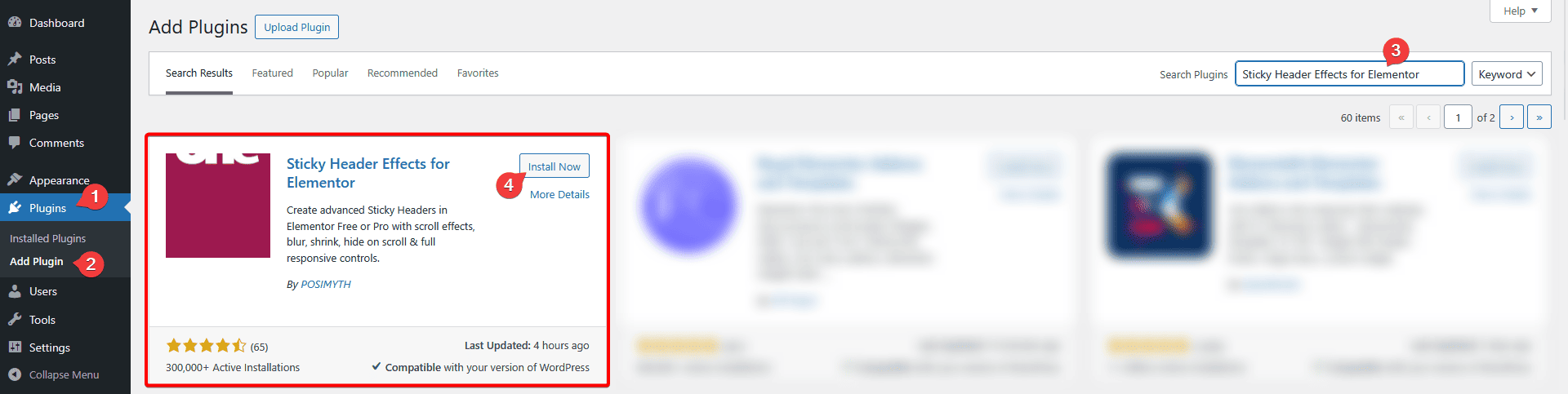
Do I need Elementor Pro to make a header sticky? No. Sticky Header Effects for Elementor adds sticky-based positioning on Elementor Free, without requiring Elementor Pro’s native toggle.
Can a fixed header also have scroll effects like shrinking? The effects covered in this cluster are built around sticky-based positioning specifically. A header pinned with plain CSS fixed positioning would need custom script work to add the same shrink or color-change behavior, which is exactly the manual coding whis type of plugin exists to replace.
Which one should I pick if I am not sure yet? Start with sticky-based positioning through a dedicated effects plugin. It covers the plain pinned-header case adequately on its own, and leaves room to add a scroll effect later without switching positioning systems or rebuilding the header.
The full CSS specification behind these three values is in MDN’s position reference. Elementor’s own guide to creating sticky headers covers the native Pro toggle in detail. For scroll effects layered on top of sticky positioning, see the 21-effect grid and the setup documentation. Pro pricing for the additional 11 effects is on the pricing page.
Want the sticky header without the code?
Sticky Header Effects for Elementor drops in as a widget. Free plugin, no account needed.
