
How to Build a Mega Menu in Elementor Without a Third-Party Plugin
Searching for a way to build a mega menu in Elementor without adding another plugin is a reasonable instinct: every extra plugin is another update to track and another script on the page. The honest answer is that Elementor Free and Elementor Pro, on their own, do not include a multi-column mega menu widget, so “without a third-party plugin” really means understanding exactly what Elementor’s native Nav Menu widget can fake, and where that faking breaks down.
Once your no-plugin mega menu is working, the setup guide covers making the header it lives in sticky, and what a dedicated effects plugin adds on top of that.
This mega menu Elementor approach relies only on the Nav Menu widget’s existing dropdown behavior, no addon required.
This guide walks through what a native-only approach can actually deliver, where it stops, and what the honest tradeoff looks like against adding a dedicated widget.
Key Takeaways
- Elementor Pro’s Nav Menu widget supports nested dropdown submenus natively, which can approximate a simple two-column layout using WordPress menu structure alone, but not a true grid of mixed content.
- A native-only mega menu is built from your WordPress menu (Appearance, Menus), not from a separate Elementor container, which limits it to text links, no independent images or custom layouts per column.
- The moment a mega menu needs an image, an icon, or more than one column width, native Elementor tools stop being enough, and a dedicated widget or plugin becomes the only route.
- Elementor Free does not include the Nav Menu widget at all, so the native-only approach described here requires Elementor Pro as a baseline.
- Making the resulting header sticky is a separate, later step that has nothing to do with how the menu itself was built.
What “Without a Third-Party Plugin” Actually Means Here
Elementor Pro’s Nav Menu widget renders whatever menu structure exists in Appearance, Menus. A standard WordPress menu supports up to several levels of nested items, and Elementor’s widget turns the first nested level into a dropdown automatically. That native behavior is the entire toolkit available without adding anything else.
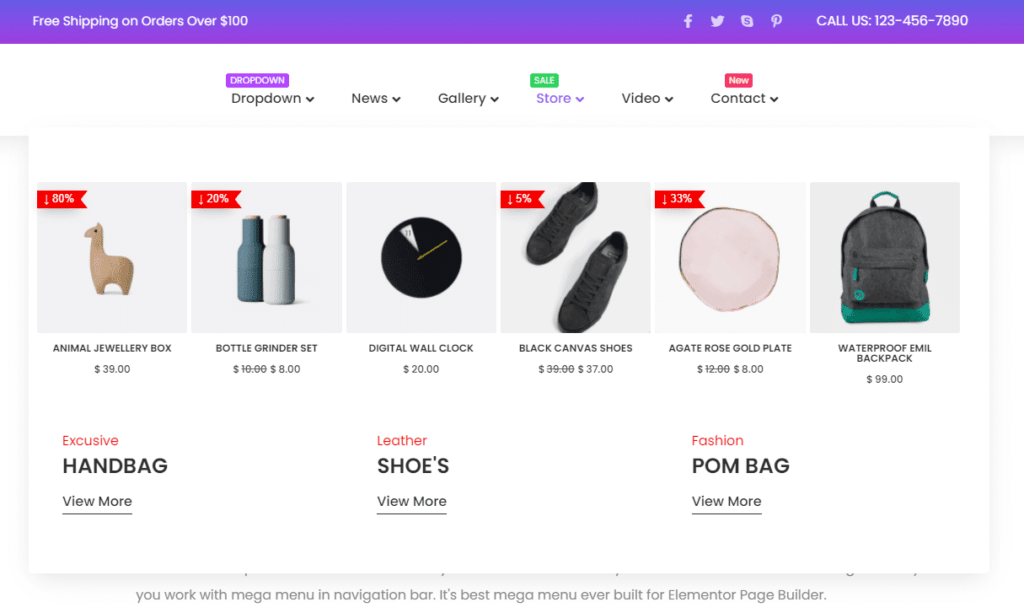
What that toolkit cannot do is place unrelated content, an image next to a link list next to a second link list, inside one dropdown panel. A native WordPress submenu is a single vertical list of links, full stop, and Elementor’s styling controls change how that list looks, not its underlying shape.
Approximating a Simple Layout With Native Menu Structure
The closest native-only approximation is a two-level WordPress menu styled through the Nav Menu widget’s dropdown settings: widen the dropdown panel with the widget’s own width control, then use custom CSS classes on individual menu items (set from the menu item’s own CSS Classes field in Appearance, Menus) to visually separate groups with borders or spacing.
This produces something that reads as grouped links at a glance, but it is still one column of text underneath the surface. There is no way to place a second column beside the first without either manual CSS positioning that most site owners will not maintain long-term, or a widget built specifically for this structure.
Where the Native-Only Approach Breaks Down
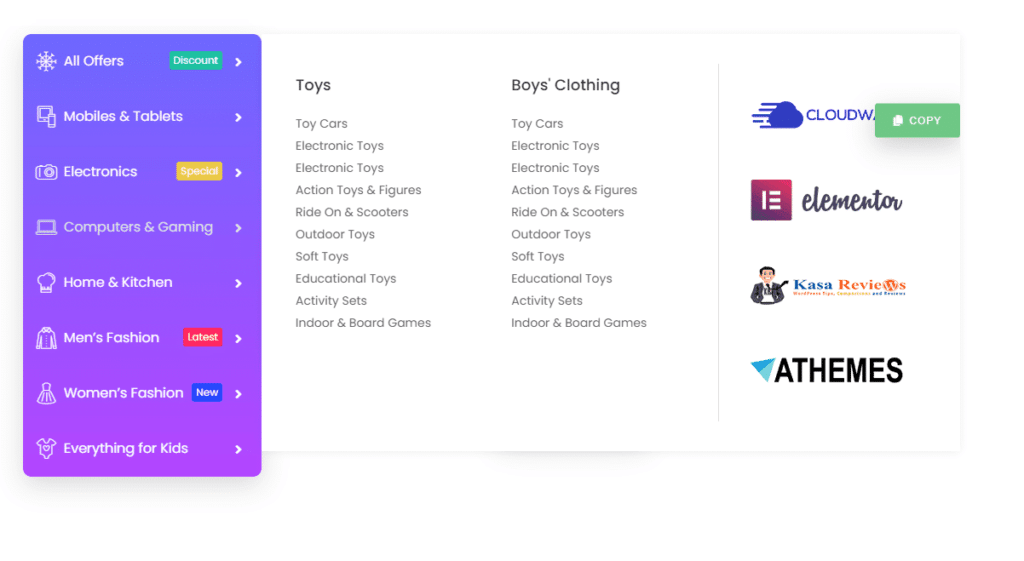
Three requirements reliably force a move away from native-only menus: an image inside the dropdown, more than one genuinely independent column, and a full-width panel that is wider than the parent navigation item. None of these are supported by Elementor’s Nav Menu widget on its own, because the widget renders a WordPress menu, and a WordPress menu item does not carry an image field or a column-width setting.
If your build needs any of the three, the choice is a dedicated mega-menu widget inside a broader Elementor addon pack, or a standalone WordPress mega menu plugin. Both work by giving you an actual container, built the same way you would build any Elementor section, and then assigning that container as a menu item’s dropdown content instead of the native WordPress submenu list. For a full worked example of that pattern, see how to create a side mega menu in Elementor.
The Honest Tradeoff
The native-only route costs nothing extra to install and adds no additional script to the page, since it reuses Elementor Pro’s existing Nav Menu widget. What it costs is flexibility: text-only groups, manual CSS classes to fake visual separation, and no image or icon column, ever, without a workaround built entirely in custom code.
A dedicated mega-menu widget costs an additional plugin’s weight and one more update to track, in exchange for a real container-based panel: actual columns, images, icons, and independent widths, built with the same drag-and-drop workflow as the rest of the page. For a simple two-group dropdown, native-only is a reasonable choice. For anything with an image or a genuine grid, it is not.
Accessibility, Either Way
Whichever route you take, keyboard access matters as much as the visual layout. The W3C’s ARIA Authoring Practices Guide documents expected keyboard behavior for a menubar pattern: arrow keys move between top-level items, and Escape closes an open submenu. Test this manually with a keyboard alone, tab and arrow keys only, before considering either approach finished, since a native WordPress submenu handles this reasonably well by default, but a custom container assigned as dropdown content sometimes needs explicit keyboard handling added by whichever widget builds it.
Once the Menu Is Built: Sticky Behavior Is a Separate Step
Neither approach above touches whether the header holding the menu stays visible on scroll. That is a separate control, and it applies the same way regardless of which mega menu method you chose. Elementor Pro’s Theme Builder includes a basic sticky on/off toggle; Sticky Header Effects for Elementor adds sticky behavior plus 21 scroll effects such as background color change, shrink, and hide-on-scroll, on Elementor Free or Pro, once the header itself, menu included, already exists.
It is worth being direct about scope here: a sticky-header plugin does not build or modify menu structure. Its 10 free and 11 Pro effects change how the finished header behaves on scroll, nothing more. Full details on what each effect does are in the documentation.
Honest Limits
If your mega menu needs to look and behave like the multi-column panels most visitors expect from a large retail or SaaS site, the native-only approach in this guide will not get you there without custom development. It is genuinely useful for a smaller, text-focused build with two or three grouped link sections, and genuinely insufficient once an image, icon, or true grid enters the requirements.
Frequently Asked Questions
Can Elementor Free build any kind of mega menu? No. The Nav Menu widget used in this native-only approach is an Elementor Pro feature; Elementor Free’s menu options do not include it.
Is a native-only mega menu actually a mega menu? It approximates one visually for simple, text-only groupings. Structurally, it is still a single-column WordPress submenu with CSS styling, not a true multi-column grid.
Does a sticky header plugin help build the mega menu? No. A sticky-header plugin like Sticky Header Effects for Elementor controls scroll behavior for an already-built header. It has no role in constructing menu structure, native or otherwise.
For the exact controls the Nav Menu widget exposes, Elementor’s own Nav Menu widget documentation is the primary source, and current pricing for Sticky Header Effects for Elementor, if a sticky effect layer is the next step after the menu, is on the pricing page.
Want the sticky header without the code?
Sticky Header Effects for Elementor drops in as a widget. Free plugin, no account needed.
