
Above Header Section: The Free Effect Most Builders Miss
Above Header Section is the tenth of the 10 free effects, and it is the one most builders never turn on, mostly because its name does not describe an obvious visual like “shrink” or “blur” does. It solves a specific layout problem: what happens to a bar sitting above your main header once that header goes sticky.
For the base sticky setting this effect builds on, see the setup guide; for a related spatial effect, see Header Shrinking.
As an elementor header addon, Above Header Section is one of the plugin’s ten free effects, easy to miss precisely because its name does not describe what it visually does. The CSS position reference covers the underlying positioning mechanics.
Key Takeaways
- Above Header Section coordinates a section placed above your main header (an announcement bar, a top utility bar) with the sticky behavior applied to the header itself.
- It is free, one of 10 effects included on unlimited sites, and works on Elementor Free or Pro.
- It does not create the above-header bar for you. You build that section first, the same way you build the header itself.
- It is a single-pair coordination tool. Coordinating three or more sticky sections at once is a separate Pro effect, Multi-Sticky Coordination.
- Most two-bar Elementor headers (a thin top bar plus a main navigation row) benefit from this effect once the main row is sticky.
The Layout Problem It Solves
A common Elementor header pattern uses two stacked sections: a thin top bar with contact details, social icons, or a language switcher, sitting directly above the main navigation row with the logo and menu. Making the main row sticky on its own, without accounting for the bar above it, tends to produce one of two visible problems: a gap where the top bar used to be, or the top bar and the sticky row overlapping briefly during the scroll transition.
According to the plugin’s own listing, Above Header Section is built to “align your sticky effects with sections above the main header for unified motion and cleaner transitions,” which is exactly this two-bar scenario rather than a single standalone header.
Where to Enable It
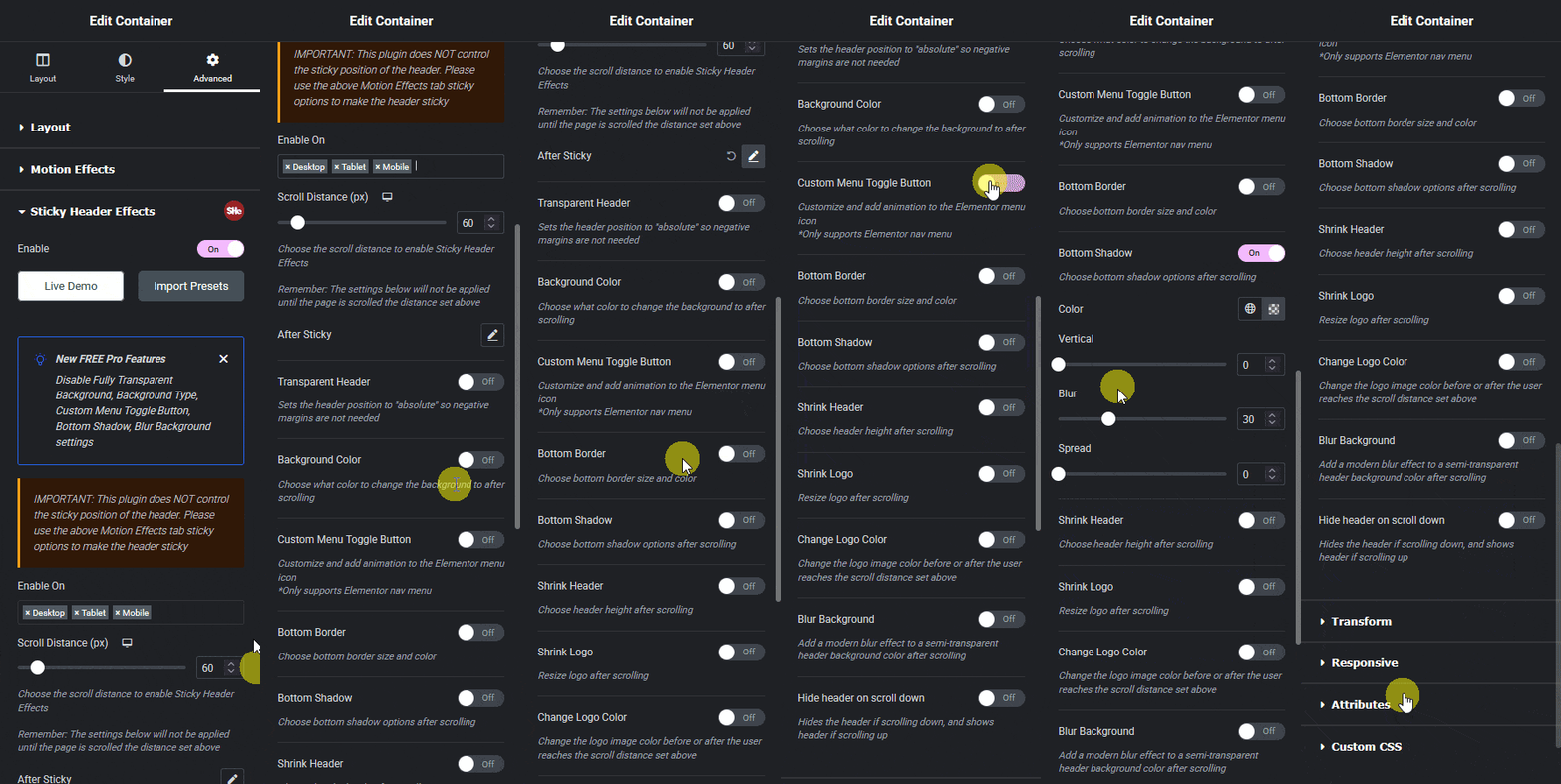
Both sections need to exist first: the top bar and the main header row, stacked in that order on the page or in your Theme Builder header template. Select the main header section, open the Advanced tab, and find Above Header Section inside the Sticky Header Effects panel alongside the other free effects. Enabling it tells the plugin there is a section above the one you are making sticky, so it can account for it during the scroll transition rather than treating the header as if it sits alone at the very top of the page.
As with every effect in this panel, the setting can be reviewed per device using Elementor’s standard responsive icons, which matters here specifically because a top utility bar is one of the more common elements hidden entirely on mobile to save space, changing whether this coordination is even needed on that breakpoint.
[ SCREENSHOT NEEDED: a before/after comparison of a two-bar Elementor header (top utility bar plus main navigation) with Above Header Section off versus on, showing the gap or overlap it corrects during the sticky transition. ]
Why It Gets Skipped
In the effect grid on the homepage, Above Header Section is effect number 10, listed last among the free set, after effects with more immediately visible results like Header Shrinking or Blur Background. A builder testing effects one at a time, in grid order, often stops once the header looks right on a single-section layout and never reaches this one, only to hit the gap-or-overlap problem later on a build that happens to use a two-bar header.

A Simple Example Layout
Picture a header built as two stacked sections. The top section is a slim bar, maybe 40 pixels tall, holding a phone number on the left and social icons on the right. Directly below it sits the main section: logo on the left, navigation menu on the right, roughly 80 pixels tall. Only the main section is set to sticky.
Without Above Header Section enabled, scrolling past the trigger point pins the 80-pixel main row to the top of the viewport, but the 40-pixel bar above it either vanishes abruptly or briefly sits on top of the sticky row before disappearing, depending on how the two sections were positioned. With the effect enabled, the transition accounts for the bar’s presence, so the main row settles into its sticky position without that visual seam.
Testing It After You Enable It
Preview on the live, published page rather than only the Elementor editor canvas. Scroll slowly through the exact point where Scroll Distance triggers the sticky state, and watch specifically for a flash of empty space or a moment where the top bar and the sticky row occupy the same vertical space. Repeat at each device breakpoint, since a top bar that is hidden entirely on mobile changes whether this effect has anything to coordinate on that screen size.
Honest Limits
Above Header Section does not build the top bar itself, and it will not retroactively fix a layout where the top bar and header are not actually stacked as separate, adjacent sections. It coordinates two sections; it does not turn one section into two.
It is also a pairwise tool: one header, one section above it. A build with more than two sticky sections on a page (a header, a floating sidebar, and a promotional bar, for instance) needs Multi-Sticky Coordination, a Pro effect built specifically to sequence up to five sticky sections with priority ordering, rather than stacking multiple Above Header Section settings to approximate the same result.
Frequently Asked Questions
Do I need this effect if my header has no bar above it? No. Above Header Section only matters when a separate section sits directly above the main sticky header. A single-section header does not need it.
Is Above Header Section free? Yes, it is one of the 10 effects available free on unlimited sites, on Elementor Free or Pro.
What is the difference between this and Multi-Sticky Coordination? Above Header Section coordinates exactly two adjacent sections (a bar and the header below it) and is free. Multi-Sticky Coordination handles up to five sticky sections anywhere on a page with priority ordering, and is a Pro effect.
Does the order I stack the two sections in matter? Yes. Above Header Section assumes the coordinated bar sits above the main sticky header in the page’s actual section order, not below it or floating separately, so build the layout in that order before enabling the effect.
See where Above Header Section sits among all 21 effects on the effect grid, or filtered on its own in the Above Header Section template demos. General setup steps for the Advanced tab panel it lives in are in the documentation. Elementor’s own guide to building a Header Site Part covers how to stack a top bar and a main header row as separate sections in the first place. Pro pricing, which adds Multi-Sticky Coordination, is on the pricing page.
Want the sticky header without the code?
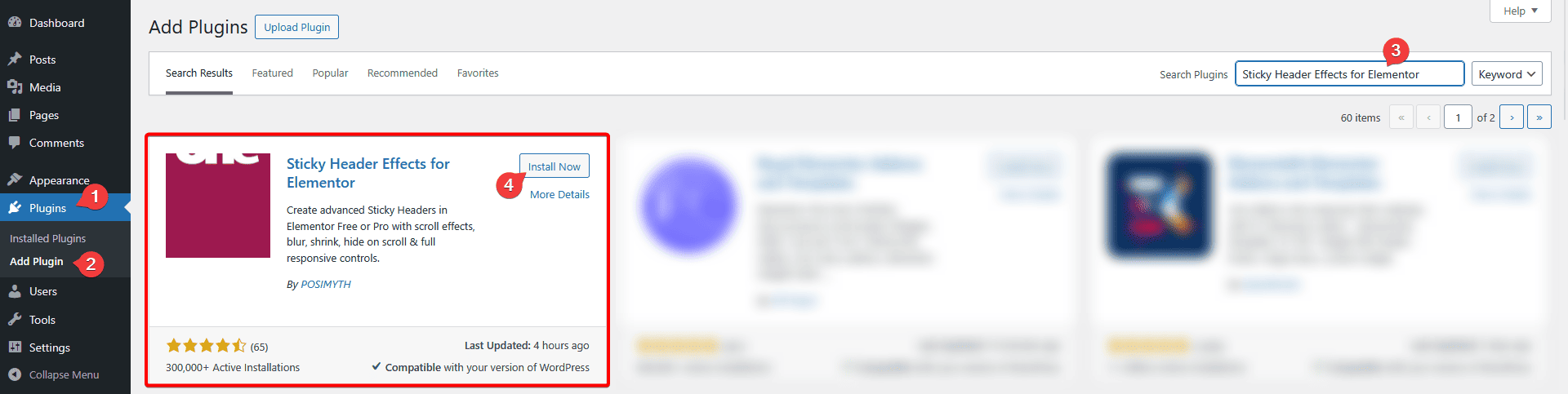
Sticky Header Effects for Elementor drops in as a widget. Free plugin, no account needed.
