
Elementor Header Templates: Where to Find Them and What to Check First
“Elementor header template” covers three different things depending on where you found it, and mixing them up is the fastest way to import something that breaks your build. This guide separates the three, gives a real checklist to run before you click import, and shows where the free plugin ecosystem’s own template libraries fit into the picture.
Many of the plugin’s own 50+ templates are built around a transparent header setup specifically, since it is one of the more visually distinctive effects to demo.
Key Takeaways
- “Header template” can mean an Elementor Pro Theme Builder template, a saved section you export and re-import yourself, or a ready-made design bundled with a plugin like Sticky Header Effects for Elementor’s own 50+ templates.
- Check four things before importing any header template: whether it needs Elementor Pro, what widgets it depends on, whether sticky or scroll effects are built in or missing, and how it performs once it is live.
- Sticky Header Effects for Elementor’s own template library has 50+ ready-made headers, filterable by effect, each with a live demo you can preview before you import anything.
- A header template gives you a design. It does not give you sticky scroll behavior unless the template already includes it or you add a dedicated plugin on top.
- None of this replaces Elementor Pro’s Theme Builder for assigning a header site-wide. Templates and sticky behavior are two separate layers of the same build.
What “Elementor Header Template” Actually Means
Three different things get called an Elementor header template, and they solve different problems. The first is a Theme Builder template: a header assigned site-wide through Elementor Pro’s Theme Builder, built from Elementor sections and widgets like any other page.
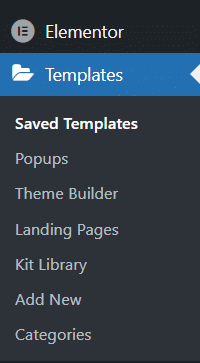
The second is a saved or exported section: a header you or someone else built once, saved as a reusable Elementor template through Elementor’s own Save as Template option, then imported into a new project. This works on Elementor Free or Pro, since saving and reusing a section is a core Elementor feature, not a Pro-only one.
The third is a packaged design bundled with a plugin: a set of pre-built headers that ship with a widget or effects plugin, already styled and sometimes pre-configured with the plugin’s own settings. Sticky Header Effects for Elementor’s 50+ templates fall into this category, each one a header design with scroll effects already turned on.
Where Real Header Templates Come From
Elementor’s own template library, reachable from the editor’s folder icon, holds Elementor’s official blocks and full-page kits, including header sections you can drop onto a page or into the Theme Builder. This is the first place to look, since it requires no extra plugin beyond Elementor itself.
Beyond Elementor’s own library, individual plugins ship their own template sets scoped to what that plugin does. Sticky Header Effects for Elementor’s library sits in this category: 50+ headers, each built around one or more of the plugin’s 21 scroll effects, filterable by which effect you want to see in action.
A general page-builder kit or a theme’s own starter site can also include a header template, but these are usually static designs with no scroll behavior at all. They solve layout, not motion. Treat them as a starting point for the visual design, then add sticky behavior separately if the kit does not already include it.
What to Check Before You Import One
Four checks catch most of the problems that show up after a header template is already live on a real site.
- Does it require Elementor Pro? A Theme Builder template needs Pro to assign site-wide. A saved section or a plugin-bundled template usually works on Elementor Free, since it is placed directly on a page rather than assigned through the Theme Builder.
- What widgets does it depend on? A template built with a third-party addon’s custom widgets will show broken placeholders if that addon is not installed. Check the source page for a widget list before importing.
- Does it include scroll effects, or just layout? Most Theme Builder and starter-kit templates are static. If you want a sticky header with transparent, blur, shrink, or hide-on-scroll behavior, that has to come from a dedicated plugin, either built into the template or added afterward.
- How does it perform once it is live? A heavy template with several nested sections and background images can slow the exact part of the page that loads first. Preview it on the live front end, not just the editor canvas, before publishing.
How Sticky Header Effects for Elementor’s Templates Work
The plugin’s template library is organized by effect rather than by industry or style. Pick Blur Background, Hide Header on Scroll Down, or any of the other 10 free or 11 Pro effects, and the library shows headers built around that specific behavior.
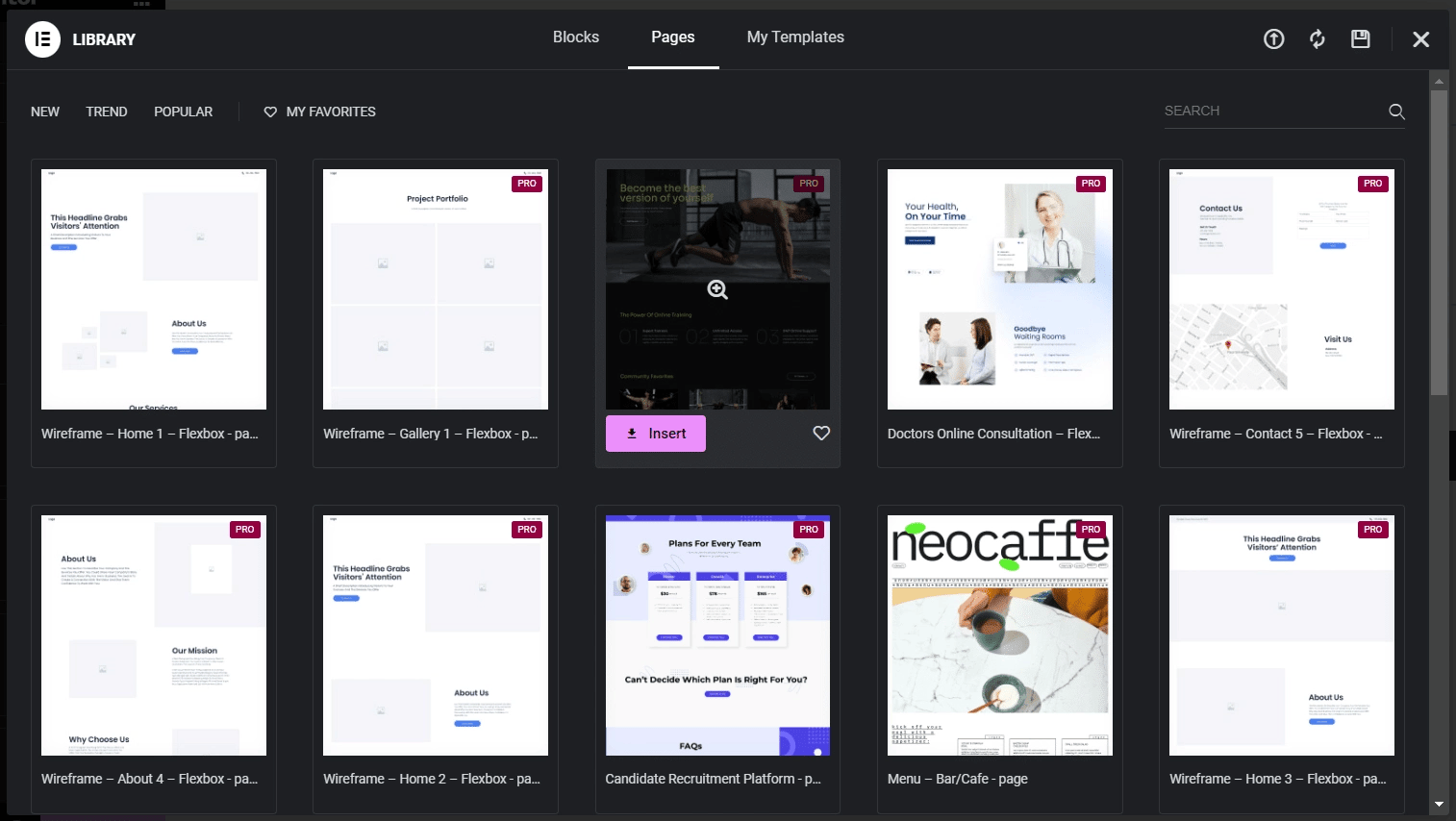
Each template opens a live demo before you import it, so you see the actual scroll behavior rather than a static preview image. This matters more for header templates than for most other template types, since a screenshot cannot show what happens on scroll.
Importing one still leaves you with an Elementor section you can edit like any other: swap the logo, adjust colors, change the menu items. The effect settings live in the same Advanced tab panel described in the plugin’s own setup guide, so nothing about editing the imported header is different from building one from scratch.
Importing a Template Without Breaking Your Site
Import into a staging copy or a new draft page first, not directly into a live Theme Builder header slot. This isolates any widget-dependency or style conflict before it reaches visitors.
After import, check the header on your actual mobile breakpoint, not only the desktop editor view. A logo or menu sized for a wide desktop header frequently needs adjustment on smaller screens regardless of which template it came from.
What Templates Do Not Solve
A template is a starting design, not a finished decision about site architecture. It will not resolve a mega menu that needs to hold dozens of links, and it will not turn a static theme header into a Theme Builder-controlled one by itself; that assignment step still needs Elementor Pro.
It also will not add scroll behavior on its own if the source library does not build that in. A beautifully designed static header template still needs a dedicated sticky-effects plugin layered on top if the goal is a header that reacts to scroll.
Frequently Asked Questions
Do Elementor header templates work without Elementor Pro? A saved section or a plugin-bundled template generally does. A Theme Builder template, meaning one assigned site-wide rather than placed on a single page, needs Elementor Pro.
Do Sticky Header Effects for Elementor’s templates include the sticky behavior already turned on? Yes. Each one is built around a specific effect from the plugin’s 21-effect set, so the scroll behavior ships pre-configured rather than added afterward.
Can I edit a template after importing it? Yes, exactly like any Elementor section: change the logo, colors, menu items, and effect settings from the same Advanced tab used when building a header manually.
For the full library, browse the 50+ ready-made header templates, filterable by effect with a live demo for each. For the setup steps behind the effects themselves, see the Elementor sticky header setup guide. Elementor’s own Theme Builder documentation covers site-wide header assignment in detail, and the official Elementor plugin listing on WordPress.org has current version and requirement information. Pricing for Sticky Header Effects for Elementor Pro, including the templates and effects it unlocks, is on the pricing page.
Want the sticky header without the code?
Sticky Header Effects for Elementor drops in as a widget. Free plugin, no account needed.
