
Logo Shrinking on Scroll in Elementor, Set Up Without Code
A full-size logo sitting inside a header that has already shrunk on scroll is one of the most common half-finished sticky-header setups. Logo Shrinking, one of the 10 free effects in Sticky Header Effects for Elementor, resizes the logo itself on the same scroll trigger. It has almost no measurable search volume as a standalone keyword, but real support tickets show it is a real, recurring setup question, which is the actual reason for covering it here.
Match this trigger point with Header Shrinking if both are active, so the logo and header resize at the same scroll distance.
The shrink itself runs on the same CSS transform property as every other effect in the plugin, which is why it stays smooth on scroll.
Key Takeaways
- Logo Shrinking is free, one of 10 effects included forever on unlimited sites, no Pro license required.
- It resizes the logo image on the same sticky-state trigger as the rest of the header, set from the same Advanced tab panel as every other Sticky Header Effects toggle.
- Logo Shrinking and Header Shrinking are separate, independent effects. Turning one on does not automatically resize the other.
- Real support tickets show two recurring problems: a logo that shrinks too slowly or unevenly on mobile, and a logo that does not visually shrink at all even though the sticky background effect is working.
- Set the shrink transition per device separately; a logo sized correctly on desktop can look disproportionate against a narrower mobile header if left at the same values.
Before You Start
You need a header already built in Elementor with a Logo or Image widget in place, and the base sticky control already enabled through Sticky Header Effects for Elementor. Logo Shrinking resizes that existing logo element on scroll; it does not add a logo to a header that does not have one yet.
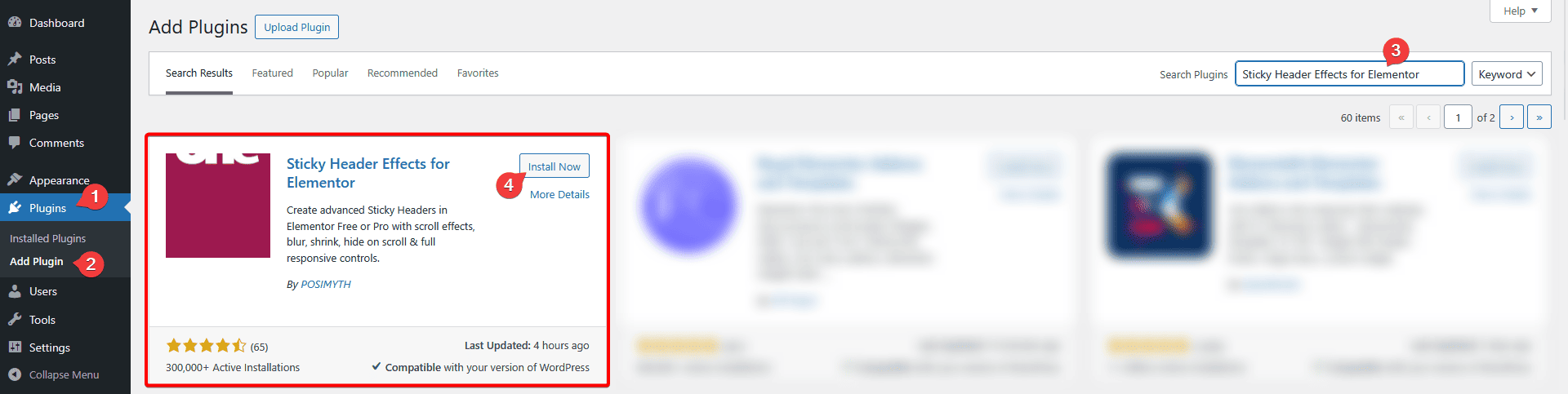
Install Sticky Header Effects for Elementor from the WordPress.org plugin directory if it is not active: Plugins, Add New, search, Install, Activate. No license key is required for the free tier.
Step 1: Turn On the Logo Shrinking Toggle
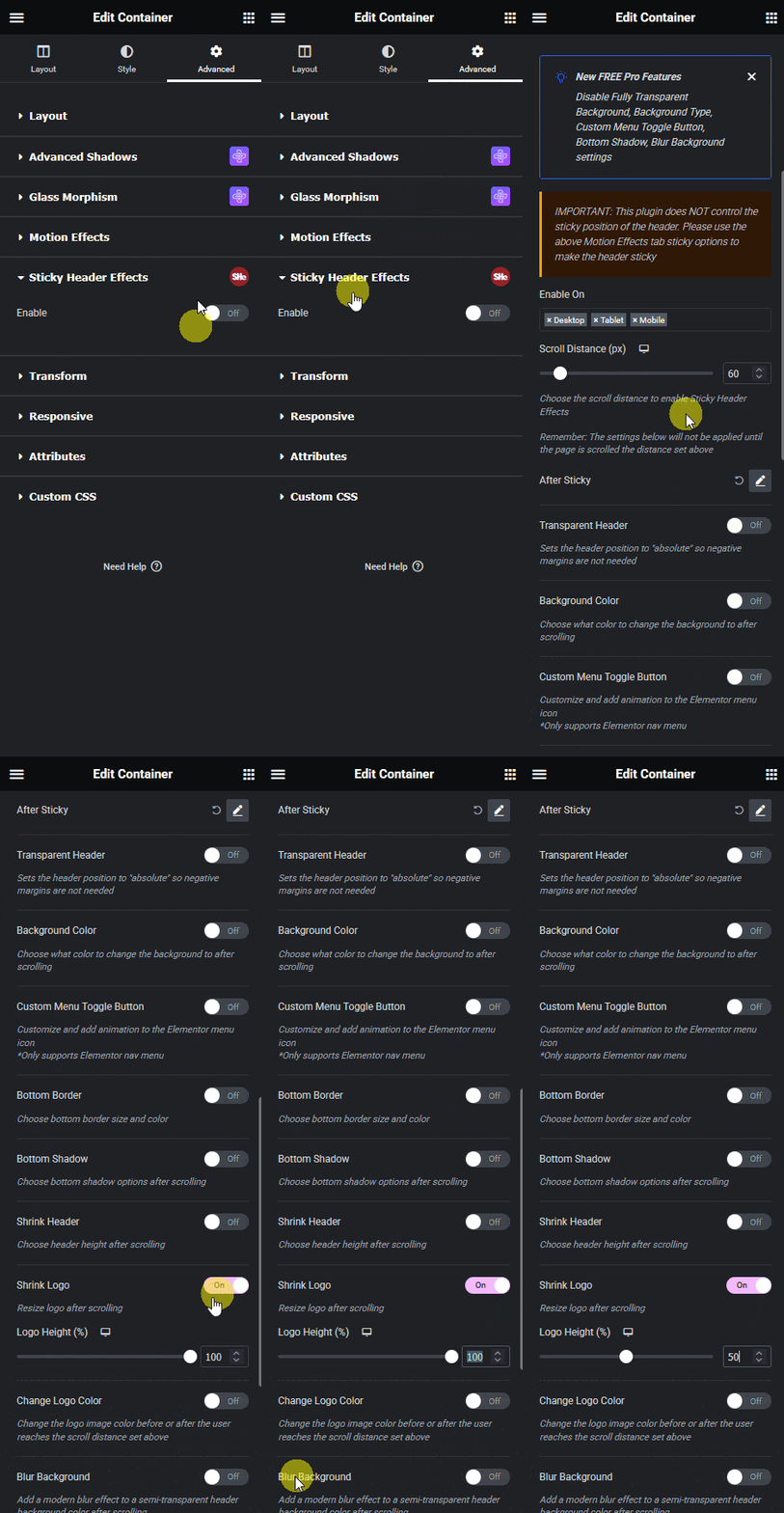
Select the section or container wrapping your header, open the Advanced tab, and expand the Sticky Header Effects panel. Logo Shrinking sits alongside the other 9 free effects: Header Scroll Distance, Transparent Header Background, Dynamic Background Color Change, Bottom Border Styling, Header Shrinking, Logo Color Change, Blur Background, Hide Header on Scroll Down, and Above Header Section.
Step 2: Set the Sticky-State Logo Size
Logo Shrinking exposes a separate width or height value for the logo’s sticky (scrolled) state, distinct from its normal size. A reduction to roughly 70 to 80 percent of the original logo size is a common starting point, the same rough ratio that works for Header Shrinking, since the two effects are usually visually paired even though they are configured independently.
Set this value against your actual logo file, not a percentage guess applied blind. A wide horizontal logo and a square icon-style logo tolerate different amounts of shrink before becoming hard to read, particularly on a header that is also shrinking in height at the same time.
Step 3: Check the Transition on a Real Phone, Not Just Desktop
A real closed support ticket describes exactly this failure mode: a site owner reported that on a specific mobile page, “the logo shrinks very oddly and looks very weird. It shrinks very slowly on scroll, rather than in on go,” a problem visible in a screen recording attached to the ticket rather than caught in normal desktop testing (ticket 18331, closed 2025-09-20).
The lesson is direct: preview the shrink transition using Elementor’s actual mobile responsive mode or a real device, not only a resized desktop browser window, since mobile scroll and address-bar behavior can make a transition look and feel different than it does on desktop.
Choosing Width or Height as the Controlling Value
Most logo files are wider than they are tall, so setting a fixed width and letting height scale proportionally usually keeps the logo’s own aspect ratio intact through the shrink transition. Setting a fixed height instead can distort a non-square logo if the image itself is not set to scale proportionally inside its container.
Check this specifically if your logo is an SVG rather than a raster image. SVG logos generally scale more cleanly at small sizes than a PNG or JPG original, which can show visible softness once shrunk below its native resolution.
What Actually Goes Wrong
The logo does not shrink at all, even though the header background is changing. A separate real ticket describes this precisely: a site owner following a tutorial for a transparent sticky header with color-change and logo-shrink effects found that “when I scroll, the effect is just on the section where the navigation menu is, the logo with the sticky option doesn’t work” (ticket 14921, closed 2024-12-24). Dynamic Background Color Change and Logo Shrinking are separate, independent toggles; enabling one does not enable the other, so confirm the Logo Shrinking toggle itself is on and pointed at the correct logo widget, rather than assuming a working background effect means every effect is active.
The shrink looks fine on desktop but breaks on mobile. Set the logo’s sticky size independently per device through Elementor’s responsive-mode icons, rather than letting mobile inherit the desktop value. A shrink ratio tuned for a wide desktop logo can crush a mobile logo below a legible size if left unchecked.

What This Effect Does Not Do
Logo Shrinking resizes the existing logo image. It does not swap in a different logo file on scroll, that is Logo Image Swap, a separate Pro effect, and it does not change the logo’s color, that is Logo Color Change, a separate free effect. All three can run together on the same header, each configured on its own.
Field-level setup detail specific to this effect is in the Logo Shrinking documentation. For problems beyond what is covered here, the troubleshooting guide covers issues shared across all 10 free effects.
Frequently Asked Questions
Is Logo Shrinking free? Yes, one of the 10 effects included forever on unlimited sites, no Pro license required.
Do I need Header Shrinking active for Logo Shrinking to work? No, the two are independent. Most builds run them together for a consistent look, but either can be enabled alone.
Why does nobody search for this by name? “elementor logo swap on scroll” and close variants returned zero indexed monthly search volume in DataForSEO, pulled 2026-09-15. The case for covering it is the real, quoted support tickets above, not keyword volume.
Can Logo Shrinking and Logo Image Swap run at the same time? Logo Image Swap is a separate Pro effect that changes which logo file displays once sticky. Running it alongside Logo Shrinking, a free effect, means the swapped-in logo also resizes on the same trigger, since both act on the same logo element.
MDN’s CSS transition reference documents the browser mechanics behind any smooth size change on scroll. See the full 21-effect grid for how Logo Shrinking fits with the other 20 effects, and the complete sticky header setup guide for the base sticky configuration this effect depends on.
Want the sticky header without the code?
Sticky Header Effects for Elementor drops in as a widget. Free plugin, no account needed.
